How to export the areas and perimeters of multiple shapes at a time
Categories Common Features
QubiMap supports exporting multiple shape areas and perimeters at the same time.
☆Note: This feature is only available to VIP or SVIP users.
1. PC
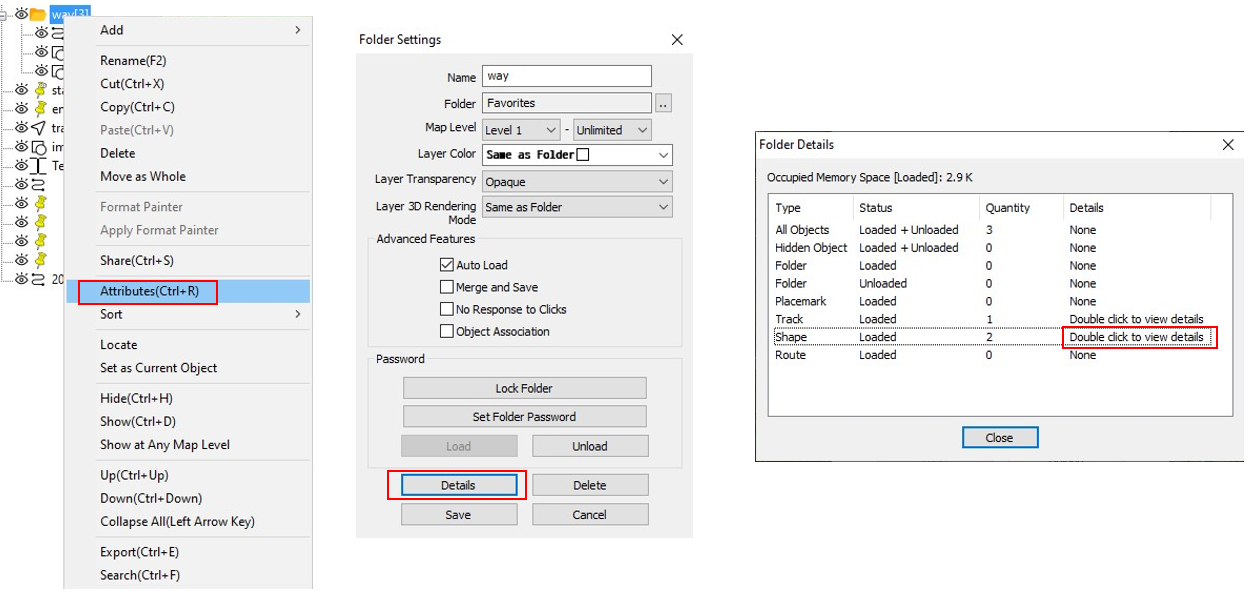
① Find the folder where the required shapes are saved, right-click it, and select [Attributes];
② Click [Details], and double-click the Shape row to view the shape details;
③ In the shape details dialog box, click [Export CSV], set the file path and output items, and then click [OK].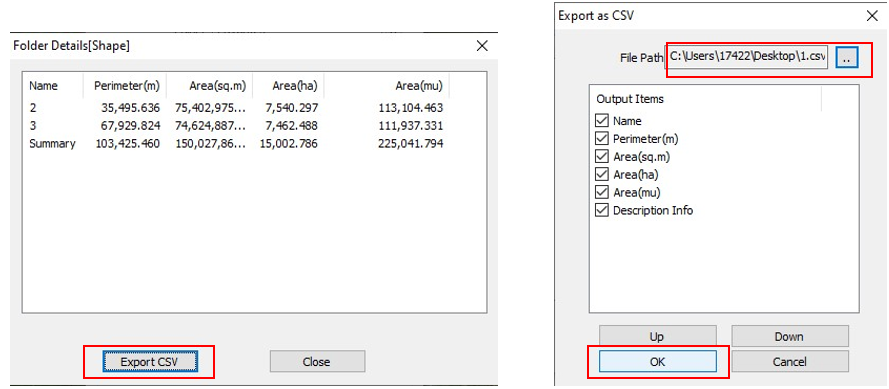
④ You can open the CSV file with Excel.

2. Mobile device
1) Export shape data as a CSV file
① Tap [Favorites], and then tap the  button next to the folder where the required shapes are saved (For iOS devices, tap the
  button). If the shapes are save in the root directory of the Favorites folder, tap [Menu] in the upper right corner and select [Current Folder].
② On the [Folder Settings] page, tap [Details], and then tap the Shape entry to view the shape details;

③ Tap [Export as CSV], set the file name and output items, and then tap [OK].

2) Send the CSV file to your computer or sharing it with your friends
The generated CSV file is saved in the QubiMap root directory. You can send the file to your computer via P2P transmission and open it with Excel.
For more information about P2P transmission, see the help document “How to send files or folders via P2P transmission“.
You can also share the file with your friends via third-party apps by performing the following steps:
① Choose [Favorites] → [Menu] → [Import & Export] → [File Sharing] → [File Sharing].

Select the files, tap [OK], and then choose a third-party app for sharing.
