How to back up data to other devices
Categories Common Features
To prevent data loss caused by inappropriate operations, you can regularly back up the data in your favorites.
QubiMap provides the following methods to back up data to other devices:
1. Sync between devices
You can sync data between devices without logging in to your QubiMap account. The devices must be in the same network segment.
For more details, see the help document “How to sync data between devices“.
2. Sync between accounts
To sync data by using this method, you need to log in to your QubiMap account.
2.1 Sync between friends
Option 1: P2P sync
Peer-to-peer sync is initiated by the party with the data. The sync procedures for different versions are as follows:
PC: Log in to your account, switch to the [Friends] pane, right-click a friend name, and then select [P2P Sync]. After the other party accepts the sync request, click [Sync Analysis], and then click [Start Sync] to sync the favorites data. If there are attachments, you can continue syncing the attachments.
Mobile device: Log in to your account, and tap the profile picture in the upper left corner. On the [Friends] page, tap the  button next to a friend name. On the friend information viewing page, tap [P2P Sync]. After the other party accepts the sync request, tap [Sync Analysis], and then tap [Start Sync] to sync the favorites data. If there are attachments, you can continue syncing the attachments.
For more details, see the help document “How to share your favorites data with friends via P2P sync“.
Option 2: Send favorites data via the chat window
Note: A single message cannot exceed 256MB.
The procedures for different versions are as follows:
PC: Log in to your account, switch to the [Friends] pane, and double-click a friend name. On the chat window that appears, click [Favorites], select the data, and then click [Send]. The other party can download the data and add the required objects to the favorites.
Mobile device: Log in to your account, and tap the profile picture in the upper left corner. On the [Friends] page, tap a friend name. On the chat window that appears, tap the “+” icon in the lower right corner, select [Favorites], and select the data to send. The other party can download the data and add the required objects to the favorites.
For more details, see the help document “How to quickly sync data between a mobile device and PC“.
2.2 Sync within a single account
Option 1: P2P sync
Each QubiMap account can only be used on one PC and one mobile phone (or tablet) at the same time.
Peer-to-peer sync is initiated by the party with the data. The sync procedures for different versions are as follows:
PC: Log in to your account, switch to the [Friends] pane, right-click [My Mobile Phone], and then select [P2P Sync]. In the [P2P Sync] dialog box, click [Sync Analysis], and then click [Start Sync] to sync the favorites data. If there are attachments, you can continue syncing the attachments.
Mobile device: Log in to your account, and tap the profile picture in the upper left corner. On the [Friends] page, tap the button next to [My Computer], and then select [P2P Sync]. In the [P2P Sync] dialog box, click [Sync Analysis], and then click [Start Sync] to sync the favorites data. If there are attachments, you can continue syncing the attachments. To sync the favorites data, you can also tap [Favorites] on the main UI to go to the [Local Favorites] page. On this page, click [Menu] in the upper right corner and select [Sync Objects with My Computer].
For more details, see the help document “How to sync favorites data between a mobile device and PC“.
Option 2: Send favorites data via the chat window
Note: A single message cannot exceed 256MB.
The procedures for different versions are as follows:
PC: Log in to your account, switch to the [Friends] pane, and double-click [My Mobile Phone]. On the chat window that appears, click [Favorites], select the data, and then click [Send]. Then, you can use the mobile client to download the data and add the required objects to the favorites.
Mobile device: Log in to your account, and tap the profile picture in the upper left corner. On the [Friends] page, tap [My Computer]. On the chat window that appears, tap the “+” icon in the lower right corner, select [Favorites], and select the data to send. Then, you can use the PC client to download the data and add the required objects to the favorites.
For more details, see the help document “How to quickly sync data between a mobile device and PC“.
3. Export the favorites as an ovobj file and then send it to other devices
(1) PC:
A. Export data:
① Choose [System] > [Export Object] > [Select Object];
② Select the data and click [OK];
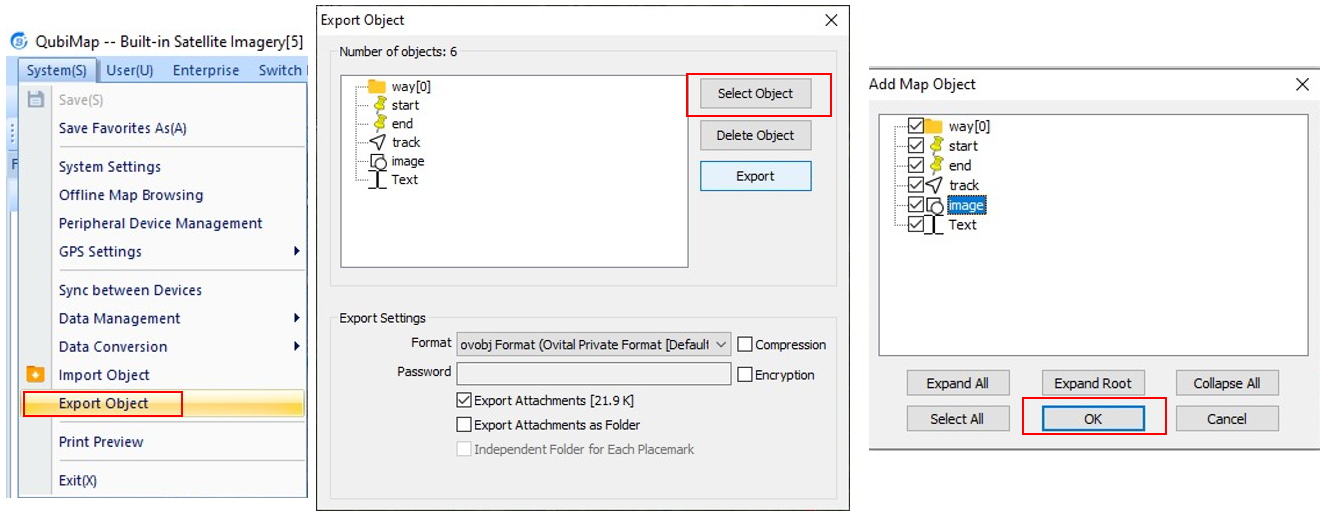
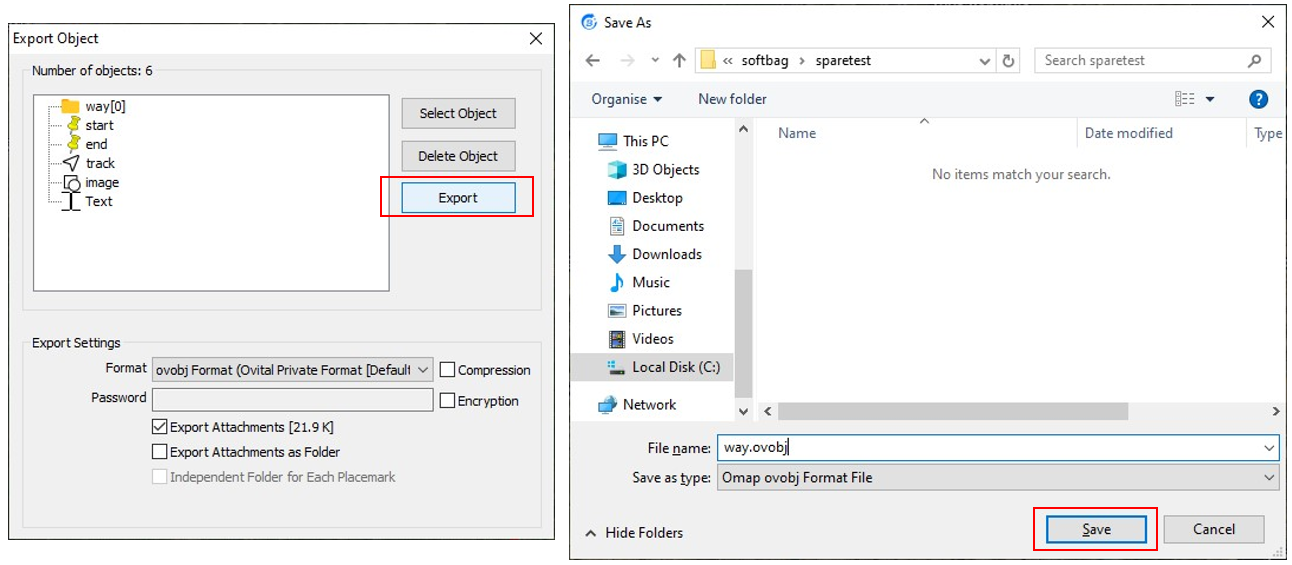
③ In the export settings, set Format to [ovobj Format], and select [Export Attachments];
④ Click [Export], enter a file name, and then click [Save].
B. Share data:
Share data with friends via third-party apps.
(2) Mobile device:
A. Export data:
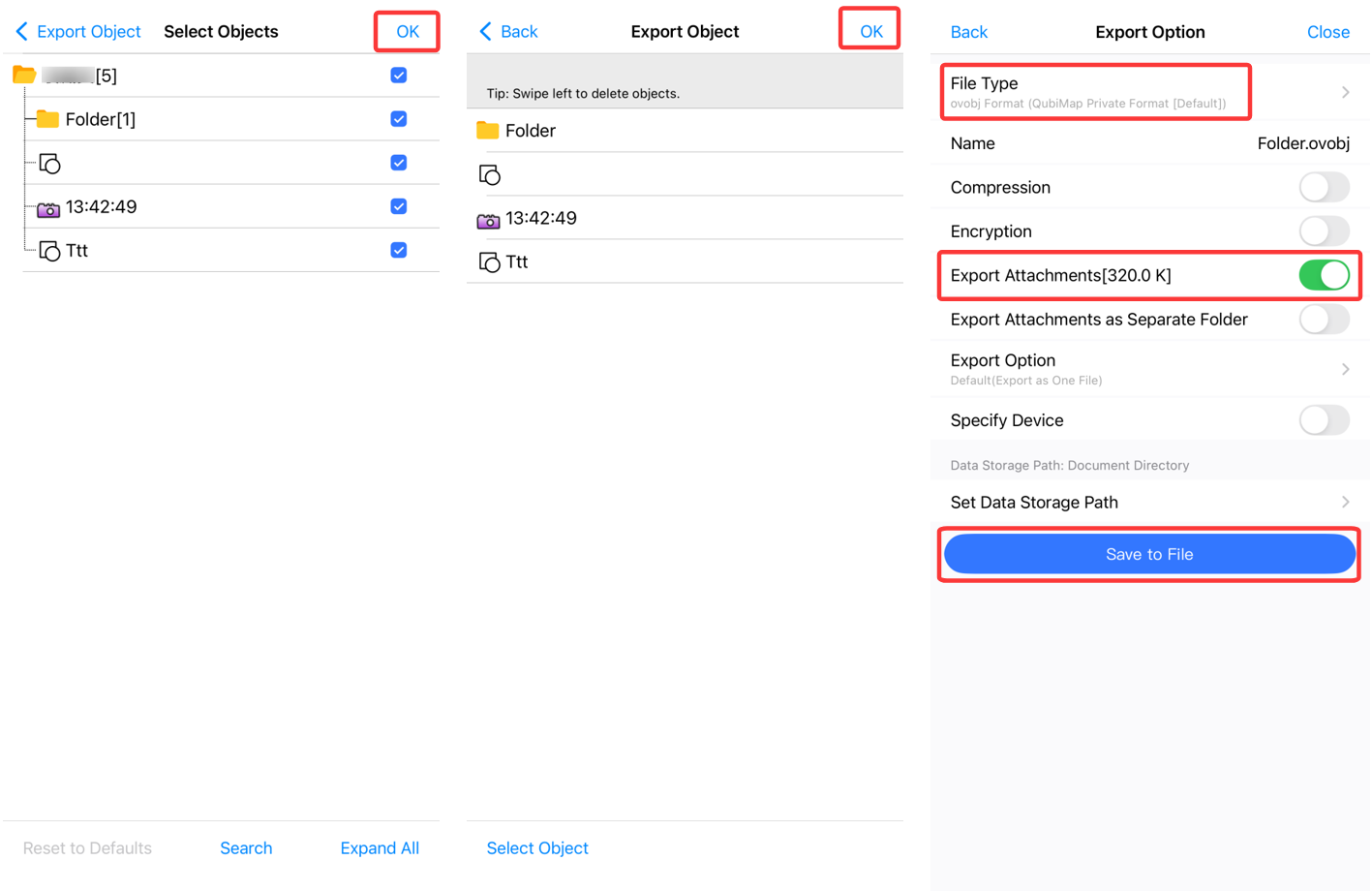
① Choose [Favorites] → [Menu] → [Import & Export] → [Export Object];
② Select the objects, and tap [OK]. On the [Export Object] page, tap [OK]. In the export settings, select [ovobj Format] as the file type, and select [Export Attachments];
③ Enter a name, and tap [Save to File] to export data.
B. Share data:
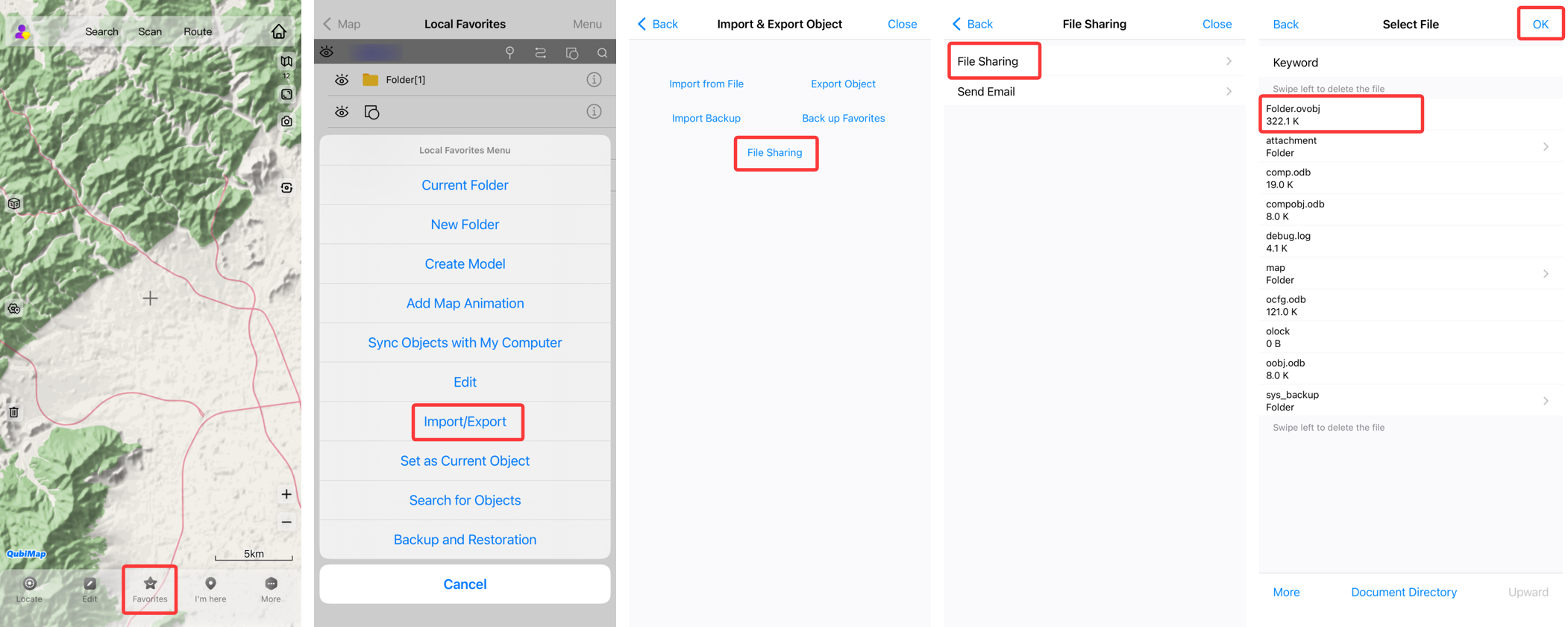
On the main interface of the mobile client, choose [Favorites] → [Menu] → [Import & Export] → [File Sharing] → [File Sharing], select the previously exported file, and tap [OK]. You can then share it with your friends via third-party apps.
4. Copy the data directory to other devices
You can directly copy the data folder from the QubiMap installation directory to other devices.
The installation directory may differ based on devices. For more details, see the help document “[Software download and installation guide“.