QubiMap Enterprise
- Secure data management
- Centralized data sharing and access control
- Strict permission management
- Convenient remote assistance
- Multi-level network topology
- Enterprise intranet deployment
- Centralized authorization
- Enterprise cloud server
- Unified account management system
- Custom enterprise server address
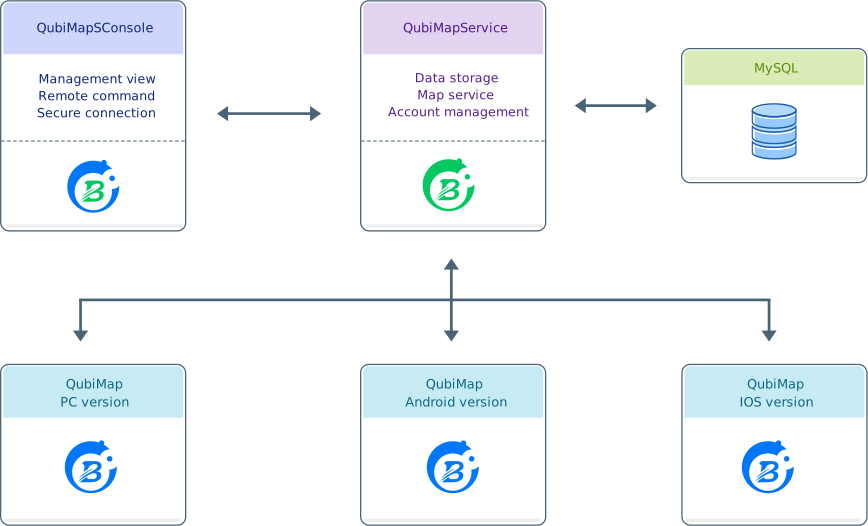
Enterprise Deployment Methods
QubiMap enterprise server supports the following deployment methods: Intranet and Cloud Host.
- Intranet Deployment: The server can be deployed within an isolated internal network that is separated from the public Internet. This ensures a high level of network security for users.
- Cloud Host Deployment: Users can purchase a cloud server from providers like AWS and Microsoft Azure, download the QubiMap server software, and install it independently. Users maintain full control over their server environment, offering maximum flexibility and customization.
Intranet Deployment
VIP Requirement
Offline VIP (dedicated internal VIP)
Server & Hardware Requirements
| Self-built server | |
| CPU: Dual-core | Memory: 4 GB |
| Disk: 50 GB | Bandwidth: 2 Mbps |
| IP: Intranet IP |
Supported Features
| Map service | User service | Data service |
Installation Steps
| 1. Prepare the server |
| 2. Install the QubiMap server software and MySQL software |
| 3. Start the QubiMap server, and log in from the client side |
| 4. On the console, export registration codes and device codes |
| 5. On a device available to the Internet, log in to the QubiMap account management system, apply for authorization codes, and export the authorization file |
| 6. On the console, import the authorization file |
| 7. If the client version is updated, reauthorization is required (QubiMap coins will not be consumed again during the validity period) |
Cloud Host / Self-Built Host
VIP Requirement
VIP
Server & Hardware Requirement
| Self-built server or cloud host | |
| CPU: Dual-core | Memory: 4 GB |
| Disk: 50 GB | Bandwidth: 2 Mbps |
| IP: Fixed public IP |
Supported Features
| Map service | User service | Data service |
Installation Steps
| 1. Purchase a cloud host or server directly from a cloud service provider |
| 2. Configure the security group |
| 3. Install the QubiMap server software and MySQL software |
| 4. Use the console and QubiMap client to connect with the server |
Enterprise Deployment Pricing
Intranet
Hardware: Users build their own server and network infrastructure.
Software: QubiMap enterprise version software is free, including the enterprise server and management console.
Cloud Host / Self-Built Host
Hardware: Users build their own server and network infrastructure, or purchase a cloud host. Fees are charged by the service provider.
Software: QubiMap enterprise version software is free, including the enterprise server and management console.
Client VIP Pricing (USD / per account / month)
| VIP Level | Price (USD) |
| VIP | 2 |
| SVIP | 6 |
* The enterprise cloud favorites feature is only available to SVIP users.
* Whether the plan is purchased by a company or individual, the VIP features and pricing are the same.
Quick Guide for Enterprise Deployment
The server and console software can be downloaded for free from the official website.
Overview of Enterprise Server Features
Map Service
- Distribution of downloaded maps on the Intranet
- Private layer distribution
User Service
- Data synchronization
- Instant messaging
- Cloud sharing
- Enterprise hierarchical management
Data Service
- Shared cloud management
- Real-time command
- Layer sharing
- User location data acquisition
- User-based permission control

1. Map Service
All maps required by the enterprise can be pre-downloaded on the enterprise server. All
terminals connected to the enterprise server can download map data directly from it.

2. User Management
Admins can create users and groups on the enterprise server based on the organizational
structure. End users log in with admin-assigned accounts and see the structure list and communicate with other members.

3. User Data Synchronization
After logging in to the enterprise server, users can sync local data to the server.
There is no limit on the data volume each user can sync.

4. User Communication
Logged-in users can communicate with each other (sending text, objects, files, etc.).
All communication records are permanently saved on the server.

5. User Data Sharing
Logged-in users can access each other’s cloud spaces (permissions managed by admins).

6. User Location Data Collection
Admins can collect and record users’ location data as needed.

7. Real-time Command
Admins can send real-time commands to selected online users via the console and
remotely manage their map interfaces.

8. Shared Cloud Management
Admins can manage data in the enterprise-shared cloud, assigning folders or files to
different users or groups with up to 8 permission levels.

9. Layer Sharing
Admins can bundle many objects into a layer and allow specific users or groups to
access it. When they view that area on the map, accessible objects will be automatically downloaded and displayed.

10. Centralized Management Interface
Admins can manage everything via the console using a C/S structure. It supports
hardware-based secure authentication and encrypted communication, as well as multi-admin collaboration.

11. Enterprise Cloud Favorites
Admins can flexibly assign permissions to different enterprise users to achieve
bidirectional information release, collaborative engineering, and automatic data backup/sync.