Enterprise-shared cloud management
Categories Enterprise Solutions
QubiMap provides the enterprise solutions to achieve efficient data sharing and strict access control. Enterprise administrators can centrally manage massive data and access permissions on the cloud.

After you deploy the enterprise server, the following two folders are generated by default and cannot be deleted: Share and Users. The Share folder is accessible to all enterprise users, typically used to store public data. The Users folder is used to store private data of each enterprise user. When an enterprise user logs in to the enterprise server on the QubiMap client and opens the [Enterprise-Shared Cloud Management] window, the system automatically creates a folder for the user in the Users directory. The folder is named after the user, and each enterprise user can only access their own folder. The administrator can reset permissions for the Share and Users folders, as well as all the subfolders and files.
On the QubiMap client, enterprise users can perform operations such as uploading, downloading, viewing downloads, viewing attributes, and deleting within their own folders in the Users directory or the Share directory if the administrator has granted the relevant permissions. To log in to to the enterprise server on the client, choose [Enterprise] > [Log in to Enterprise Server]. Then, choose [Enterprise] > [Enterprise-Shared Cloud Management] to perform the preceding operations as needed.
The administrator can manage the cloud data uploaded by client users on the server console. Choose [System] > [Enterprise-Shared Cloud Management]. In the [Enterprise-Shared Cloud Management] dialog box, the administrator can create groups, upload, download, or delete data, set access permissions, and set shared layers.

The following sections describe how to manage the enterprise-shared cloud data on the server console.
1. Create a group
In the [Enterprise-Shared Cloud Management] dialog box, click [Create Group]. In the dialog box that appears, enter a name and description, and then click [OK].

2. Set attributes (mainly permissions)
(1) Group attributes
In this example, the [north_base] group is created to demonstrate how to set the group attributes.
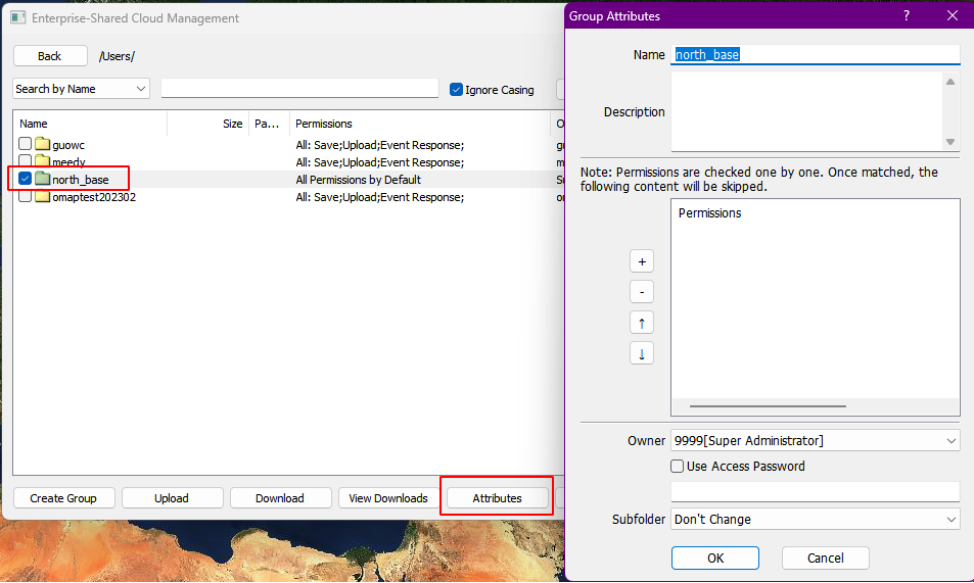
In the [Enterprise-Shared Cloud Management] dialog box, select the [north_base] group, and click [Attributes]. In the [Group Attributes] dialog box, you can modify the name and description, add or delete permissions for client users, and set the owner and access password.
① Add permissions
In the [Group Attributes] dialog box, click the [+] button. In the [Permission Settings] dialog box, you can assign different permissions to different users. Select a user from the drop-down list, select the permissions you want to assign to that user, and then click [OK]. You can select a single user or a user group to grant the corresponding permissions. You can also select {All} to specify all users.

★ Permissions:
After you assign permissions to a user on the server console, the user can perform the corresponding operations on the QubiMap client. In this example, the user [peng] is authorized on the server console.
A. Query: The user can view the [North_Base] group in the [Enterprise Shared Cloud Management] dialog box on the client.

B. Online Browsing: The user can view the [North_Base] group and load the data to the map window for online browsing.
Without this permission, the user cannot download the data on the client, as shown in the following figure:
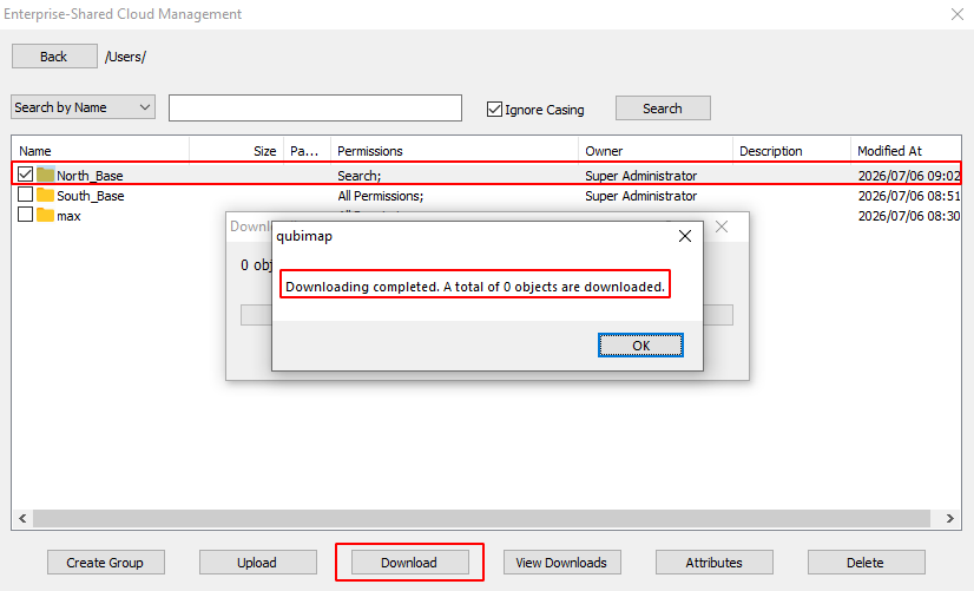
With this permission, the data is successfully downloaded, as shown in the following figure:

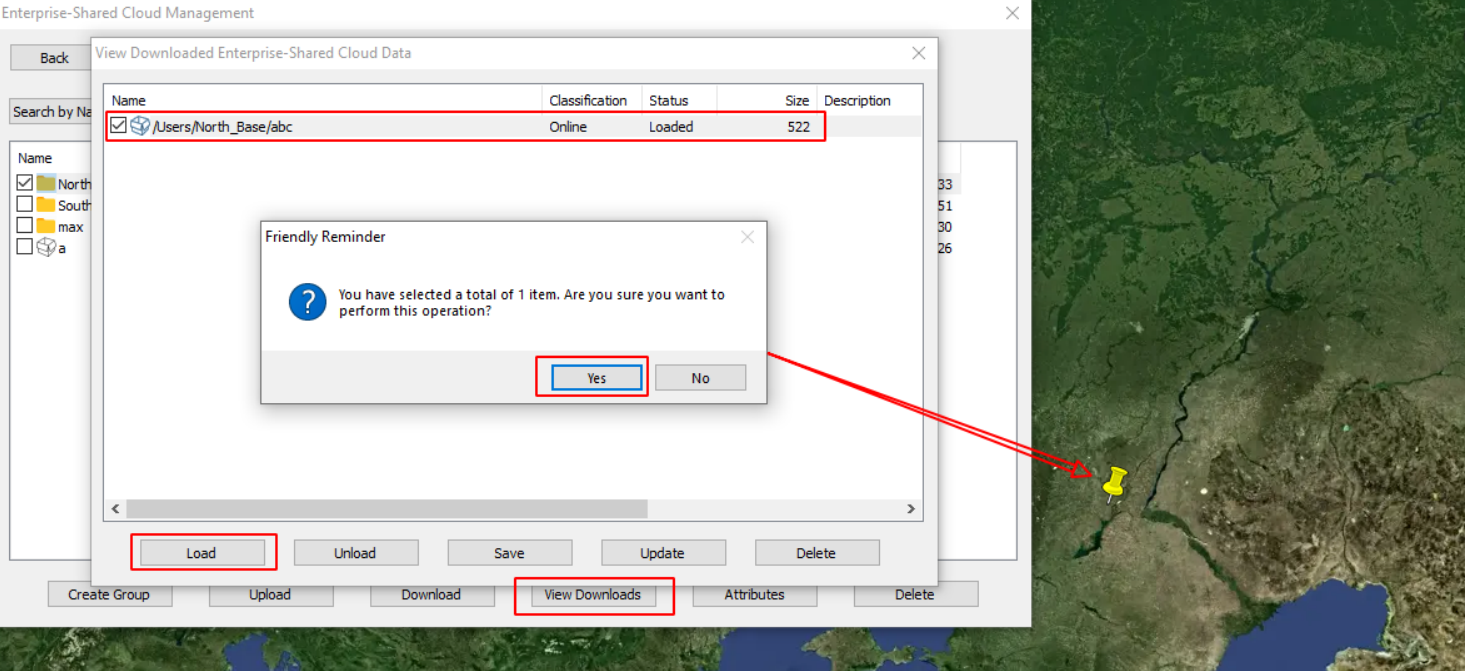
Click [View Downloads] to view the downloaded data. In the data list, the [Category] column shows [Online], indicating that the data can be viewed online. Select the data, click [Load], and then click [Yes] to load and demonstrate the data on the map.
C. Offline Browsing: The user can still view the loaded data on the map after logging out of the enterprise server. 
D. Event Response: After the user loads the data online on the map, the description information appears when clicking on the loaded objects. If you do not select this permission, clicks on the objects will generate no response.
If the user loads data to the map without the [Event Response] permission, and then you assign this permission on the console, the user needs to select the downloaded data in the [View Downloaded Enterprise-Shared Cloud Data] dialog box on the client, and click [Update] → [Unload] → [Load] for click events to take effect.

E. Save: The user can save the downloaded data in the [North_Base] group to the local favorites on the client.
Without this permission, the user cannot save the downloaded data to the local favorites, as shown in the following figure:

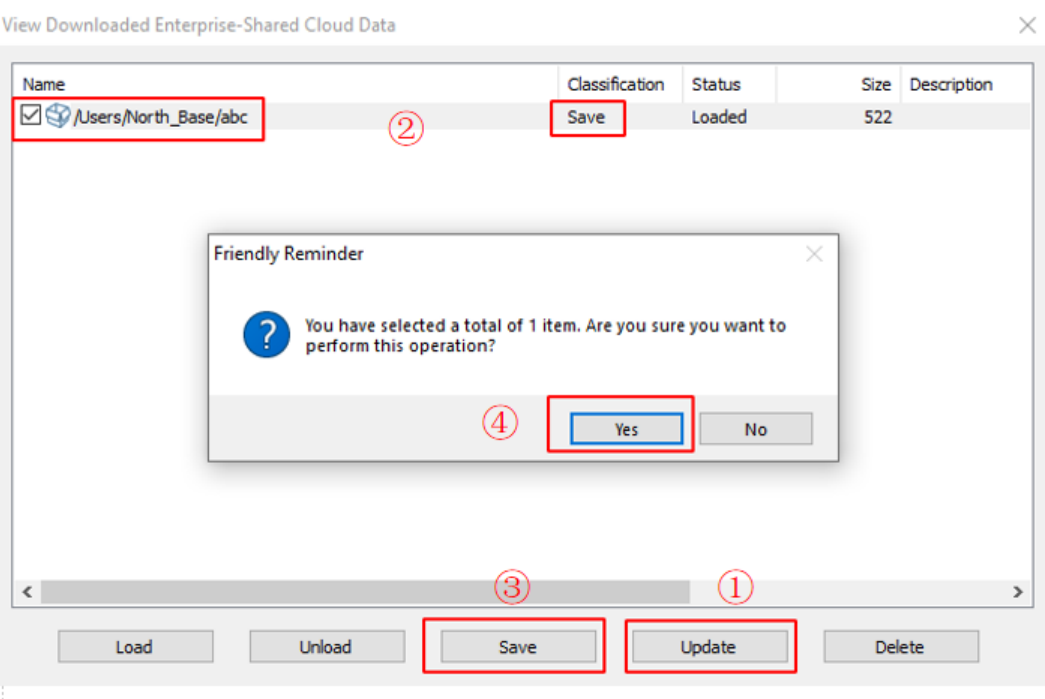
If the user downloads the data without the [Save] permission and then you assign this permission on the console, the user needs to click [Update] in the [View Downloaded Enterprise-Shared Cloud Data] dialog box on the client, and click [Save] to add the data to the local favorites.
F. Upload and Delete Files: The user can upload the local favorites data to the [North_Base] group on the client and delete data within the group.
Without this permission, the user cannot perform these operations in the group, as shown in the following figure:
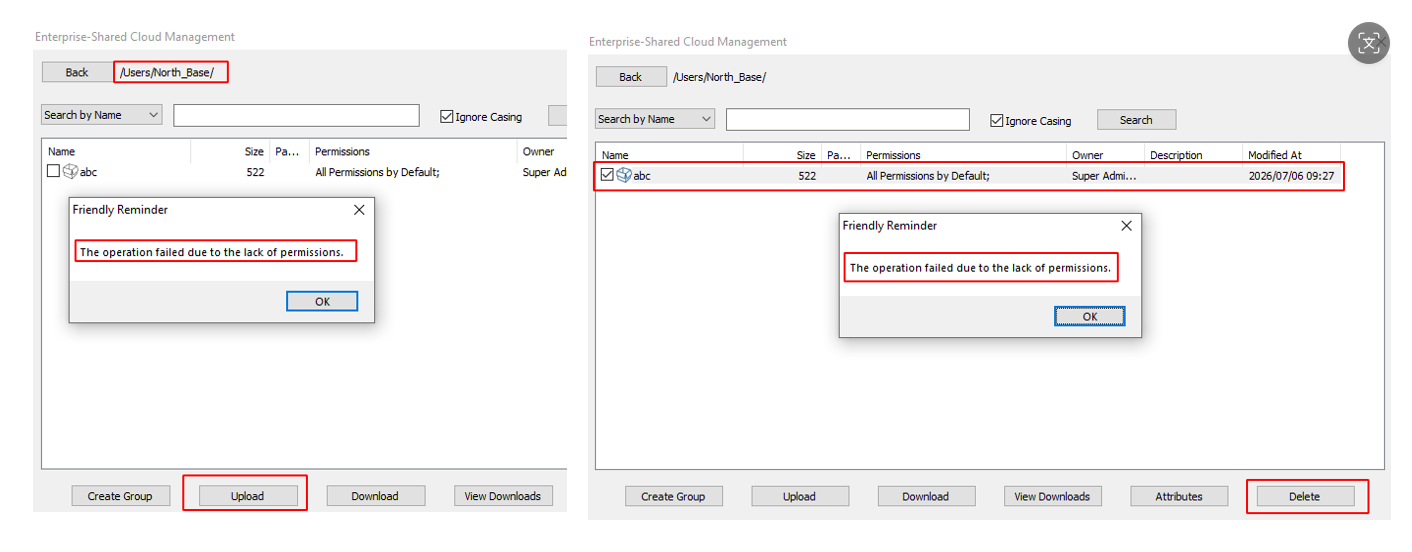
With this permission, the user can go to the [North_Base] group in the [Enterprise-Shared Cloud Management] dialog box and click [Upload] to upload data.

The user can also select the data uploaded from the local favorites and click [Delete] to delete it.

G. Manage: The user can manage the [North_Base] group on the client, including all available operations.
Without this permission, the user cannot delete data uploaded by others, as shown in the following figure:

With this permission, the user can delete data uploaded by others. After deletion, the data is no longer displayed in the [North_Base] group.
② Remove permissions
In the [Group Attributes] dialog box, select the permission you want to remove from the list, click the [-] button, and then click [OK].
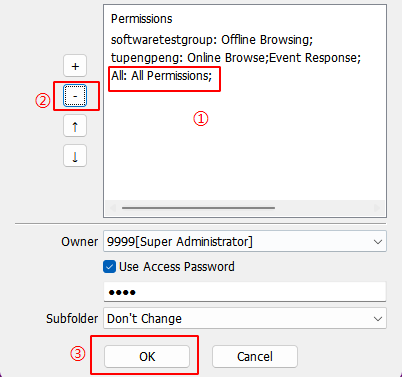
③ Move up/down permissions
In the [Group Attributes] dialog box, select the permission you want to move up/down in the list, and then click the [↑] or [↓] to move it.
The permissions are read in order. The following example is used to show the permission reading rules:
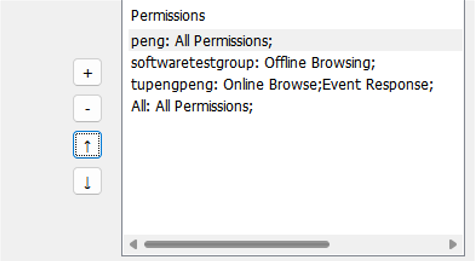
The users [peng] and [tupengpeng] are single users. [softwaretestgroup] is a user group that includes the user [peng] but not the user [tupengpeng]. [All] includes both the users and user group.
[peng: All Permissions] is placed at the top first row, so that the user [peng] can access the data on the client with all permissions; if you move it down below [softwaretestgroup: Offline Browsing], he can access data on the client with only the [Offline Browsing] permission.
[softwaretestgroup: Offline Browsing] is placed at the second row, so that all users in the user group [softwaretestgroup] can access the data on the client with the [Offline Browsing] permission, except the user [peng], who has been assigned with all permissions.
The user [tupengpeng] is not affected by the preceding permissions.
[All: All Permissions] is placed at the last row, indicating that all users can access the data on the client with all permissions, except the users [peng] and [tupengpeng], and the user group [softwaretestgroup], who are already assigned with the respective permissions. If you move up [All: All Permissions] to the top first row, it will be read first and take effect for all these users and user group.
④ Owner
The super administrator can assign an owner to any data group. The owner can be the super administrator or a single user.
For example, if all users in a user group have the permission to upload and delete their own data, and you need to grant only one user the permission to manage all these data (that is, delete data uploaded by others), you can set the user as the owner.
⑤ Use a password
To ensure data security, the super administrator can set an access password. In the [Group Attributes] dialog box, select the [Use Access Password] option, enter a password, and click [OK]. This way, users with access permissions need to enter the password to view and use the data.
As shown in the following figure, when a user double-clicks the [North_Base] group to access the data on the client, he must enter the password first.

(2) Object attributes
The file [abc] is used as an example.
In the [Enterprise-Shared Cloud Management] dialog box, go to the [North_Base] group, select the file [abc], and click [Attributes]. In the [Object Attributes] dialog box that appears, set the parameters as needed, and then click [OK].

3. Upload data
The administrator can upload favorites data on the console, local files, and description templates to the enterprise-shared cloud.
In the [Enterprise-Shared Cloud Management] dialog box, go to the newly created group, and click [Upload]. In the [Upload Objects] dialog box, enter a name and description. Click [Select Objects] to select the required objects, set the permissions, owner, and password, and then click [OK].
☆ Note: The console does not support selecting files from the attachment library.
① Select from Favorites
Select and upload local objects (placemarks, tracks, shapes, and routes) from the favorites on the console to the enterprise-shared cloud.
In the [Upload Objects] dialog box, click [Select Objects] → [Select from Favorites]. In the [Select Objects from Favorites] dialog box, select objects from the favorites, and click [OK] → [OK].

② Select from Local Files
Select and upload local files from your PC to the enterprise-shared cloud.
In the [Upload Objects] dialog box, click [Select Objects] → [Select from Local Files]. In the dialog box that appears, select the required files, and click [Open] → [OK].

③ Select from Template Library
Select and upload description templates from the template library to the enterprise-shared cloud.
In the [Upload Objects] dialog box, click [Select Objects] → [Select from Template Library]. In the [Select Template] dialog box, select the required templates, and click [OK] → [OK].

4. Download data
In the [Enterprise-Shared Cloud Management] dialog box, you can download cloud data to the local device. Select the required data and click [Download]. After the download is completed, you can click [View Downloads] to perform operations such as loading and saving.

5. View downloads
In the [Enterprise-Shared Cloud Management] dialog box, click [View Downloads]. In the [View Downloaded Enterprise-Shared Cloud Data] dialog box, you can view the downloaded cloud data, load and show the data on the map, save the data to your local favorites or local disk, and delete the data.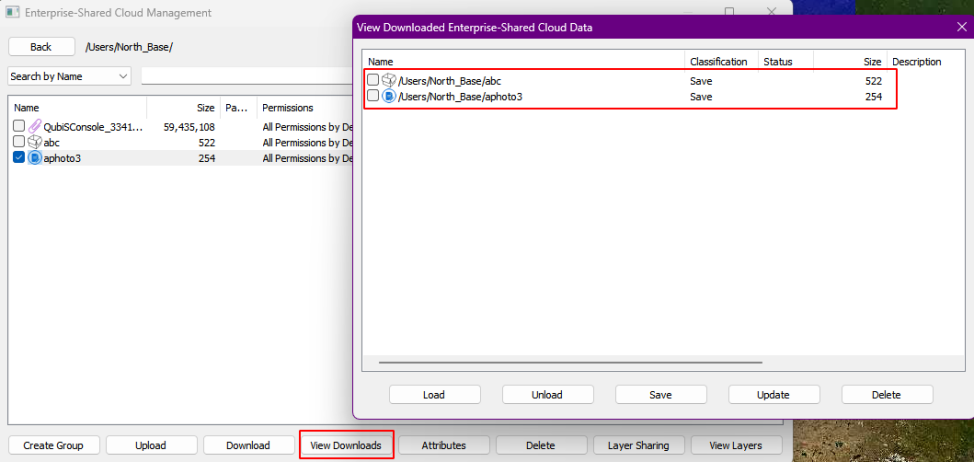
(1) Load data
Select the data you want to load (without selection, all data is loaded by default), and click [Load] → [Yes].

☆ Note: After you click [Load], the response varies based on data types.
① QubiMap objects are displayed on the map;
② Description templates are imported into the template library;
③ For image files, a message appears to prompt you whether to show the images;
④ Other types of files are opened by using external programs on your computer;
⑤ If multiple types of data (objects, files, attachments, templates) are selected, only one type of data is loaded at a time.
(2) Unload data
After loading data, you can unload data. Select the data you want to unload (without selection, all data is unloaded by default), and click [Unload] → [Yes]. The unloaded objects are no longer displayed on the map.
(3) Save data
Select the data you want to save (without selection, all data is saved by default), and click [Save] → [Yes].

☆ Note: After you click [Save], the result varies based on data types.
① QubiMap objects are saved to the local favorites and displayed on the map;
② Other types of files are saved to the specified storage location on your computer;
③ If multiple types of data (objects, files, attachments, templates) are selected, only one type of data is saved at a time.
(4) Update data
If the cloud data attributes are updated, you can click [Update] to update data.
(5) Delete data
Select the data you want to delete (without selection, all data is deleted by default), and click [Delete] → [Yes].

6. Delete group data
The administrator can delete data in the created [North_Base] group. Select the data you want to delete, and click [Delete] → [Yes].

7. Set shared layers
Layer sharing allows client users to view and use shared cloud data without downloading. This is typically applicable to field work scenarios. When client users arrive at designated locations during the field work, they can directly view shared layers without downloading the relevant work data from the cloud.
In the [Enterprise-Shared Cloud Management] dialog box on the console, select the data that you want to set as a shared layer, and click [Layer Sharing]. In the [Layer Sharing Settings] dialog box, set the parameters and click [OK].

(1) Access Permission
Valid values: [Don’t Share], [All Users (including Anonymous Users)], [All Enterprise Users], [Specified Enterprise Users], and [Anonymous Users].
① Don’t Share: No one can view the layer on the client.
② All Users (including Anonymous Users): All users, including anonymous users, can view the shared layer on the map after logging in to the enterprise server. For anonymous users, you can set the access permissions based on VIP levels.
③ All Enterprise Users: Only client users who log in to the enterprise server with their accounts and passwords can view the shared layer.
④ Anonymous Users: Only users who log in to the enterprise server anonymously can view the shared layer.
(2) Display Level
Set the display level of the shared layer on the client. For example, if the display level is set to 10-18, client users with the access permission can only view the shared layer by zooming in or out on the map to level 10-18.
(3) Event Response
① No Response to Clicks: Client users with the access permission can view the shared layer, but clicks on the objects generate no response.
② Click to View: Client users with the access permission can view the shared layer, and they can click on the objects to view their attributes, but cannot save them to the favorites.

③ Click to Save: Client users with the access permissions can view the shared layer on the map, and they can click on the objects to view and modify their attributes, and click [Add to Favorites] to save the objects to the favorites.

8. View shared layers
In the [Enterprise-Shared Cloud Management] dialog box, click [View Layers]. In the [Enterprise-Shared Layer Data Management] dialog box, the administrator can edit or delete layers, enable layer sharing, and set anonymous access.

(1) Edit layers
Select the layer you want to edit, and click [Edit]. In the [Shared Layer Settings] dialog box, modify the settings as needed, including the access permissions, display level, and event response.

(2) Enable layer sharing
Select the required layer and click [Enable Layer Sharing]. Client users with the access permission can log in to the enterprise server and see the shared layer.

(3) Allow anonymous access
Select the required layer and click [Allow Anonymous Access]. In the message that appears, click [Yes]. Client users can log in to the enterprise server anonymously to view the shared layer.

(4) Delete layers
Select the required layer and click [Delete]. In the message that appears, click [Yes].