How to achieve simultaneous playback of videos and tracks
Categories Common Features
QubiMap supports synchronized playback of captured videos and associated tracks on PC. The procedure is described as follows:
(1) Record a track on QubiMap Mobile App
For details about how to record tracks on the QubiMap mobile app, see the help document “How to record tracks on the mobile app“.
After you record a track, sync the data to your computer. For more details, see the help document “How to sync favorites data between a mobile device and PC“.
You can export tracks (including time information) recorded in other software as files in a format that is supported by QubiMap and add them to QubiMap.
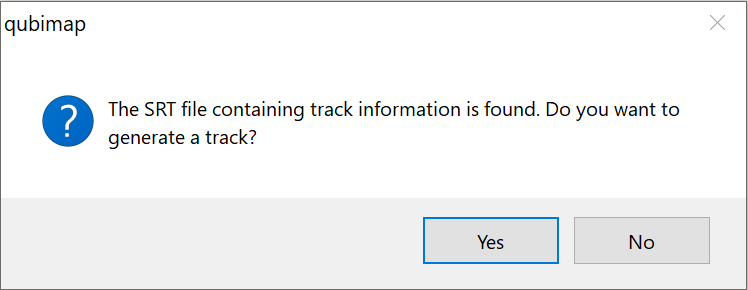
You can also add the .srt files (including track information) generated in the drone to QubiMap to generate tracks.
(2) Record a video
Use a video recording device to capture a video based on the time of the track. Then, send the video to the computer.
(3) Play video and the associated track simultaneously on the computer
After the track recorded on the mobile device is synced to the computer, it is displayed in the favorites. Then, drag the video file into the QubiMap window, and click the  button in the video playback window.
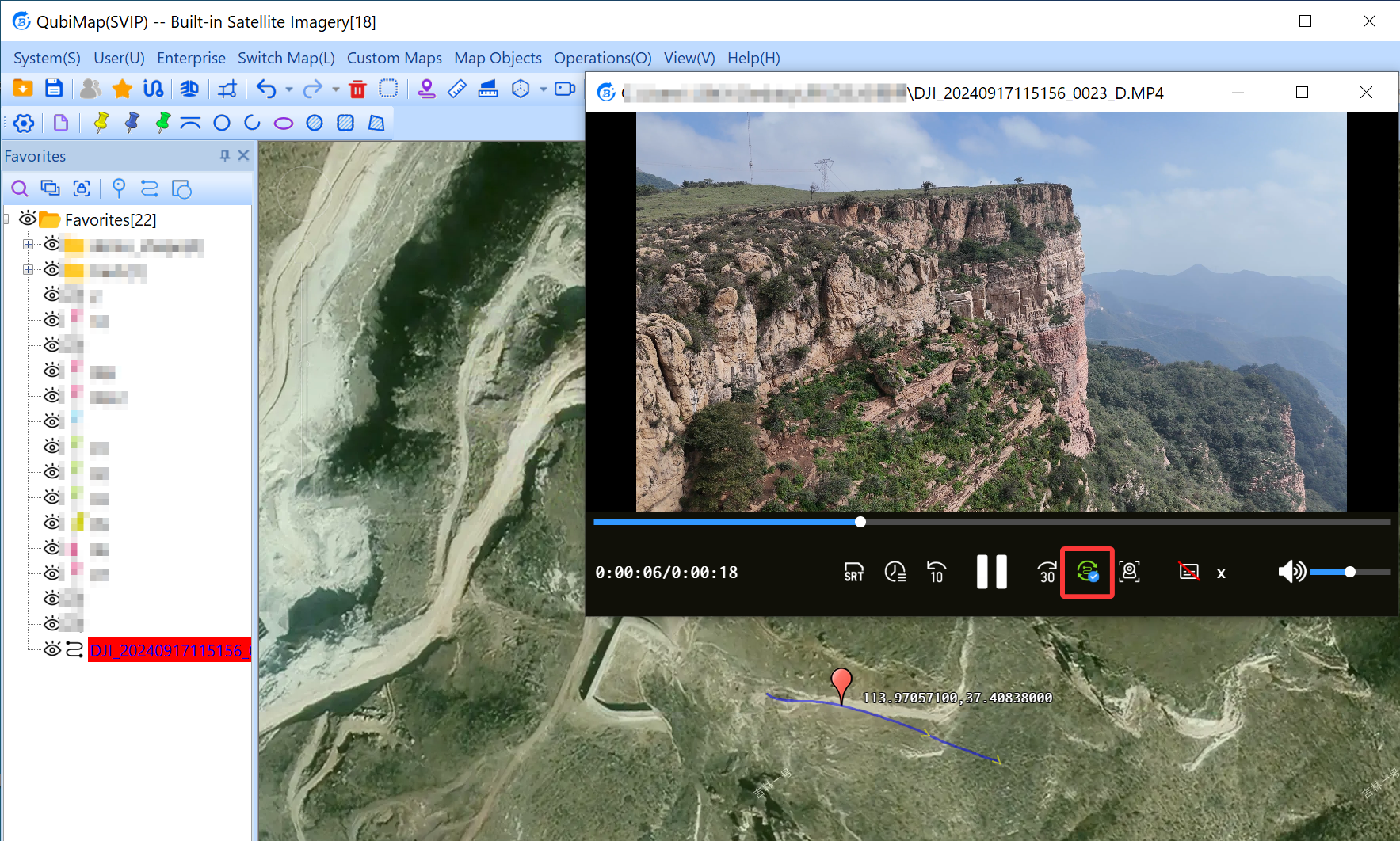
Buttons:
 : Export a subtitle file containing the information such as latitude, longitude, speed, and altitude.
 : Modify the video start time to match the video and track.
 : Sync the track.
 : Enable or disable track view following in 3D mode after you sync the track.