How to export track attribute details from a folder to a CSV file
Categories Common Features
This article describes how to export track attribute details from a QubiMap folder to a CSV file.
(1) Find the folder containing the required tracks, right-click the folder and then select [Attributes] to go to the folder settings dialog box.
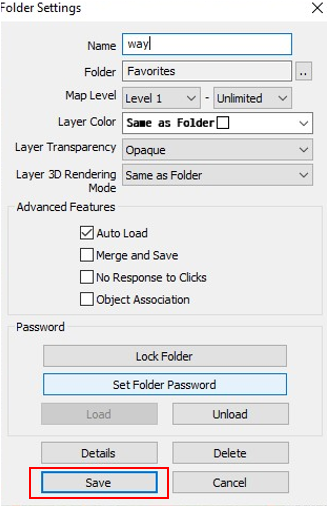
(2) Click the [Details] button to go to the folder details dialog box.
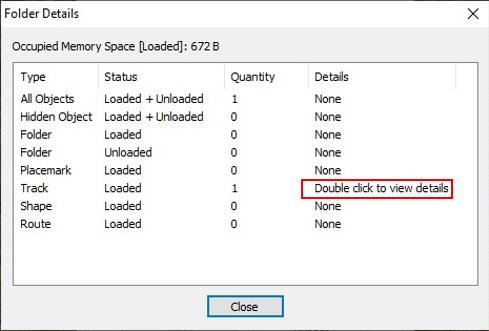
(3) Double-click the Track row to go to the track details dialog box.
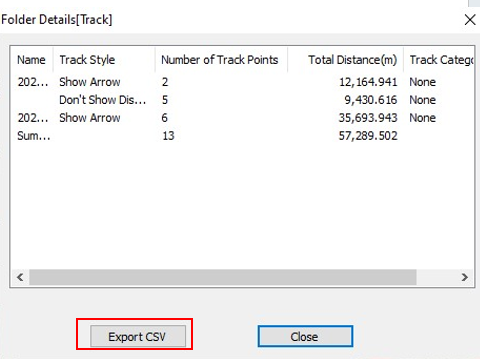
(4) Click the [Export CSV] button to go to the export settings dialog box.
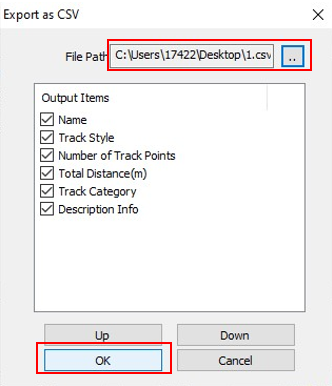
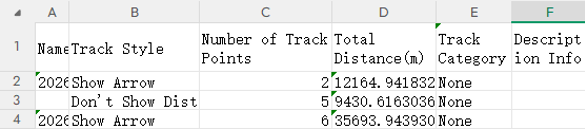
(5) Set the required file path and name, and then select the output items. You can adjust the order of the items as needed. Finally, click the [OK] button. You can open the saved CSV file with Excel for further editing, as shown in the following figure: