How to syc data between a mobile device and PC
Posted on Categories Cloud Space and Data Sync
P2P sync is used to establish a connection and synchronize favorites data and placemark attachments between devices.
1. Sync data from a mobile device to PC
1) Establish a connection
After you log in to your account on your mobile device, Tap [Favorites] -> [Menu] -> [Sync Objects with My Computer]. On the [P2P Sync] page, the connection status is displayed.
If the P2P connection is established, you can perform the sync operation.
If the connection fails, please check if the network on your mobile device or PC is available. To ensure connection stability, we recommend that the two devices be connected to the same network.
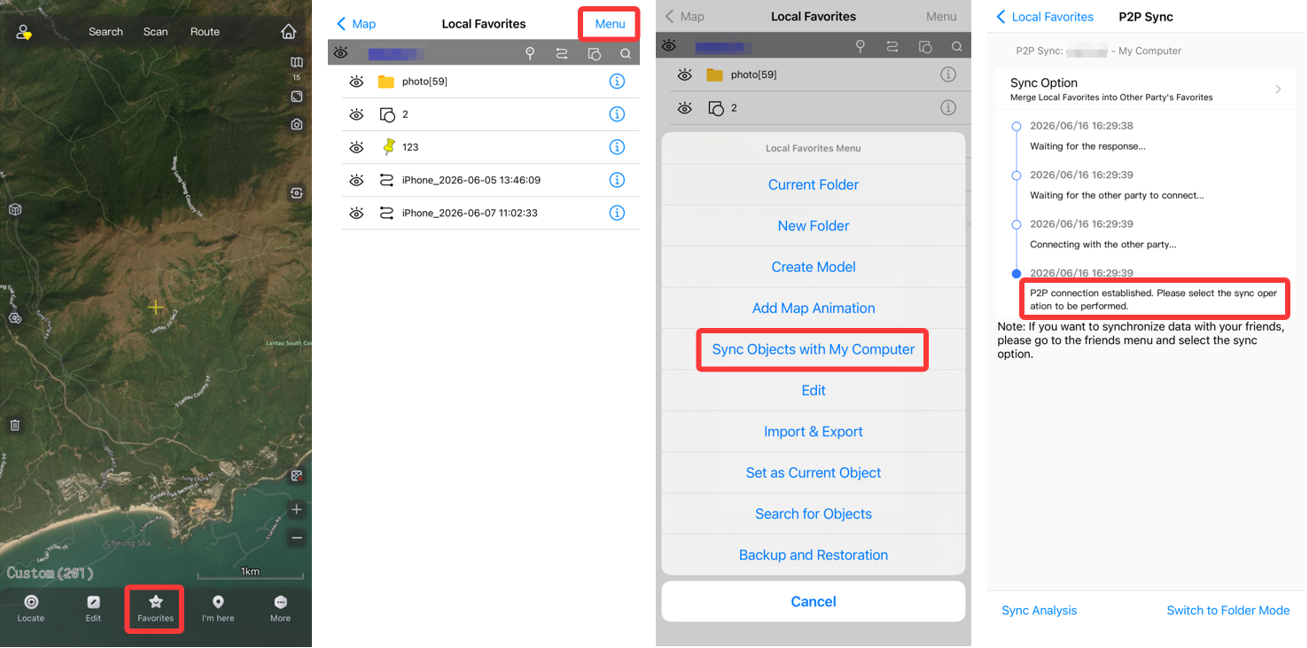
2) Sync objects in the favorites
You can select one of the following sync options:
① Merge Local Favorites into Other Party’s Favorites: The same objects are overwritten, and the additional objects on the mobile device are added to the PC.
② Overwrite Other Party’s Favorites with Local Favorites: The same objects on the PC are overwritten, the additional objects on the PC are deleted, and the additional objects on the mobile device are added to the PC.
③ Merge Local Attachments into Other Party’s Attachment Library: Used to sync attachments. The additional attachments on the mobile device are added to the PC.
We recommend that you select [Merge Local Favorites into Other Party’s Favorites]. Then, Tap [Sync Analysis]. After the analysis is completed, Tap [Start Sync].
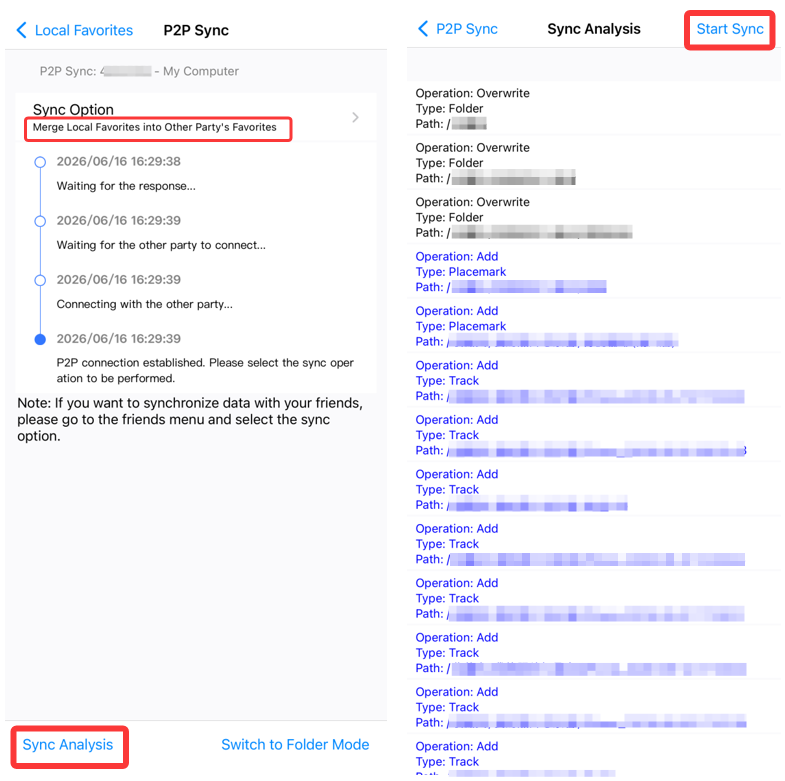
If you need to sync a specified folder, tap [Switch to Folder Mode]. For more details, see the help document How to sync a folder in the favorites.
3) Sync attachments
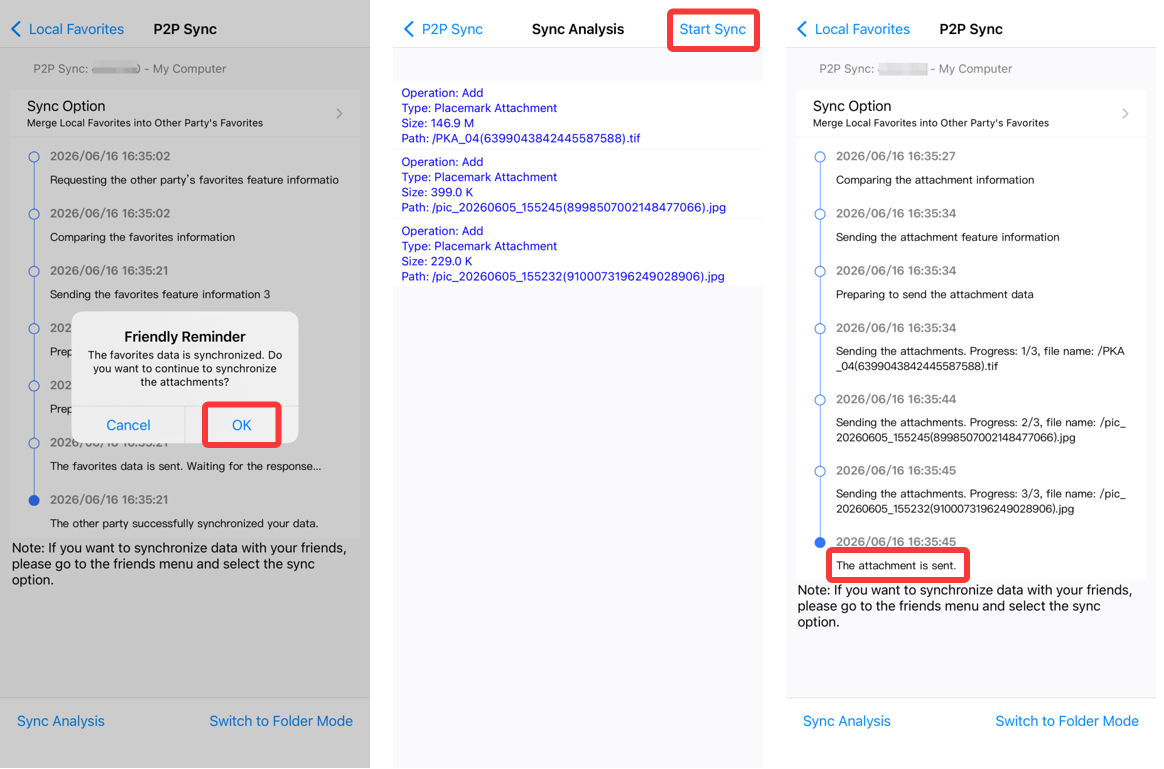
After the objects in the favorites are synced, if the objects have attachments, the system will remind you to sync the attachments.
If you do not need to sync the attachments, tap [Cancel].
If you need to sync the attachments, tap [OK] -> [Start Sync].
2. Sync data from a PC to mobile device
After you log in to your account on your PC, choose [User] > [Sync with Mobile Phone].
For detailed steps, refer to the previous section “1. Sync data from a mobile device to PC”.