How to rename multiple objects at a time
Categories Object Editing
QubiMap (PC version) supports batch renaming of subfiles, placemarks, tracks, shapes, and routes in the favorites. You can specify prefixes, suffixes, and serial numbers for the selected names, or replace part of text in the names by content or position. In this example, multiple placemarks are renamed at a time.
1) Specify prefixes, suffixes, and serial numbers for multiple names
Step 1: Select the required placemarks, right-click on them, and select [Attributes] to go to the [Placemark Settings] dialog box.
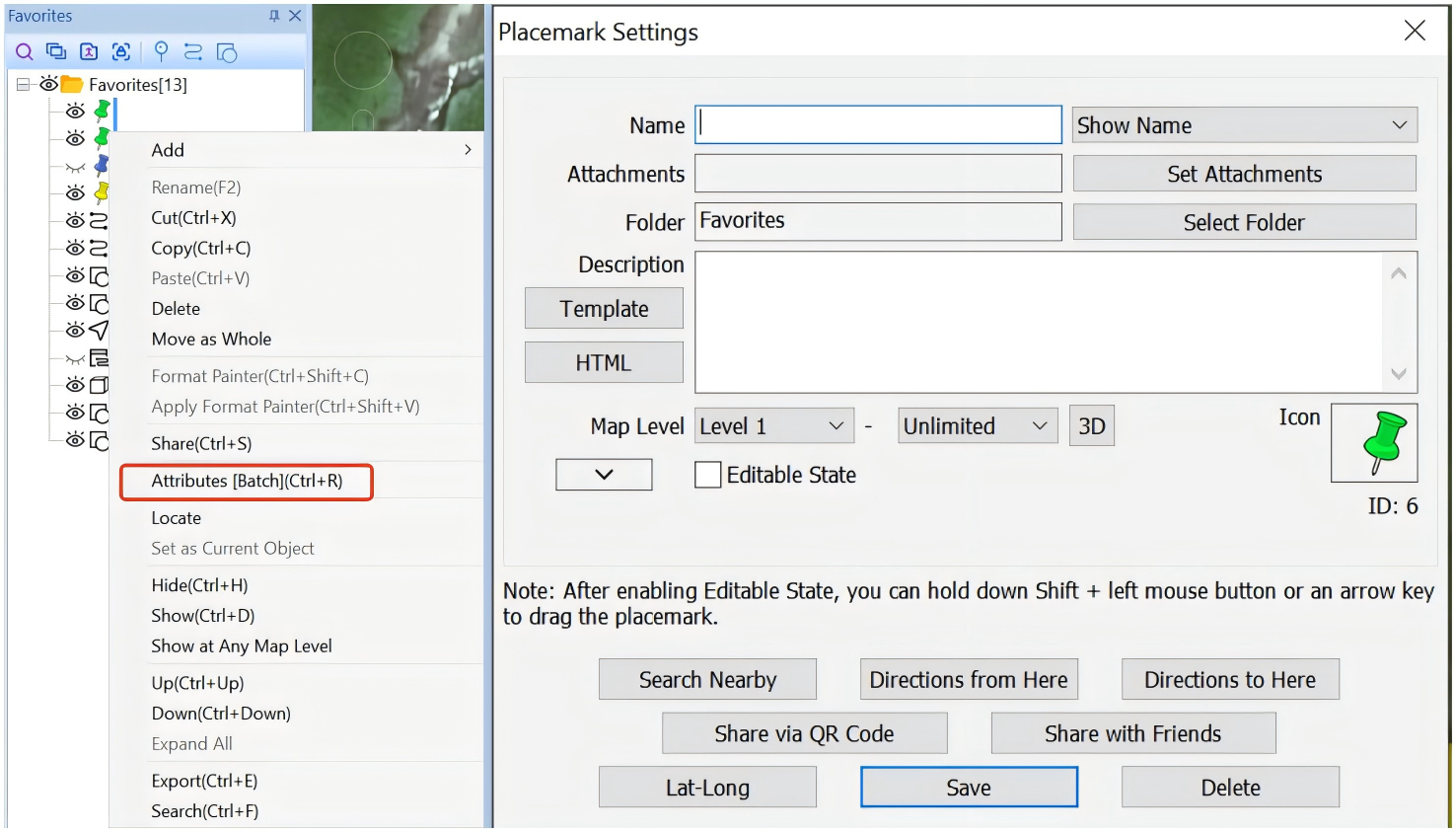
Step 2: Click [Save]. The [Batch Modify Settings] dialog box appears.
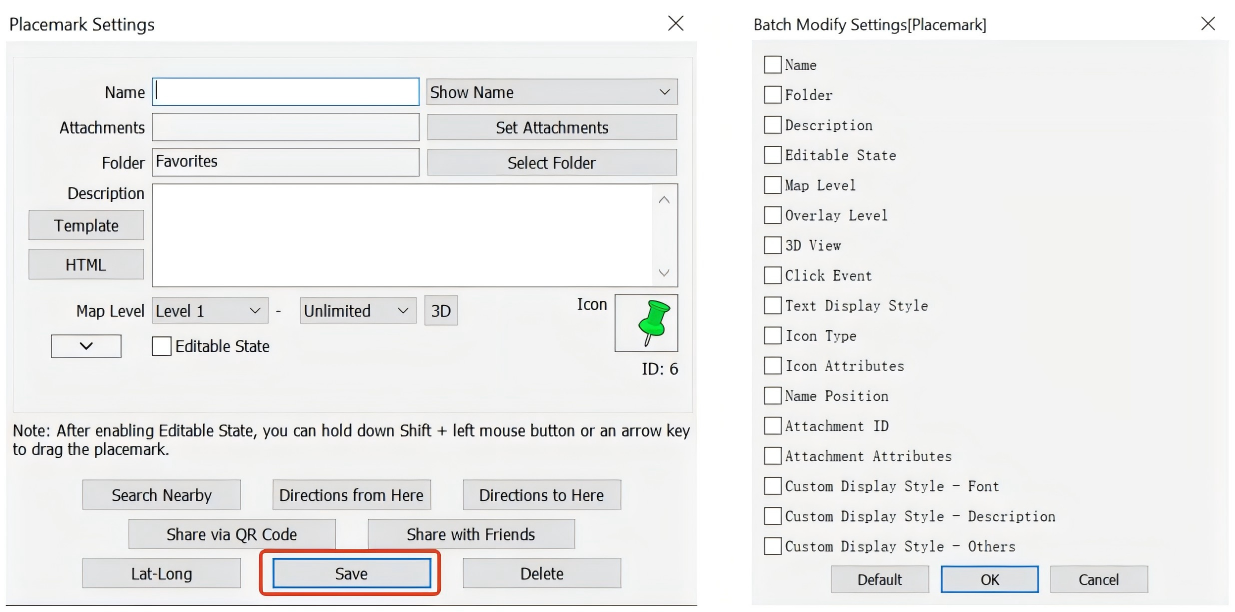
Step 3: Select [Name], and click the [Custom Rule] button that appears. In the [Custom Name Rule] dialog box, set the [Rule] parameter to [Custom], specify a prefix, select [Enable Custom Serial No.] and set the starting value, increment, total number of digits, and position for serial numbers, and specify a suffix. Then, click [OK].
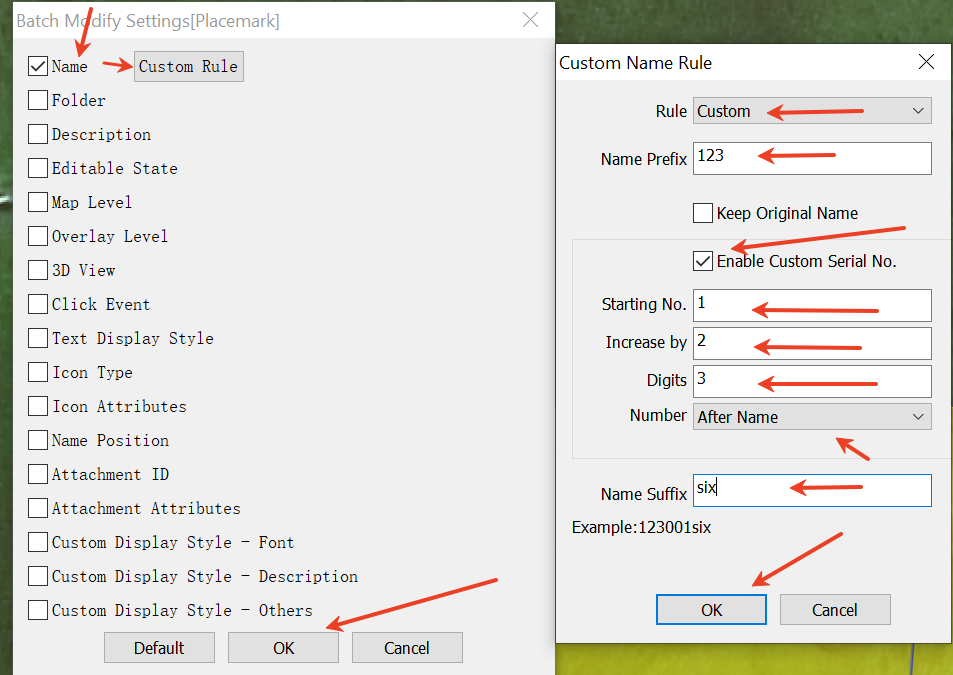
The selected placemarks are renamed based on the rule you set, as shown in the following figure:
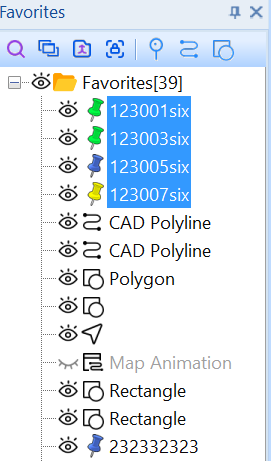
2) Replace part of text in multiple names
Step 1: Select the required placemarks, right-click on them, and select [Attributes] to go to the [Placemark Settings] dialog box.
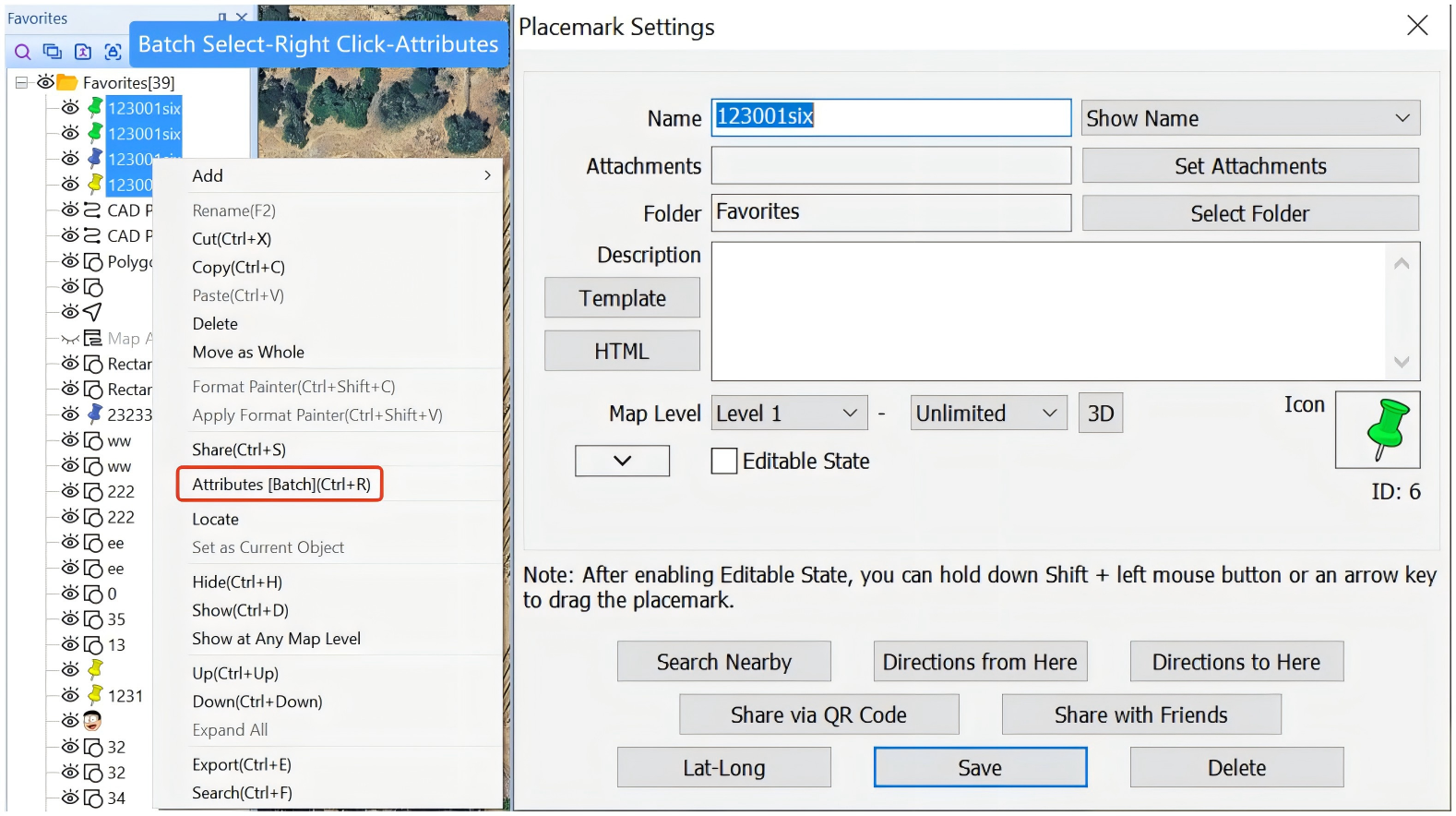
Step 2: Click [Save]. The [Batch Modify Settings] dialog box appears.
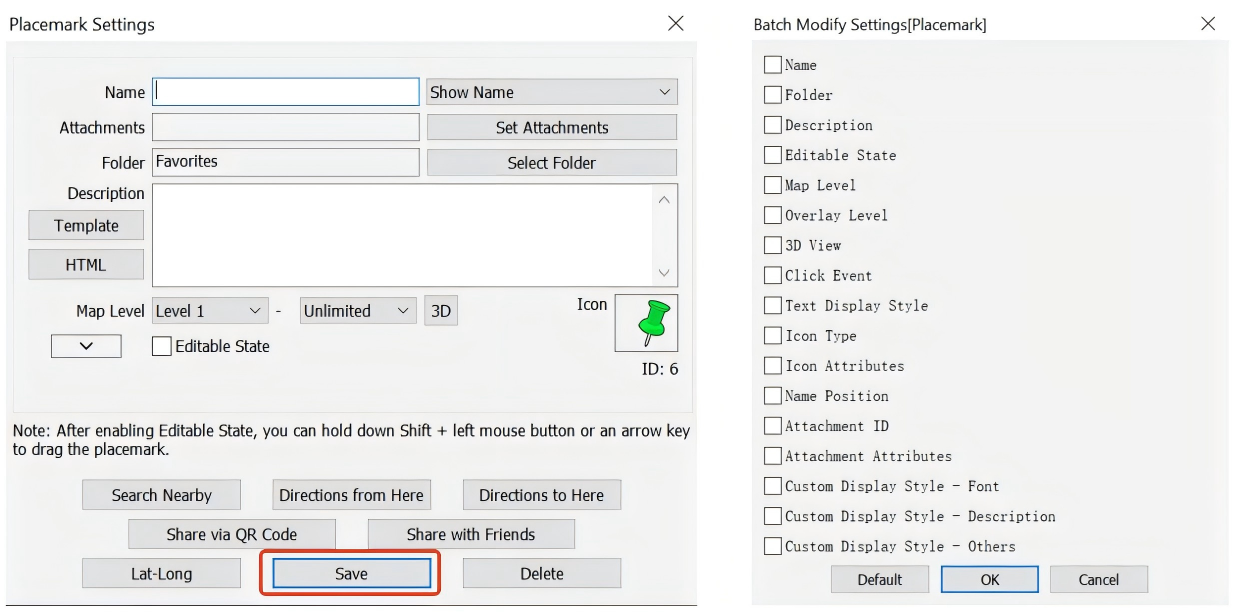
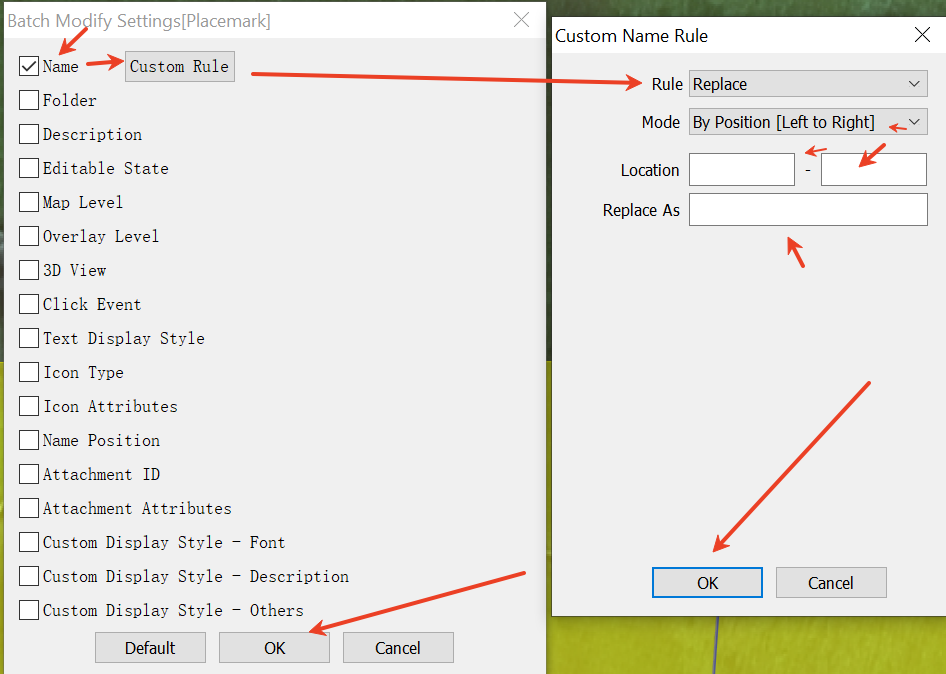
Step 3: Select [Name], and click the [Custom Rule] button that appears. In the [Custom Name Rule] dialog box, set the [Rule] parameter to [Replace]. Then, you can locate the part of text by content or by position. In this example, the [Mode] parameter is set to [By Content]. Specify the part of text to be replaced in the [Keyword] field and the intended content in the [Replace As] field. Then, click [OK].
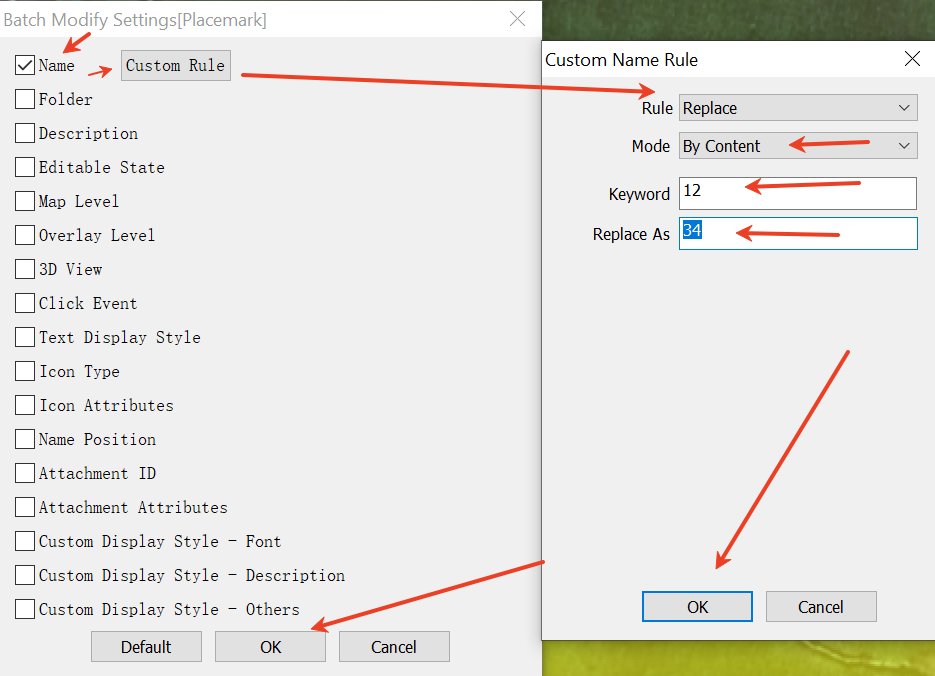
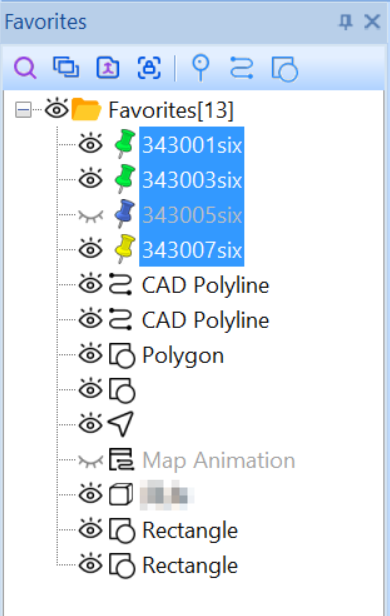
The selected placemarks are renamed based on the settings, as shown in the following figure:
When the text in the placemark names is totally different, you can replace part of the text by position. In this case, set the [Mode] parameter to [By Position], and set the location range as needed.