How to download map data on a PC
Categories Map Downloading
In QubiMap, you can download map data of specific areas for offline browsing and data sharing. To share the downloaded map data, you can enable the HTTP tile service for other devices. You can also use the Qubimap enterprise map service to share the data within your enterprise .
Any PC or mobile client of QubiMap that is connected to the Internet can be used to download map data.
This article describes how to download map data on a computer. For information about how to map data on a mobile device, see the help document “How to download map data on a mobile device”.
1. Download map data on your PC
You can select a system area or draw a custom area to download map data.
1.1. Procedure
1.1.1. Download map data of a system area
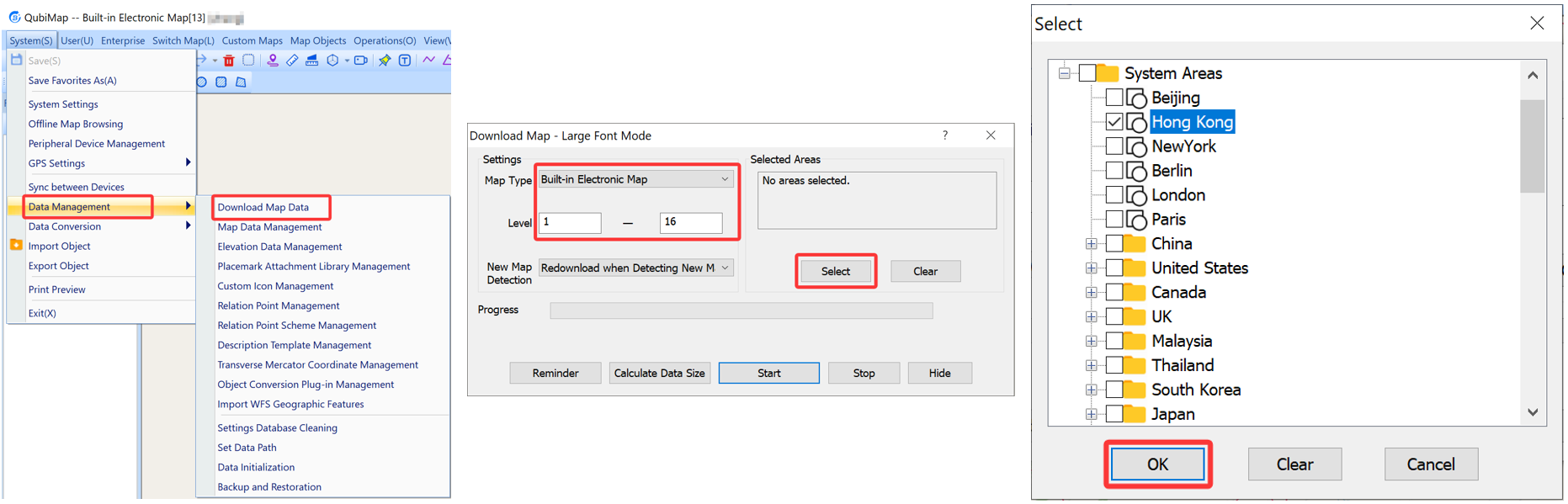
Choose [System] > [Data Management] > [Download Map Data]. In the [Download Map] dialog box, set the parameters as needed.
-
Map Type: Select a built-in map or a custom map.
-
Level: The higher the level, the clearer the map. Each level increase quadruples the map data size. The maximum level is 18. If you select a level higher than 18, the map does not become clearer, but the pixel size increases.
-
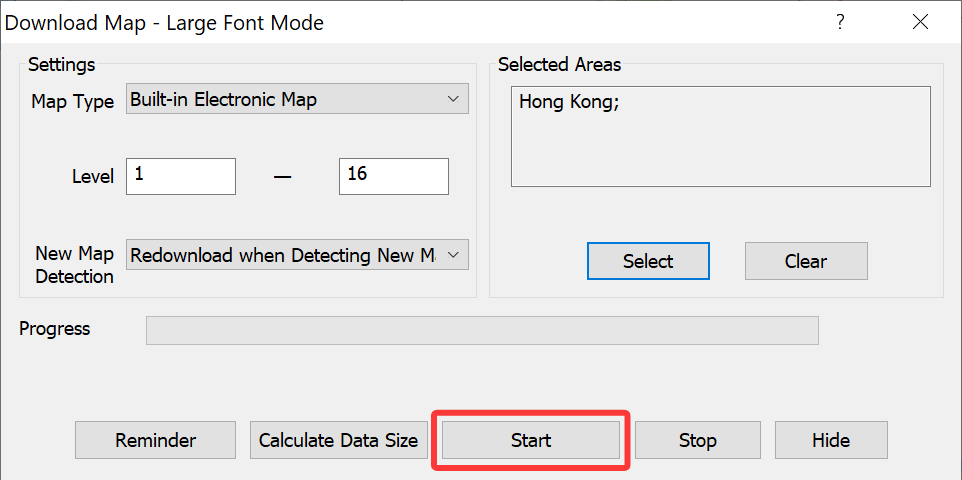
Selected Areas: Click [Select] to select areas. In the dialog box that appears, expand [System Areas], select the required areas, and click [OK]. We recommend that you select only a city each time to avoid the overwhelmingly large data volume.
Click [Start] to start downloading.
1.1.2. Download map data of a custom area
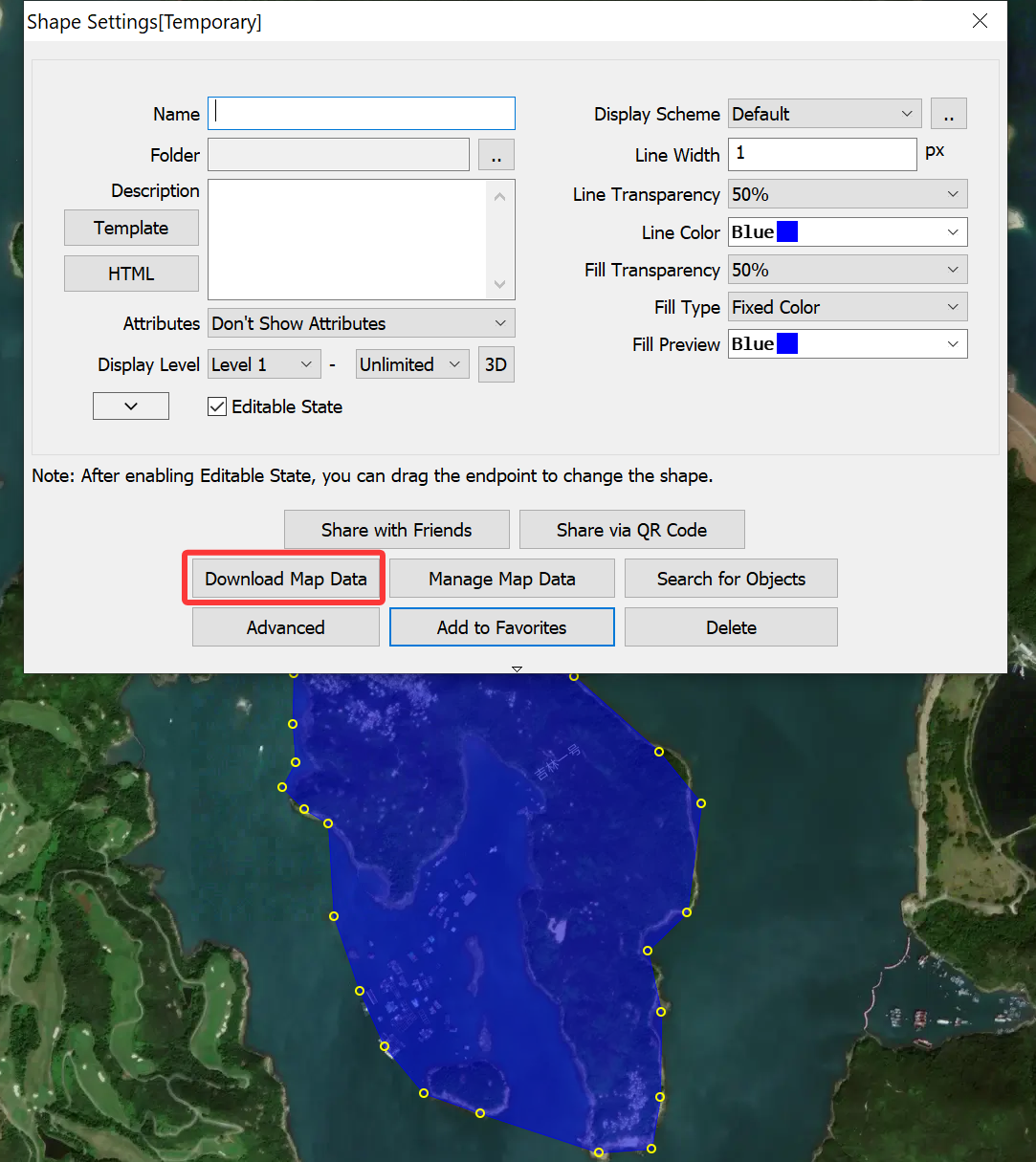
You can draw a rectangle, polygon, or circle on the map to specify an area. In this example, a polygonal area is drawn.
Click the polygon button in the toolbar, and draw an area as instructed.

When drawing the last vertex, double-click the left mouse button. In the [Shape Settings] dialog box, click [Download Map Data].
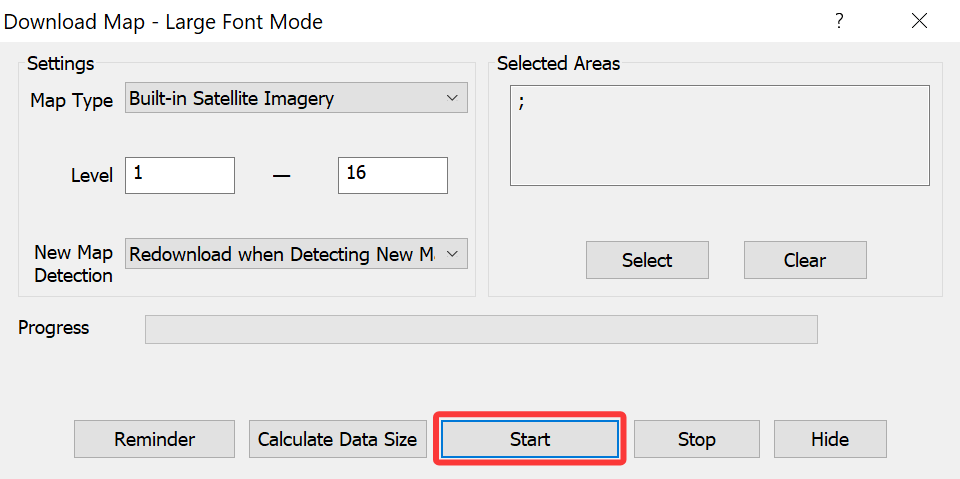
In the [Download Map] dialog box, set the parameters as needed, and click [Start].
1.2. Offline map storage directories
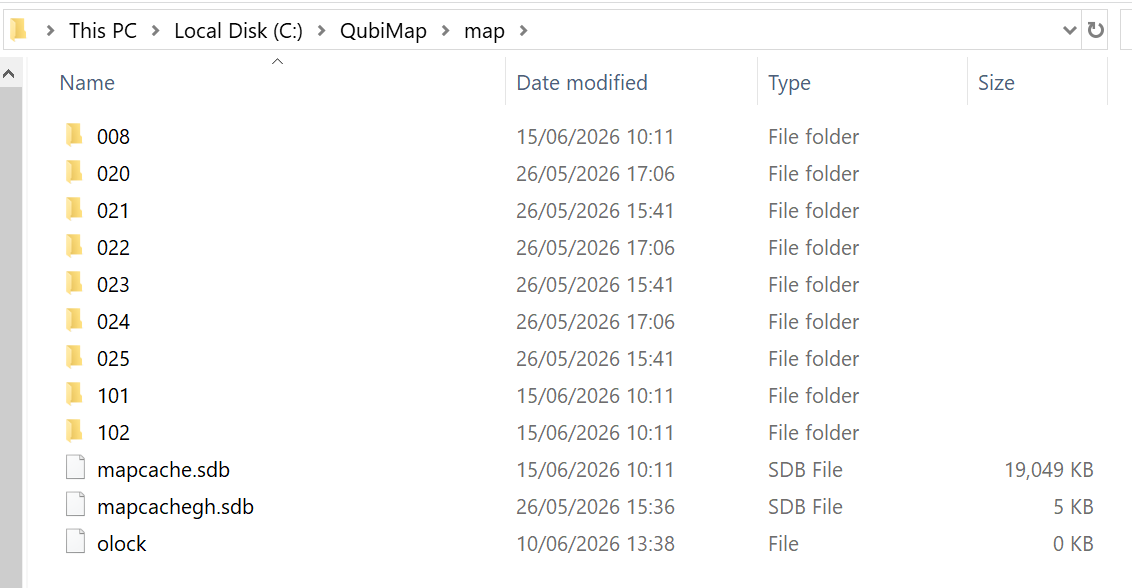
Downloaded map tile data is saved in the map folder under the QubiMap root directory. The path may vary based on user settings. In this example, a Windows PC is used. The path of the root directory is C:\QubiMap.
The subfolders in the map folder are named with numbers, which indicate different maps. 101: built-in satellite imagery; 102: built-in electronic map. Numbers above 200 indicate custom maps.
2. Applications
After downloading map data to your local storage, you can perform the following operations:
(1) Browse the map data in the offline environment on your PC
Choose [System] > [Offline Map Browsing].
Only the areas with the map data downloaded are displayed on the map.
(2) Send the map data to other devices
For more information, see the help document “How to send offline map data from a PC to mobile device“.
(3) Enable the HTTP tile service for other devices to access the map data
For more information, see the help document “How to enable the WEB tile service in QubiMap“.
(4) Export the map data as an image
For more information, see the help document “How to export QubiMap data as an image“.