How to connect a GPS device to QubiMap and use GPS features
Categories Hot Topics
1. Supported GPS devices
You can connect GPS devices that transmit data via a serial port and support the NMEA0183 protocol to QubiMap. The following table lists the commonly used GPS device models:
| Brand | Model | Port | |
|---|---|---|---|
| Garmin | 60CSx | USB | 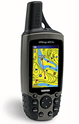 |
| HOLUX | RCV-3000 | USB + Bluetooth |  |
| HOLUX | M-1200E | USB + Bluetooth | 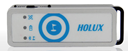 |
| V.KEL | VK-162 | USB | 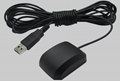 |
| V.KEL | VK-172 | USB | 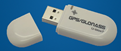 |
| Globalsat | BU-353 | USB | 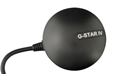 |
| UBLOX | UB-353 | USB |  |
2. Add a GPS device to QubiMap
(1) Connect your GPS device to the computer by using a USB cable and install the GPS device driver to generate a virtual serial port. If the GPS device supports Bluetooth and can transmit NMEA0183 data in real time, you can also use Bluetooth for connection.
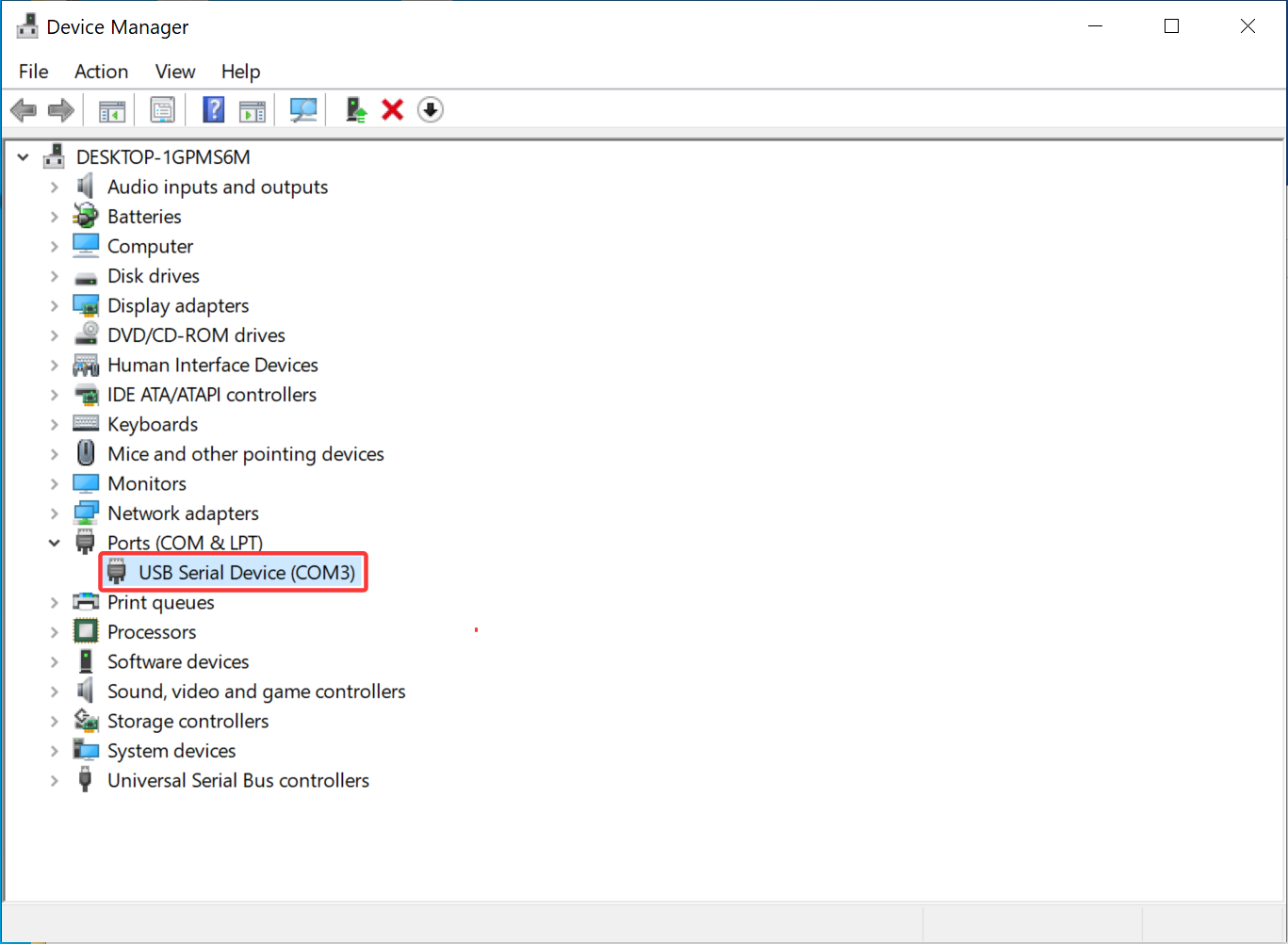
(2) Right-click [This PC], and select [Manage]. In the window that appears, click [Device Manager] → [Ports] to view the virtual serial port number, as shown in the following figure:
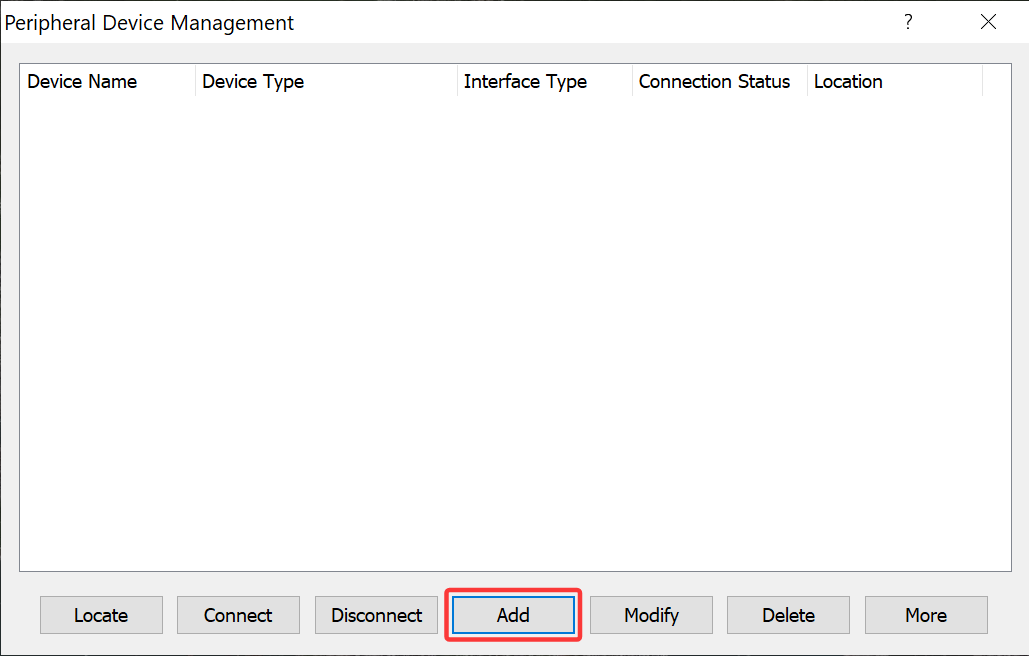
(3) Open the QubiMap client on your PC, and choose [System] > [Peripheral Device Management]. In the dialog box that appears, click [Add], and select [Add Serial Device] or [Add Bluetooth BLE Device] based on your needs. In this example, [Add Serial Device] is selected.
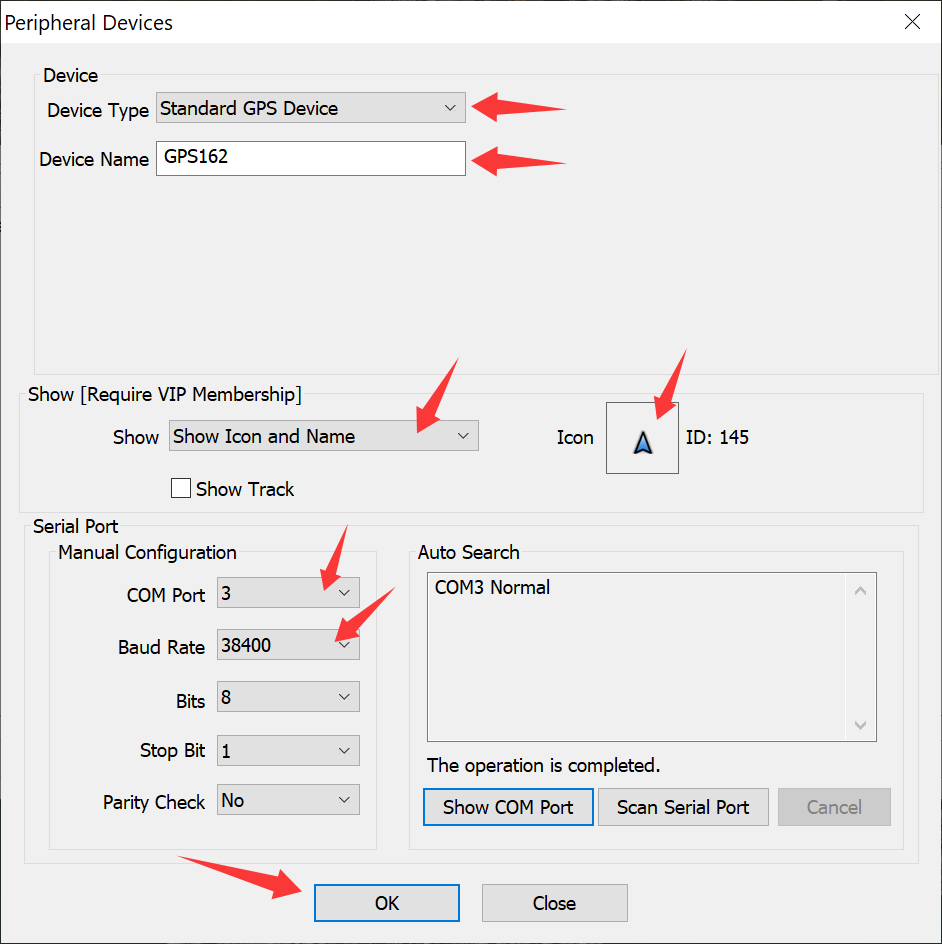
(4) In the dialog box that appears, set the parameters as needed, and click [OK].
COM Port: Select the port number of the connected GPS device. The port number may change if the USB port is changed.
Baud Rate: Set this value based on the actual baud rate of the GPS device. The commonly used baud rate is 38400.
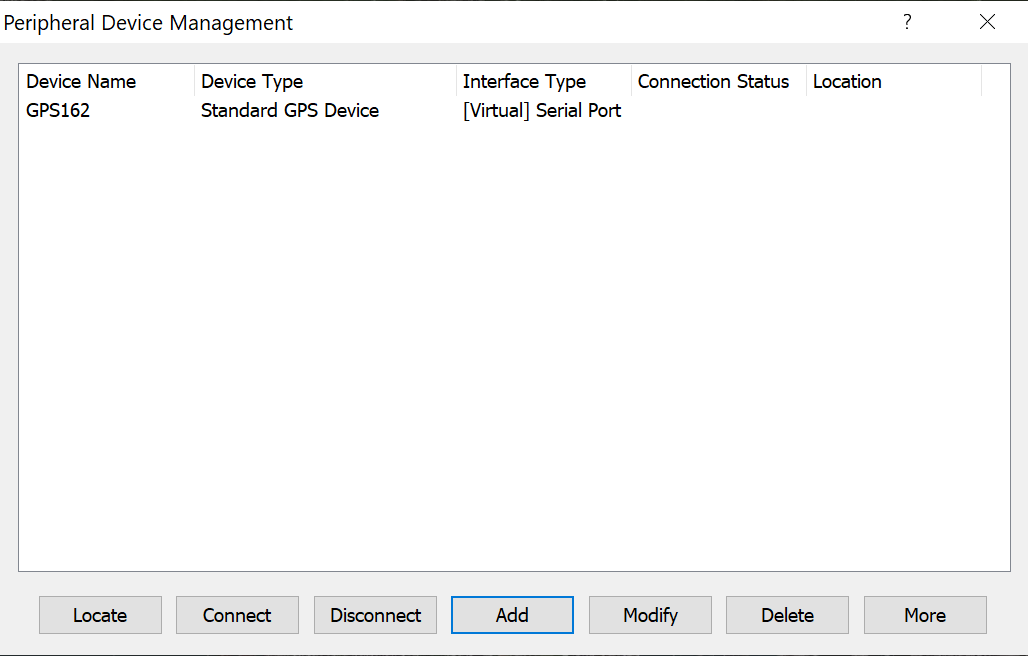
(5) The GPS device is displayed in the peripheral device list, as shown in the following figure:
3. Use GPS features
After the GPS device is connected to QubiMap, you can use the following GPS features:
Enable the GPS device: Choose [System] > [GPS Settings] > [Enable GPS].
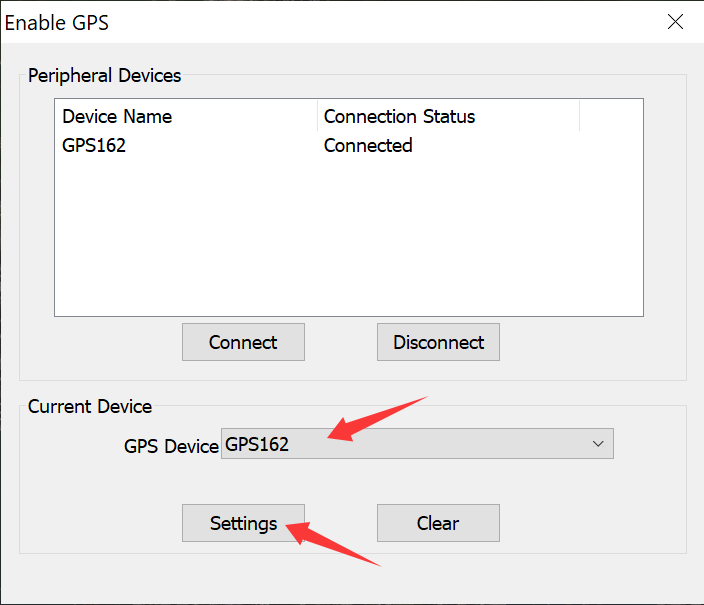
In the [Enable GPS] dialog box, select your GPS device to enable it. Then, you can use the GPS device for location sharing, map following, and track recording.
Locate the GPS device: Choose [System] > [GPS Settings] > [Locate GPS Device]. The connected GPS device is displayed on the map.
Follow the GPS device: Choose [System] > [GPS Settings] > [Follow GPS Device]. When you follow the GPS device, it is always displayed at the map center.
Record tracks: Choose [System] > [GPS Settings] > [Start Track Recording]. To stop track recording, choose [System] > [GPS Settings] > [Stop Track Recording]. After you record a track of the GPS device, the track is displayed on the map as a temporary object. You can double-click on it to go to the [Track Settings] dialog box, and add it to your favorites.
Add your locations to the favorites: Choose [System] > [GPS Settings] > [Add My Location to Favorites]. The current location of the GPS device is added to your favorites as a placemark.