How to add and use custom placemark icons
Categories Common Features
QubiMap provides custom icons to vividly demonstrate placemarks. This article describes how to add and use custom placemark icons on the PC and mobile versions.
1. PC
1) Add a custom icon
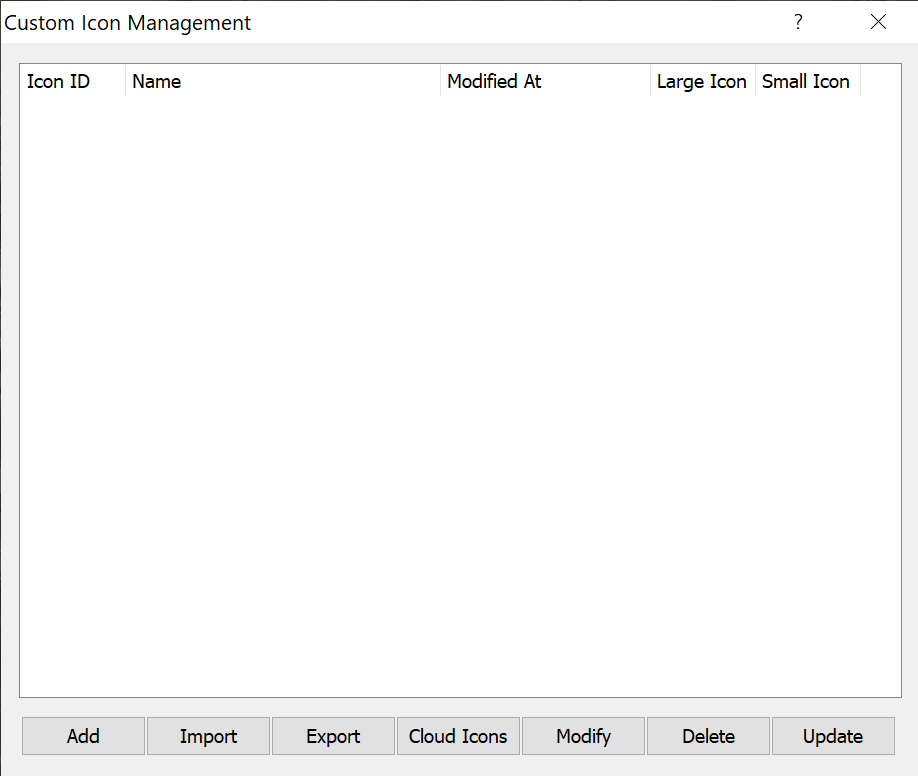
a. Choose [System] > [Data Management] > [Custom Icon Management] (or click [Manage Custom Icons] in the [Select Placemark Image — Custom] dialog box when you are setting the icon for a placemark) to go to the [Custom Icon Management] dialog box, as shown in the following figure:
b. Click [Add]. In the following [Custom Icon] dialog box, set the required parameters:
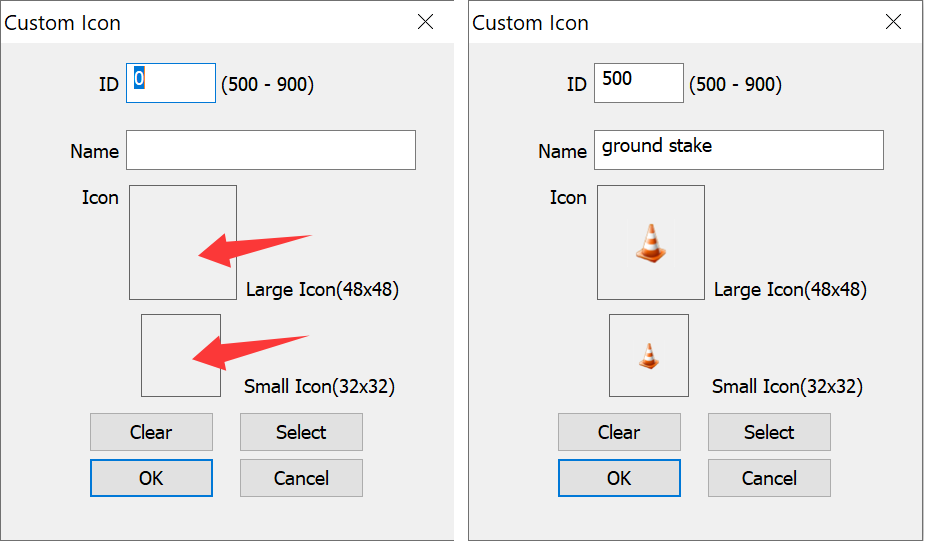
Note: If you want to clone the existing icons, click [Select].
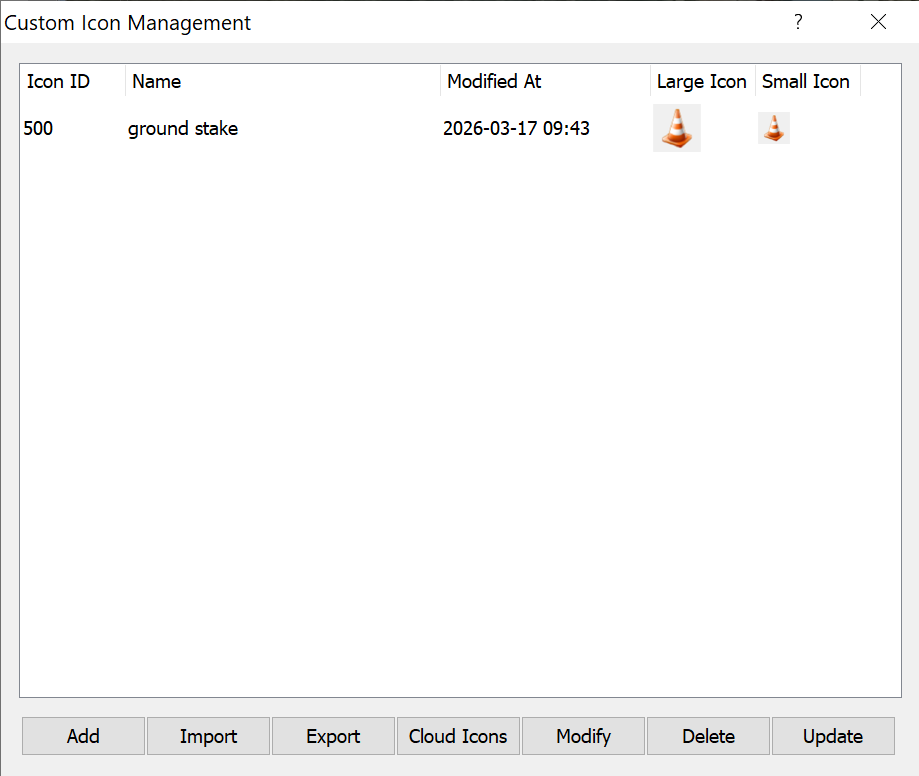
c. Enter the icon ID and icon name, click the icon box to select an image from your local disk (preferably a square PNG image), and then click [OK] to save. The saved icon appears in the [Custom Icon Management] list, as shown in the following figure:
2) Other operations:
Import: Import the existing custom placemark icon files with the .ovimg extension from the local disk.
Export: Export the selected custom placemark icons (all content is exported if no items are selected) as the .ovimg file to the local disk.
Cloud Icons: Purchase, create, modify, and update cloud icons. For more details, see the related document at Help.
Modify: Modify the selected custom placemark icon.
Delete: Delete the selected one or more custom placemark icons.
2. Mobile device
1) Add a custom icon
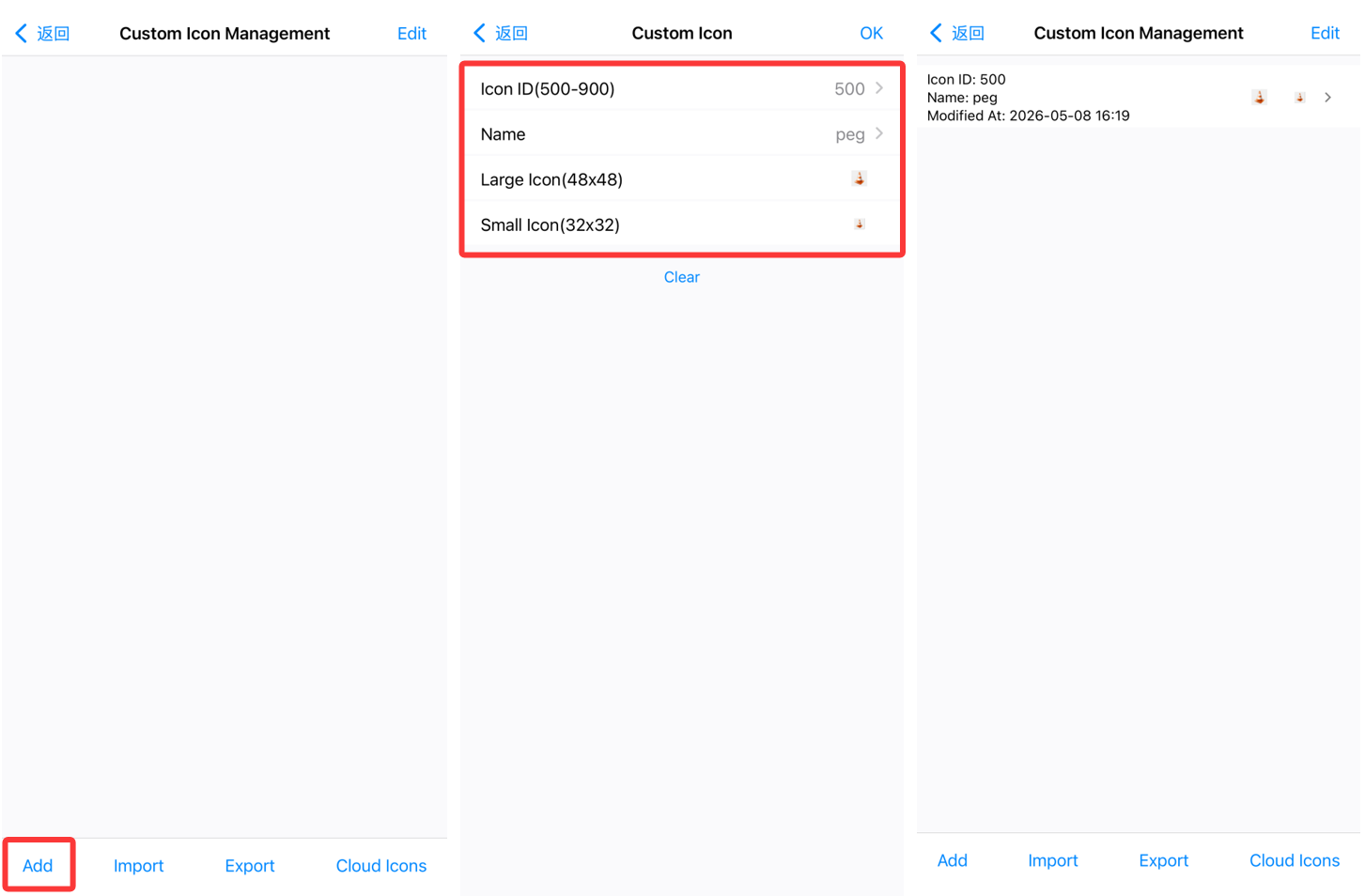
a. Choose [More] > [Data Management] > [Custom Icon Management] (or tap [Manage Custom Icons] in the placemark icon selection page when you are setting the icon for a placemark) to go to the [Custom Icon Management] page.
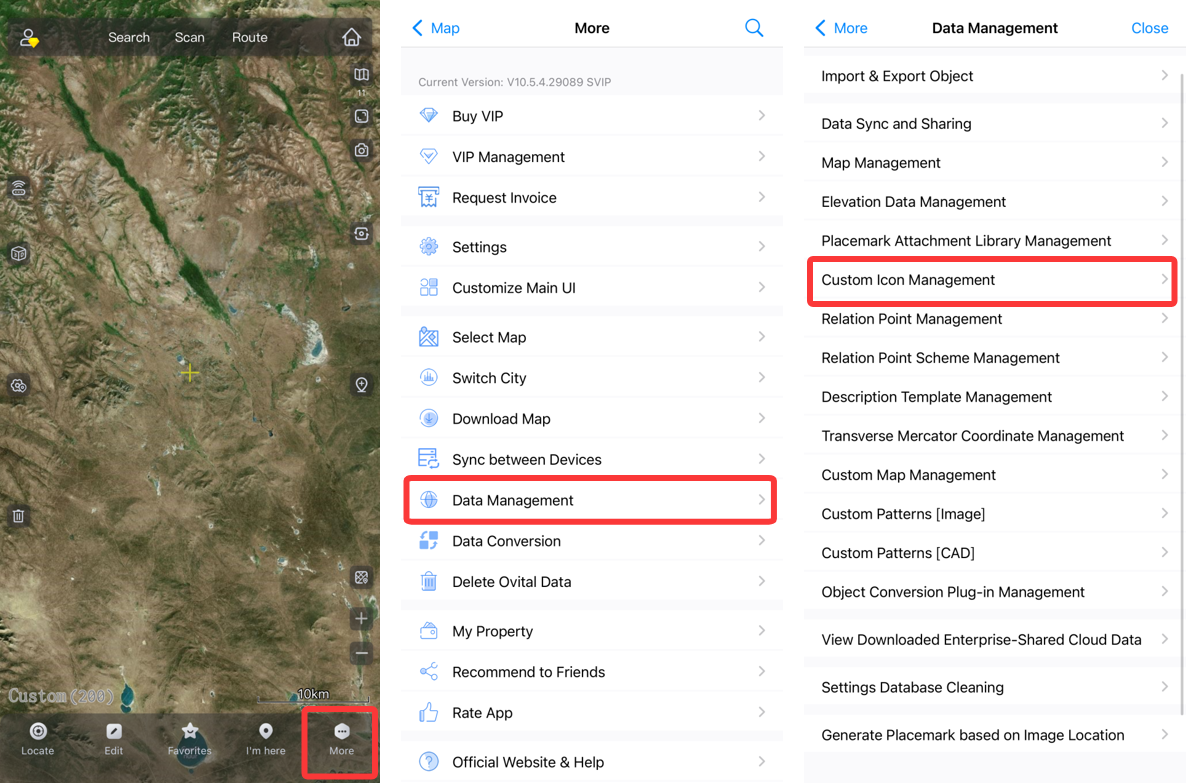
b. Tap [Add] to go to the [Custom Icon] page.
C. Enter the icon ID and icon name, click the icon box to select an image from your local disk (preferably a square PNG image), and then tap [OK] to save. The saved icon is displayed in the [Custom Icon Management] list.
2) Other operations:
Import: Import the existing custom placemark icon files with the .ovimg extension from the local disk.
Export: Export the selected custom placemark icons (all content is exported if no items are selected) as the .ovimg file to the local disk. For example, the default destination directory for Android devices is Android/data/com.ovital.ovitalMap/files/omap.
Cloud Icons: Purchase, create, modify, and update cloud icons. For more details, see the related document at Help.
Modify: Modify the selected custom placemark icon.
Delete: Delete the selected one or more custom placemark icons.