How to achieve the 3D effect of placemark text in 3D mode
Categories Object Editing
QubiMap supports browsing maps in 3D mode. In this mode, you can also customize the placemark display style to achieve the 3D effect of placemark text.
1) PC
Open the QubiMap software and click the 3D button to enter 3D mode.

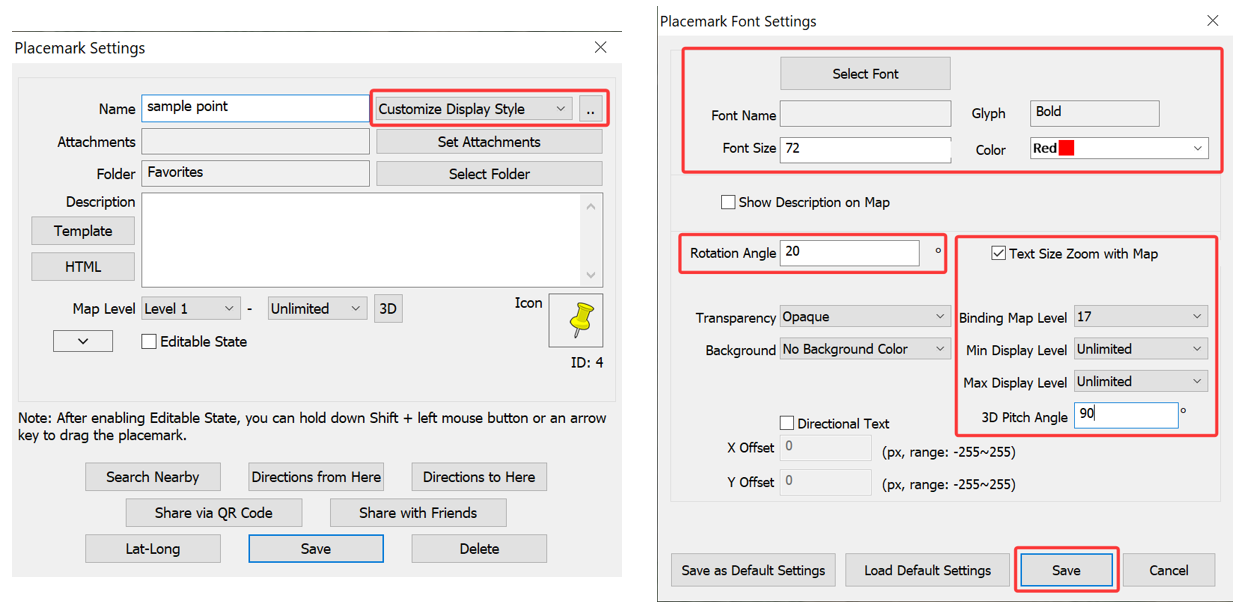
Double-click the placemark on the map to go to the [Placemark Settings] dialog box. Select [Customize Display Style] from the drop-down list next to the placemark name (text), and click the [..] button on the right. In the [Placemark Font Settings] dialog box that appears, set the parameters as needed, and click [Save].
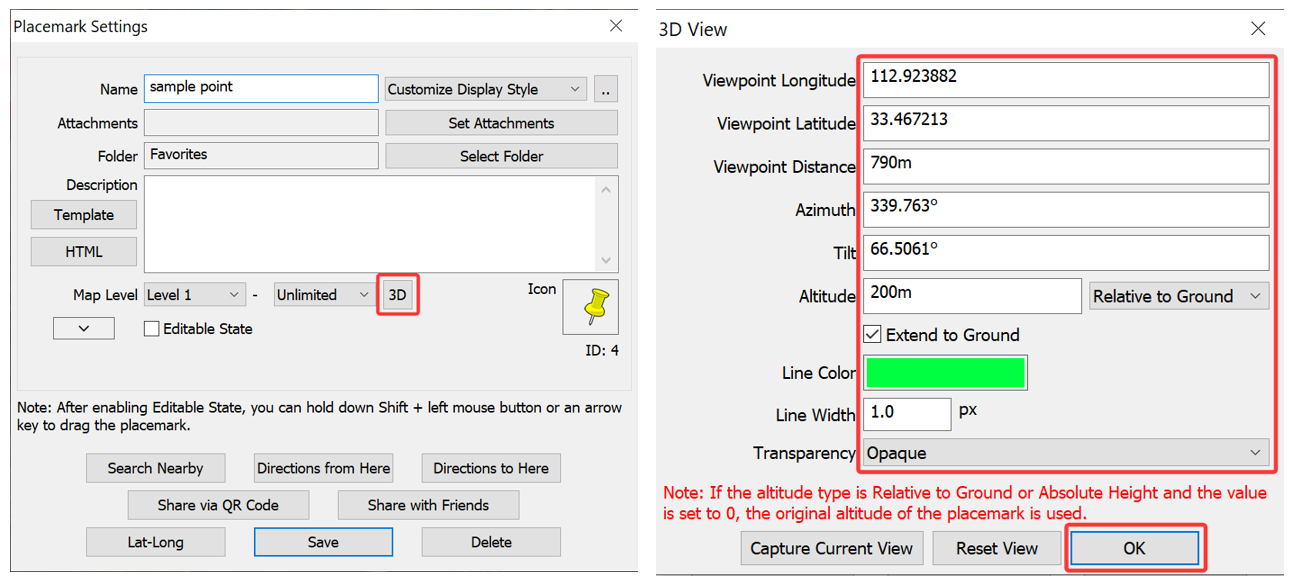
In the [Placemark Settings] dialog box, click [3D]. In the [3D View] dialog box, set the parameters as needed and click [OK]. Then, click [Save].
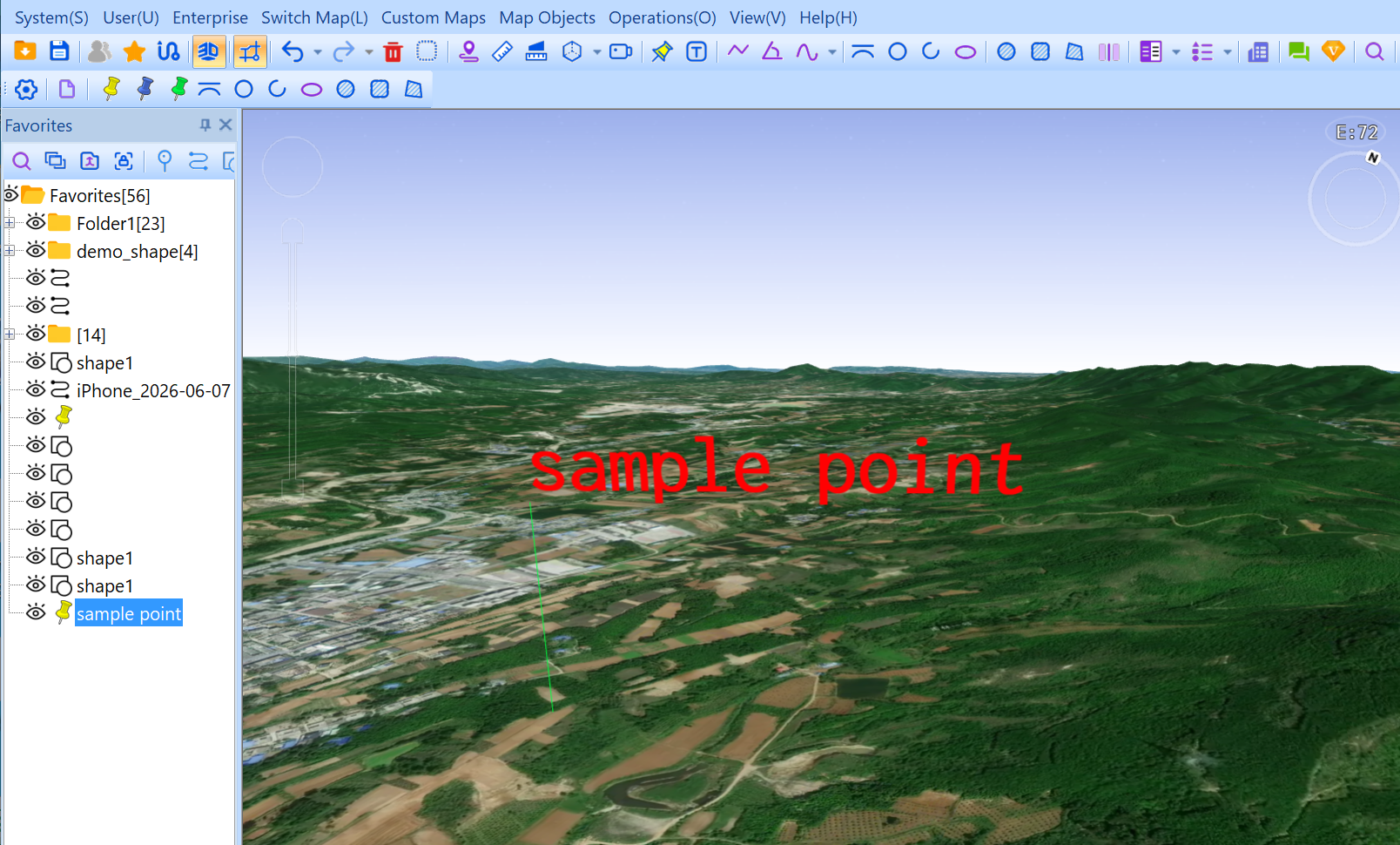
The placemark text is vividly demonstrated on the map, as shown in the following figure:
2) Mobile device
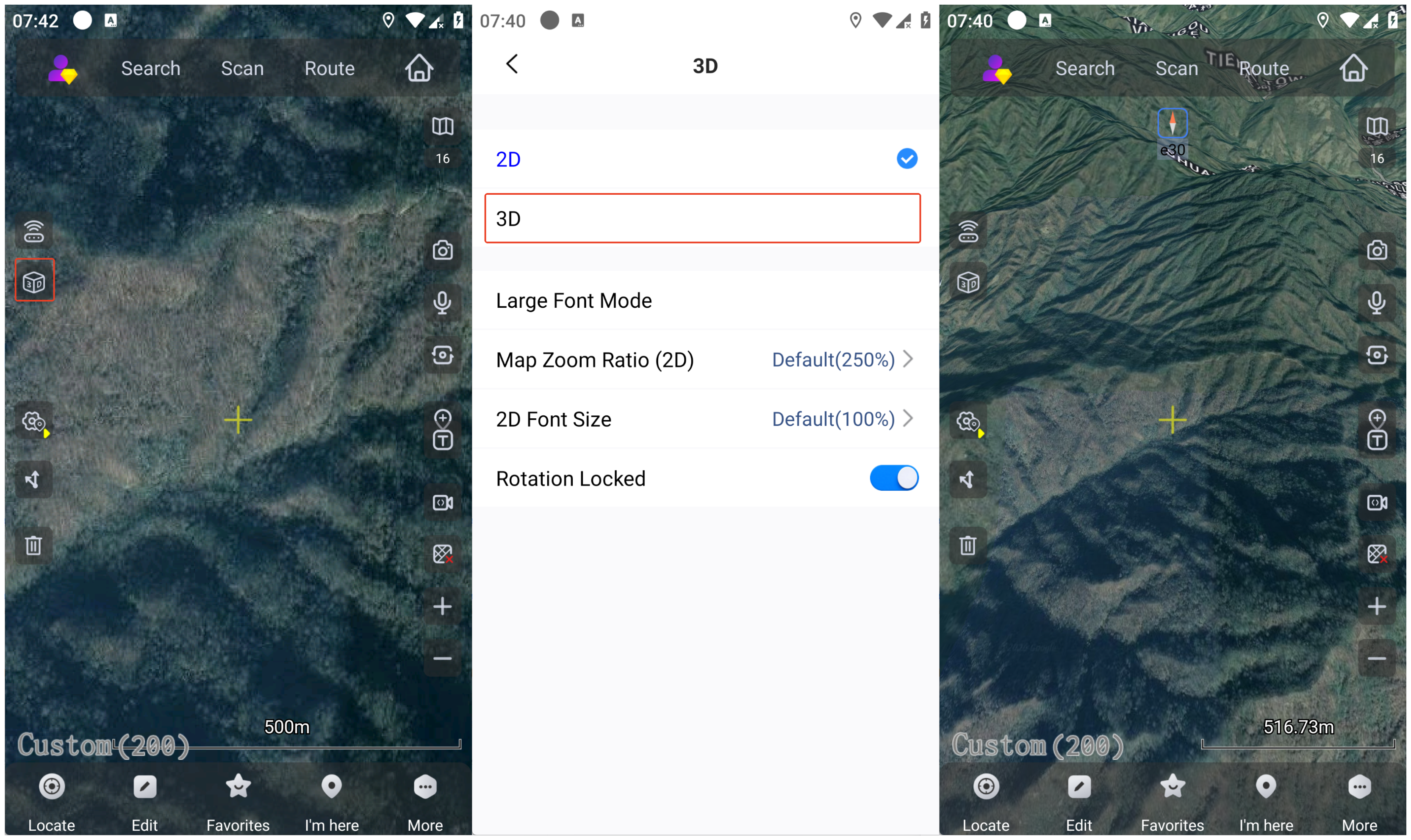
Open the QubiMap app and tap the 3D button on the main UI to enter 3D mode.
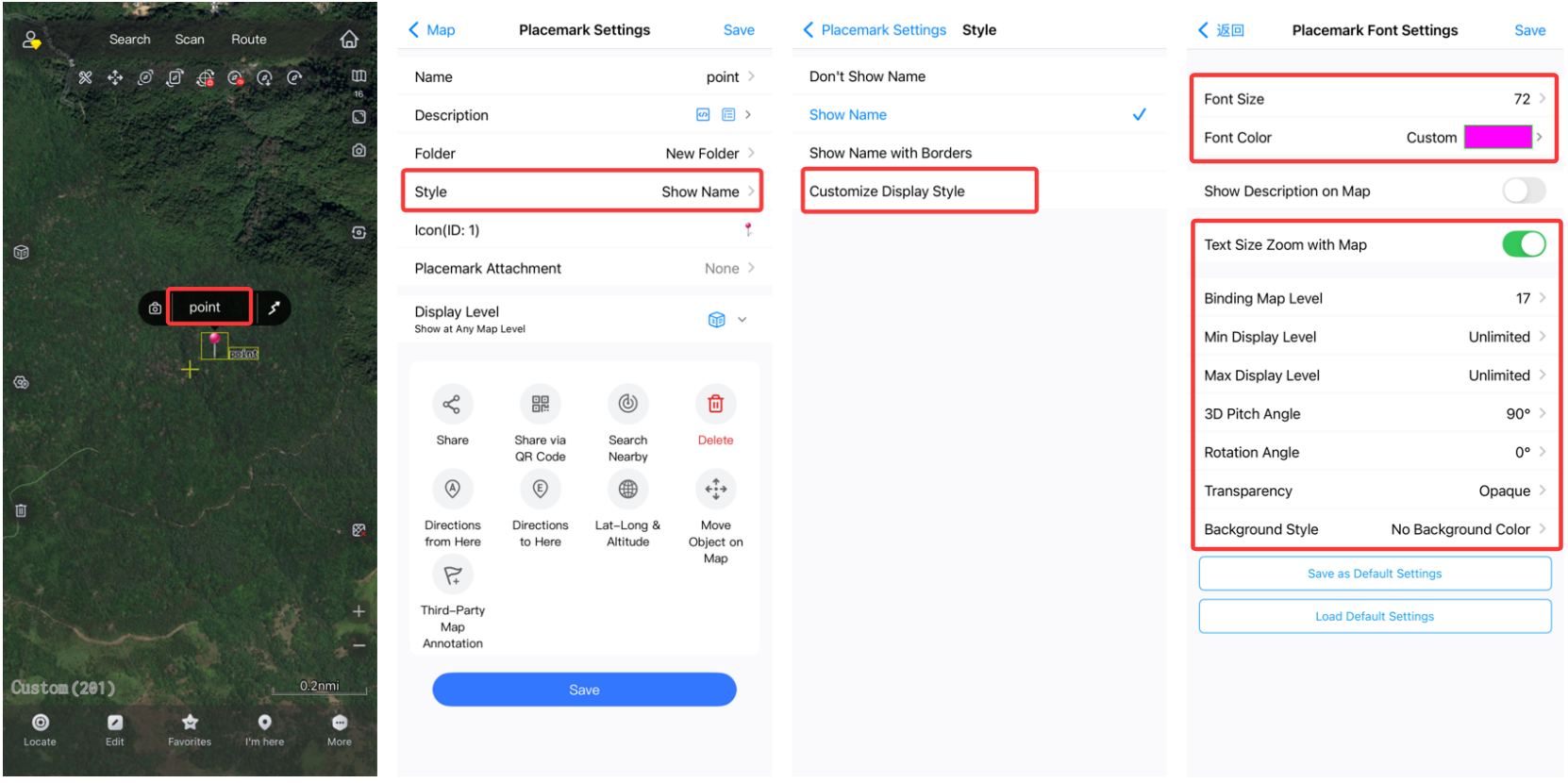
Double-tap the placemark on the map to go to the [Placemark Settings] page. Select [Customize Display Style] from the [Style] list. On the [Placemark Font Settings] page that appears, set the parameters as needed, and tap [Save].
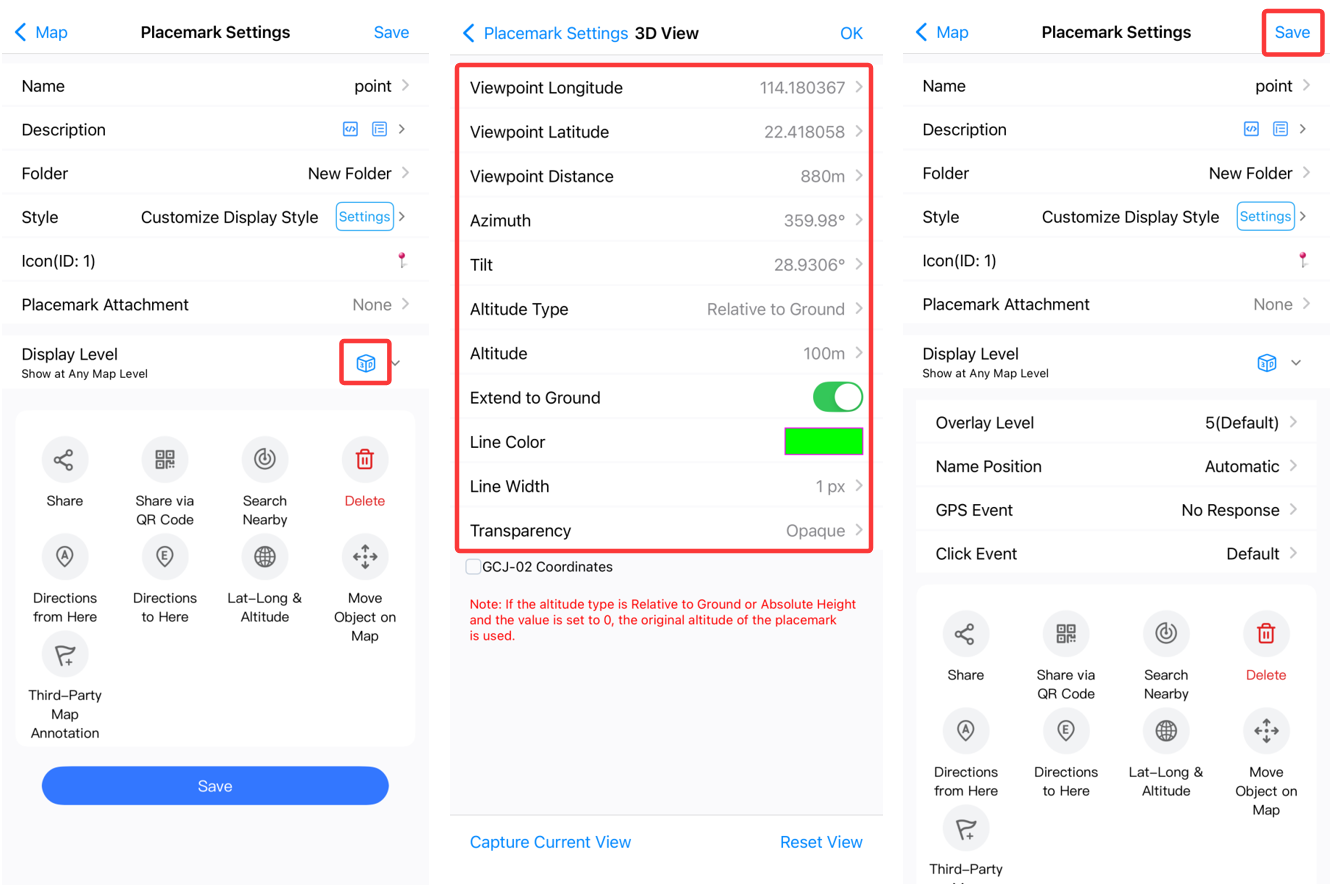
 On the [Placemark Settings] page, tap the [3D] icon. On the [3D View] page, set the parameters as needed and tap [OK]. Then, tap [Save].
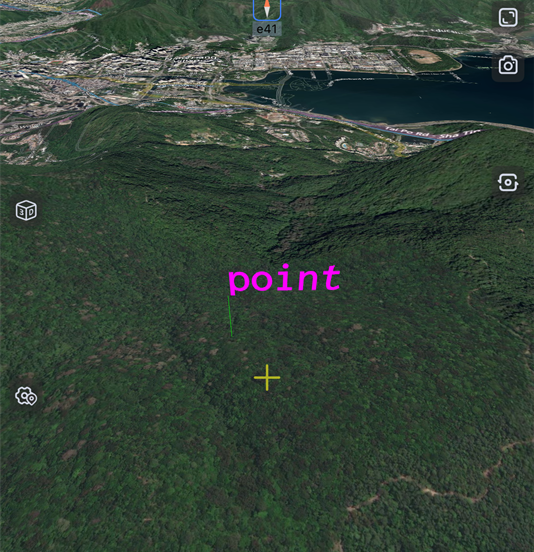
The placemark text is vividly demonstrated on the map, as shown in the following figure: