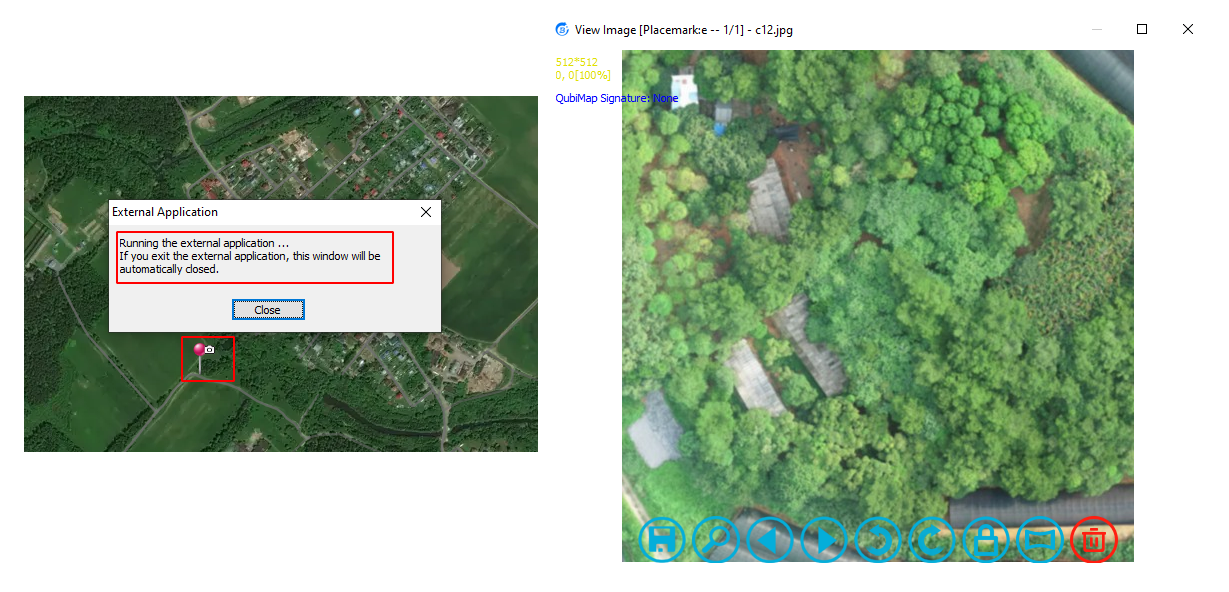
How to use placemark attachment association
Categories Common Features
In QubiMap, you can add attachments of any format to placemarks, such as spreadsheets, images, text, audio, and video. You can also specify third-party applications to open the attachments, and set opening methods through command-line parameters (for example, text attachments can be set to read-only or writable). For attachments of commonly used file formats, even if you do not specify applications, QubiMap will automatically call existing programs on the computer to open them.
The similarities and differences between placemark attachment association and placemark icon association are as follows:
(1) Similarities
① Both features are used to open files through third-party applications.
② Both features can achieve the association of different placemarks (even with the same icon) with different files.
(2) Differences
① Icon association is based on icon types. Placemarks with the same icon can only be associated with the same type of file (TXT, JPG, etc.). To associate different placemarks with different types of files, their icons must be different. In contrast, attachment association is based on file types. Placemarks (even with the same icon) can be attached with different types of files, which can be opened by calling different third-party applications.
② Icon association supports writing back new content. You can enter content in the placemark description, open it with Notepad, and edit the content. After saving, the changes are written back into the description. In contrast, attachment association only supports reading the TXT files attached to placemarks with Notepad. You cannot edit and save the modifications back to the attachments.
③ Icon association: when you share placemarks with your friend, the placemark description is shared as well. You friend must reset the icon associations on their own device. Attachment association: when you share placemarks with your friend, the placemark attachments are not shared. You must send the attachments separately. You friend also need to reset the attachment associations on their own device.
You can choose an association method based on your requirements. For more information about icon association, see the help document “How to use placemark icon association“.
This article describes how to use placemark attachment association.
1. Set attachments
You can add attachments of any format to placemarks as needed. In this example, TXT, JPG, and MP4 attachments are added to three placemarks, respectively.
Find the required placemark on the map, and then click the  button.

In the [Placemark Settings] dialog box, click [Set Attachments]. In the [Placemark Attachment Settings] dialog box, you can add attachments from the local disk or from the attachment library.

Click [Load from Files], select the JPG image you want to add, and then click [Open].

Then, click [Save]. The added attachment is added to the placemark attachment library.

Perform the preceding steps to add attachments to the other two placemarks.
2. Set attachment associations
In QubiMap, choose [System] > [Data Management] > [Placemark Attachment Library Management]. In the [Placemark Attachment Library Management] dialog box, you can view the attachments added to placemarks.
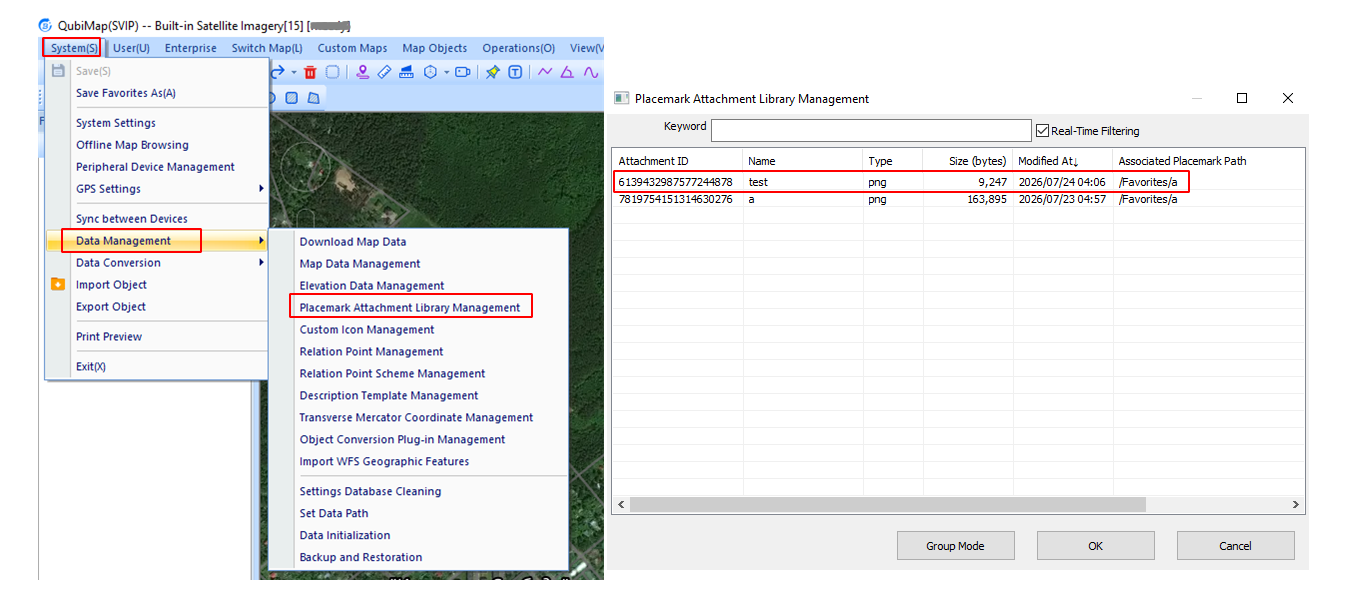
Click [More], and select [Attachment Association]. In the [Attachment Opening Method Management] dialog box, you can set opening methods for various types of attachments.

(1) Add attachment opening methods
In the [Attachment Opening Method Management] dialog box, click [Add]. In the [Attachment Opening Method Option] dialog box, set the file type, application file path, and command-line arguments. Then, click [OK].

File Type [File Extension]: the type of files to be opened by a third-party program. For example, for TXT files, set it to .txt.
Application File Path: the path to the executable (.exe) file of the third-party application. For example, the default installation path for Notepad++ is C:\Program Files\Notepad++\notepad++.exe.
Command-Line Arguments: Some applications support opening files by using command-line arguments. For example, when opening a file with Notepad++, you can set read-only mode by using the command-line argument -ro (read-only).
Note that different software has different command-line arguments and parsing methods. You must set the command-line arguments based on specific third-party programs.
In this example, opening methods are set for TXT, JPG, and MP4 files respectively as follows:
① TXT files
For text files, if you do not set an associated program (opening method), QubiMap automatically opens them with Notepad.
In the [Attachment Opening Method Option] dialog box, enter the file extension (txt), the Notepad++ application file path (C:\Program Files\Notepad++\notepad++.exe), the command-line arguments (-ro), and click [OK], and then click [Save].
Note: To open text attachments by using command-line arguments, you must use Notepad++.
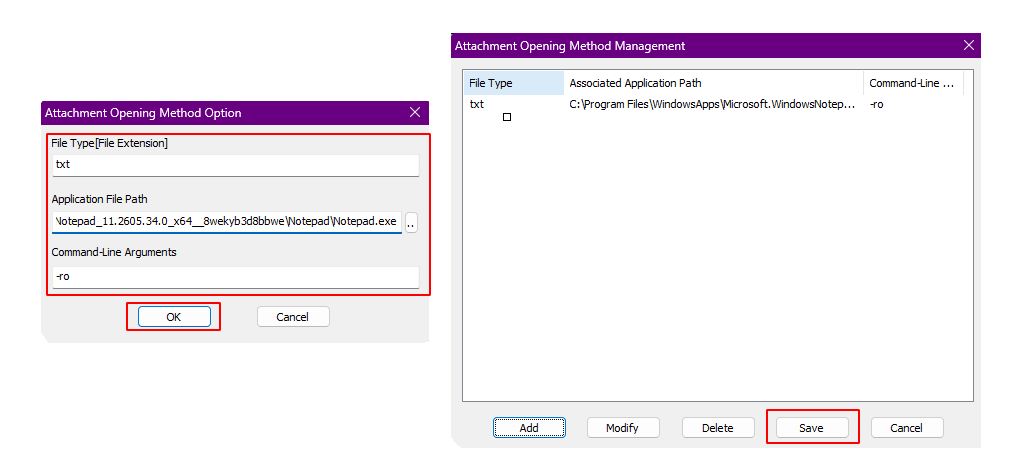
Now, you can hold down the Ctrl key and click on the placemark on the map to open the attached TXT file with Notepad++ in read-only mode. After you close the TXT file, the [External Application] window automatically closes.

② Video files
For video files, if you do not set an associated program (opening method), QubiMap automatically calls an available application on the device to play them.
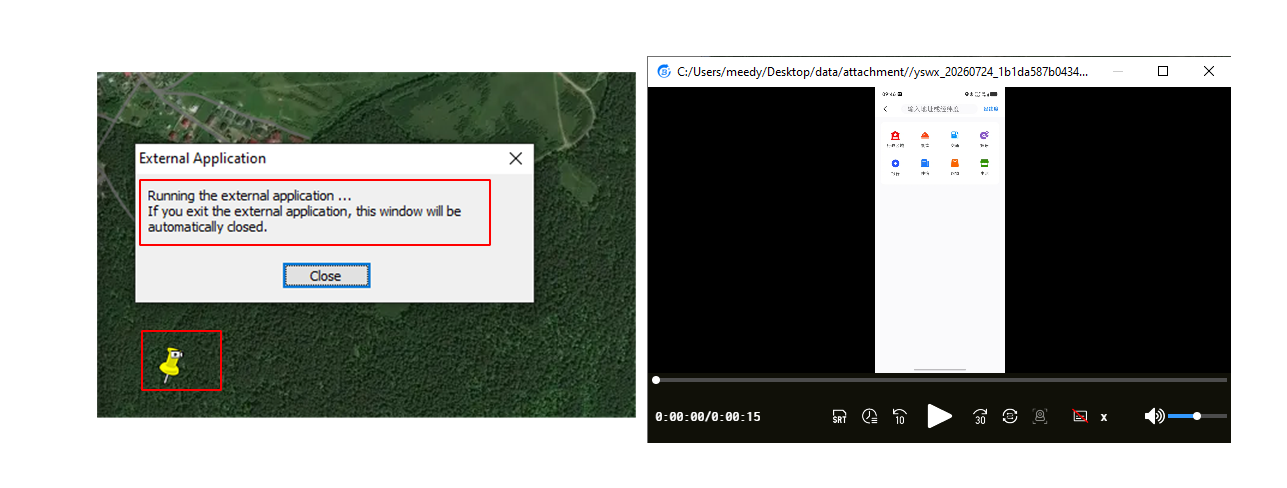
In the [Attachment Opening Method Option] dialog box, enter the file extension (mp4), and the application file path (in this example, C:\Program Files (x86)\IQIYI Video\GeePlayer\3.2.49.4280\GeePlayer.exe). Command-line arguments are optional. Click [OK], and then click [Save].
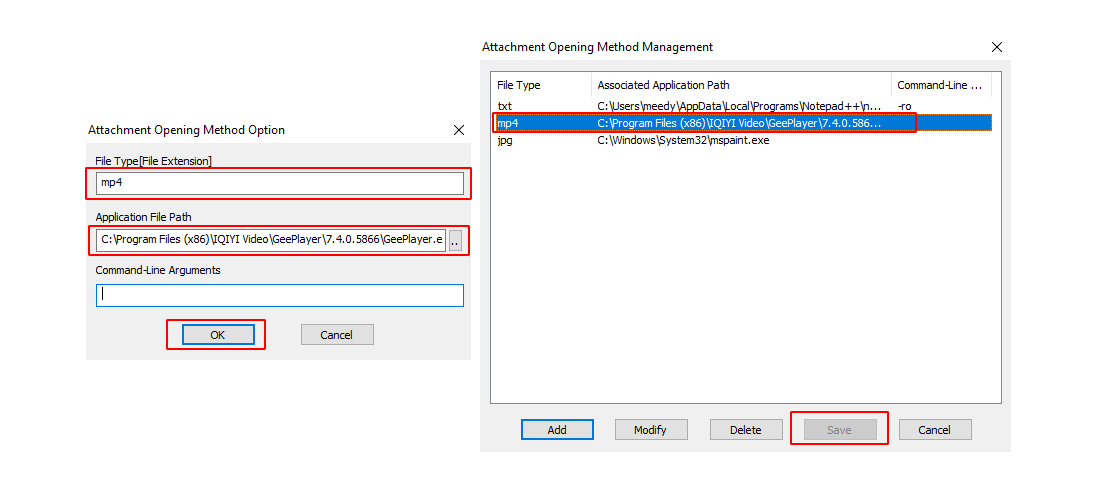
Now, you can hold down the Ctrl key and click on the placemark on the map to open the attached MP4 file with GeePlayer. After you exit the player, the [External Application] window automatically closes.
③ Image files
For image files in JPG, PNG, or TIFF, if you do not set an associated program (opening method), QubiMap automatically calls the built-in image viewer on the device.
In the [Attachment Opening Method Option] dialog box, enter the file extension (in this example, jpg), and the application file path (in this example, C:\Windows\System32\mspaint.exe). Command-line arguments are optional. Click [OK], and then click [Save].

Now, you can hold down the Ctrl key and click on the placemark on the map to open the attached image file with Windows Paint. After you exit Paint, the [External Application] window automatically closes.