How to create and manage a group chat on a PC
Categories Common Features
In QubiMap, you can create a group chat and invite your friends to join the chat for message communication and data sharing.
Note: This feature is only available to VIP and SVIP users.
1. Create a group chat
In the [Friends] pane, right-click [My Group Chats], and select [Create Group Chat]. In the [Group Chat Info] dialog box, enter a name and introduction, and click [Create]. The created group chat will appear in the [My Group Chats] list.

2. Manage the group chat
In the [My Group Chats] list, right-click the group chat, and select [Member Management]. In the [Group Chat Info] dialog box, you can view the group chat information, manage members, and configure the group chat settings.

2.1. Manage members
On the [Member Management] tab, the group chat owner can invite friends in QubiMap to join the group chat.
Click [Invite]. In the [Select Friend] dialog box, select the friends you want to add to the group chat, and then click [OK].

2.2. Configure the group chat settings
On the [Group Chat Settings] tab, group chat members can configure the message and location sharing settings, while the group chat owner can configure how members join the group chat.
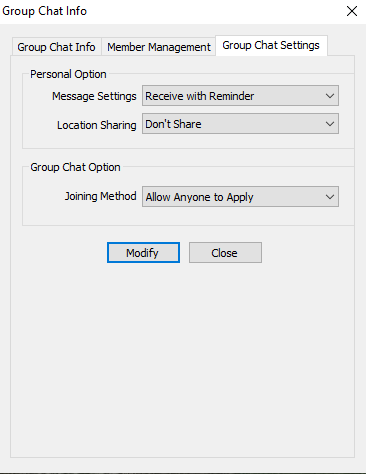
(1) Message Settings
Valid options: [Don’t Receive], [Receive without Reminder], and [Receive with Reminder]. We recommend that you select [Receive without Reminder], so that when a message is received, it will appear in the chat window with a sound notification.
(2) Location Sharing
Valid options: [Don’t Share], and [My Location].
My Location: Share the location information collected by any device (mobile phone, tablet, or computer) bound to your QubiMap account.
To achieve location sharing, you must configure location collection in your account settings. For more information, see the section 4.1.
(3) Joining Method
Only the group chat owner can set this parameter.
Allow Anyone to Apply: Any QubiMap user can search for the group chat by group chat ID or name and apply to join the chat.
Only Allow Administrator to Add: Only the group chat owner can add members. Other QubiMap users cannot join the chat by applying.
After you set the parameters, click [Modify].
3. Send messages
All members can send messages to the group chat, such as text, placemarks, images, files, settings, and audio messages.

3.1. Send QubiMap objects
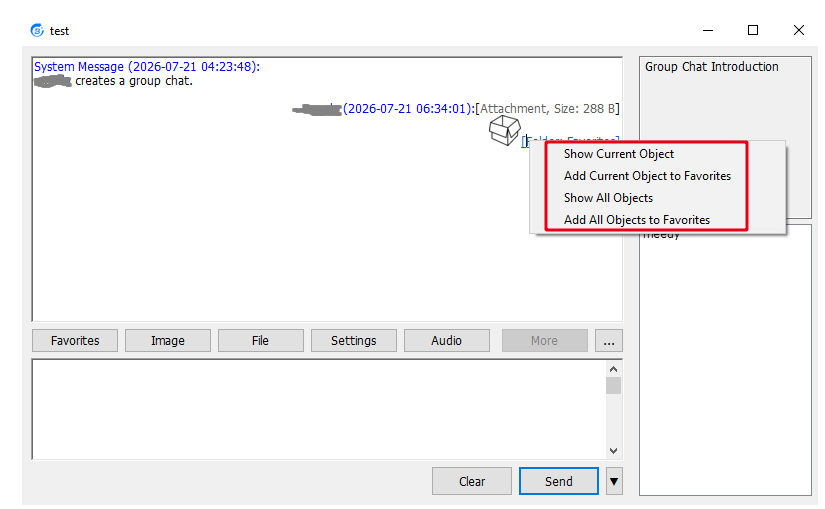
Group chat members can send QubiMap objects from the local favorites to the chat, and others can download these objects.

After downloading, members can manage the objects by selecting the following options:
Show Current Object: Show the current object on the map.
Show All Objects: Show all downloaded objects on the map.
Add Current Object to Favorites: Add the current object to the local favorites.
Add All Objects to Favorites: Add all downloaded objects to the local favorites.
3.2. Send images and files
Group chat members can send images and files from the local disk to the chat.

4. View the locations of group chat members
Group chat members can share their location information and real-time tracks with other members in the group chat.
For example, if Member A shares his location information, Member B can view the current location or track of Member A.
4.1. Member A: Configure location collection settings
To share the location information, Member A must enable location collection first.
On the main UI, choose [User] > [Account Settings]. In the account settings, click [Location Collection Settings] to set the parameters.

(1) Location Collection
Valid options: [Don’t Collect], [Only Retrieve Current Location], and [Collect Last n Days]. You can collect location data in the last 30 days at most.
(2) Collection Interval
Set this parameter based on your actual requirements. For example, if you set this value to 10s, the devices bound to your account will upload real-time locations to the QubiMap server every 10 seconds.
(3) Storage Period
Set this parameter based on your actual requirements. Different storage periods require different VIP levels.
After you set the parameters, click [OK].
Note: If you are sharing the location information from a QubiMap positioning device, you do not need to set the [Location Collection] and [Collection Interval] parameters; the device’s location information is automatically sent to the QubiMap server or enterprise server.
4.2. Member A: Enable location sharing
On the [Group Chat Settings] tab, set the [Location Sharing] parameter to [My Location], and click [Modify].
4.3. Member B: View the location information of Member A
In the [Friends] pane, right-click [My Group Chats], and select [View Followed Group Chat Friends]. In the dialog box that appears, Member B can add Member A who has shared the location information.
Click [Add], select the group chat, select the members who have shared their location information, and then click [OK].
You can also select [Entire Group Chat] to add all members.

Once Member A’s location data is collected, Member B can view member A’s current location on the map.

Member B can customize the location display settings.
In the [View Followed Group Chat Friends] dialog box, select Member A and click [Modify] to modify the alias, location, and display attributes such as line color, width, and opacity.
Location: You can select [Show Last Position] or [Show Track]. If you select [Show Track], Member A’s real-time track is displayed on the map.

5. View the group chat information
Group chat members can view the information about the group chat, such as the owner, name, service period, and maximum number of members.
In the [My Group Chats] list, right-click the group chat, and select [View Group Chat Info]. The group chat information is displayed on the [Group Chat Info] tab.

On the [Group Chat Info] tab, click [Share via QR Code] to share the group chat’s QR code with other users. Other users can scan the QR code with their mobile devices to join the group chat.
6. Search for a group chat
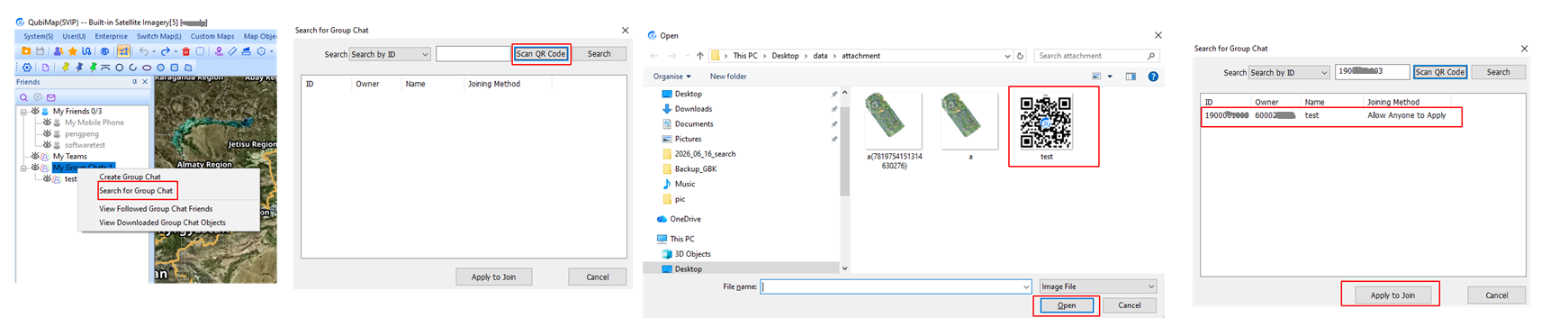
In QubiMap, you can search for a group chat by group chat ID or name. After finding the group chat, you can apply to join it. You can also join a group chat by scanning the QR code.
(1) Search by group chat ID or name
In the [Friends] pane, right-click [My Group Chats], and select [Search for Group Chat]. In the dialog box that appears, select a search method, enter a group chat ID or name, and click [Search].
After you find the required group chat, click [Apply to Join] to send a request. Once the group chat owner agrees, you can join the group chat. However, if the Joining Method parameter of a group chat is set to [Only Allow Administrator to Add], other users cannot apply to join the group chat; they must be invited by the group chat owner.

(2) Scan a QR code
In the [Friends] pane, right-click [My Group Chats], and select [Search for Group Chat]. In the dialog box that appears, click [Scan QR Code]. Find the QR code file shared by your friend, and click [Open]. The group chat information is displayed in the dialog box. Click [Apply to Join] to send a request. Once the group chat owner agrees, you can join the group chat. If the Joining Method parameter of a group chat is set to [Only Allow Administrator to Add], other users cannot apply to join the group chat; they must be invited by the group chat owner.