How to remove the blue background color when exporting shapes as images
Categories Map Downloading
When you export a shape as an image, the default blue background color that fills the shape may affect the image clarity or obscure the objects that need to be displayed. The following two methods are available to remove the background color:
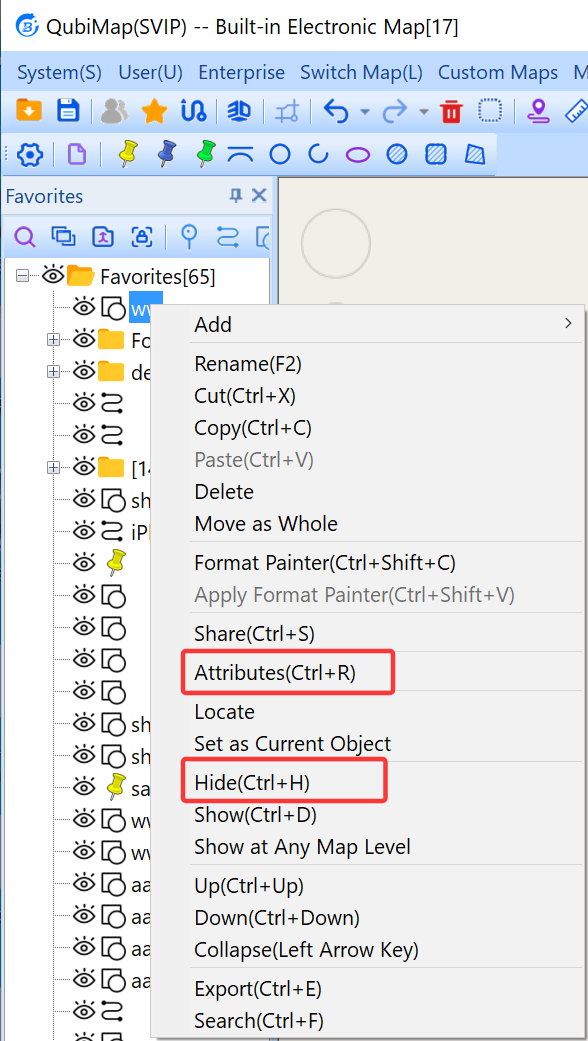
- Hide the shape. After you set the shape to hidden, the eye icon before this shape name changes to
 . Then, go to the shape settings and export the shape as an image.
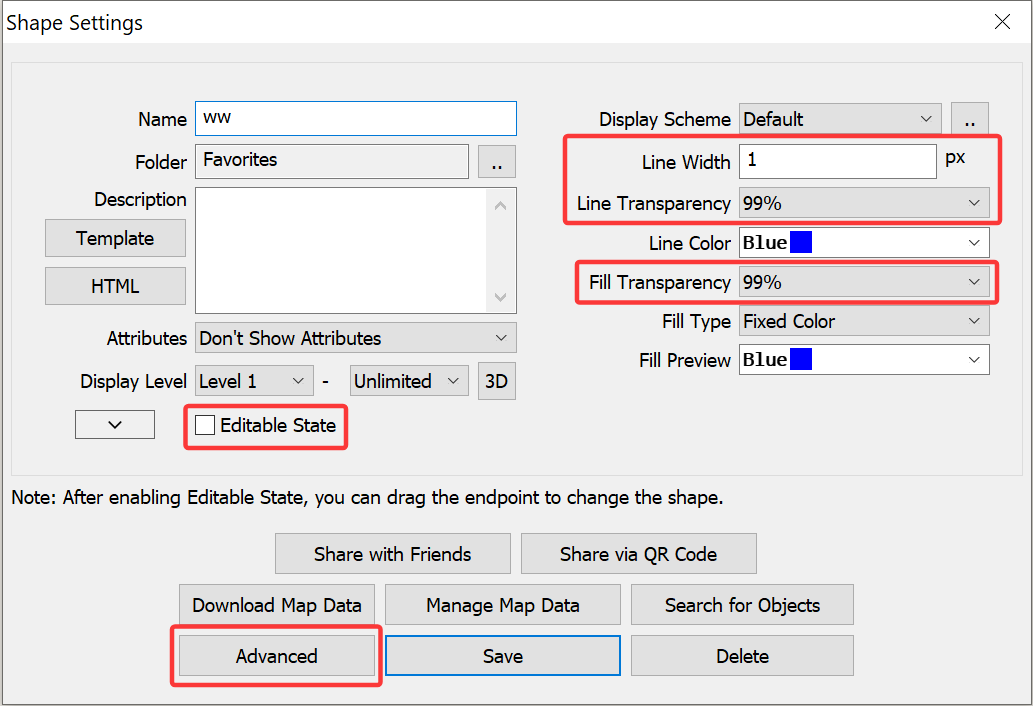
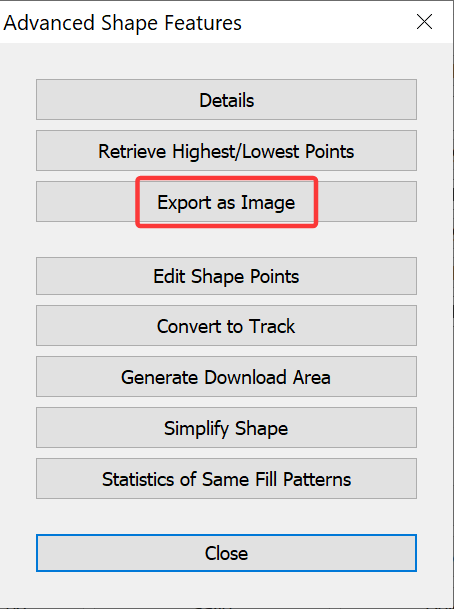
- In the [Shape Settings] dialog box, set the line and fill transparency to 99%, and unselect [Editable State] to make the shape uneditable. Then, click [Advanced] → [Export as Image] to export the shape as an image.