How to import 3D models
Categories Data Import and Export
QubiMap supports loading large-scale 3D models at high speeds, delivering exceptional rendering performance while maintaining low memory consumption. It provides optimal experience for BIM designers, constructors, and O&M personnel.
Currently, QubiMap supports model formats such as 3DS, OBJ, DAE, and SKP, as well as oblique photography formats like OSGB, SLPK, and 3DTiles. This article describes how to import 3D models. In this example, a SKP model file is used.
1. Import a 3D model
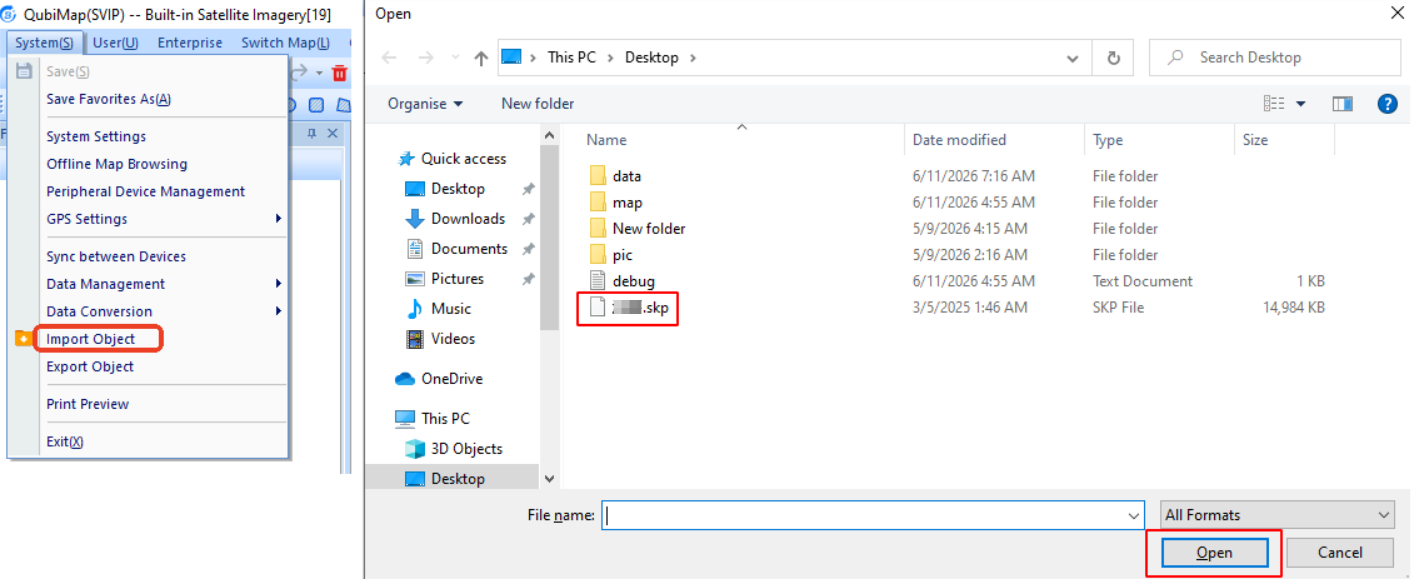
Open QubiMap, click the [3D] button to enter 3D mode, and then choose [System] > [Import Object]. Navigate to the directory where the file is stored, select the model file, and click [Open].
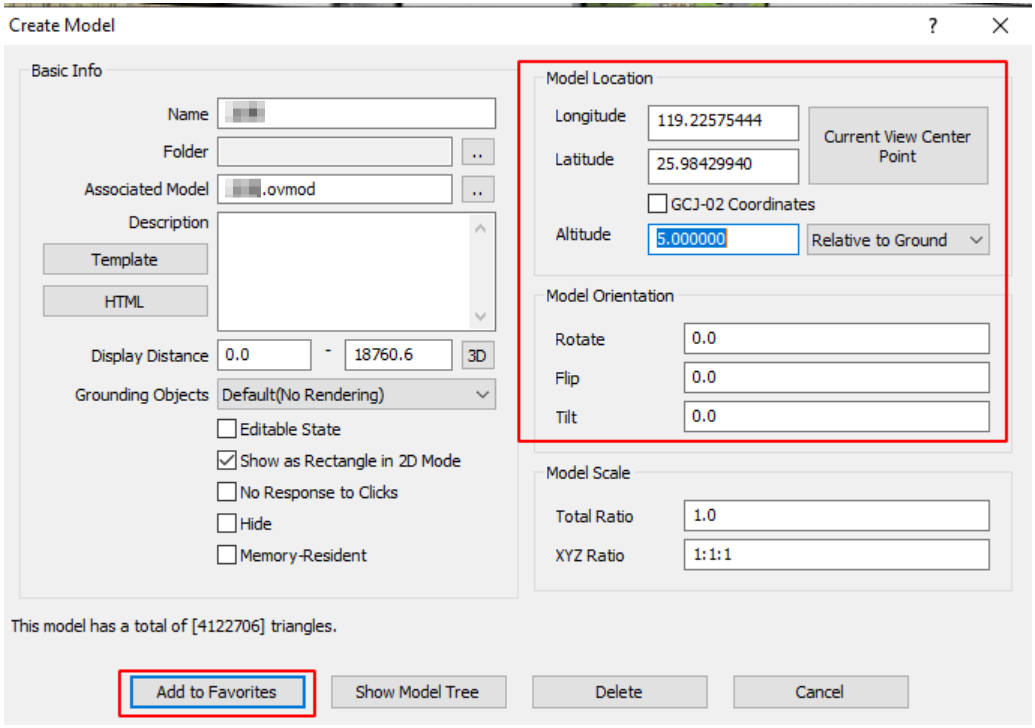
After the loading process is completed, click [Add to Favorites]. You can also edit the latitude, longitude, altitude, and orientation information in the current dialog box to import the model to the required location.
If the import fails, please install the VC++ Redist library and try again. For more information, see the help document “How to install the VC++ Redist library”.
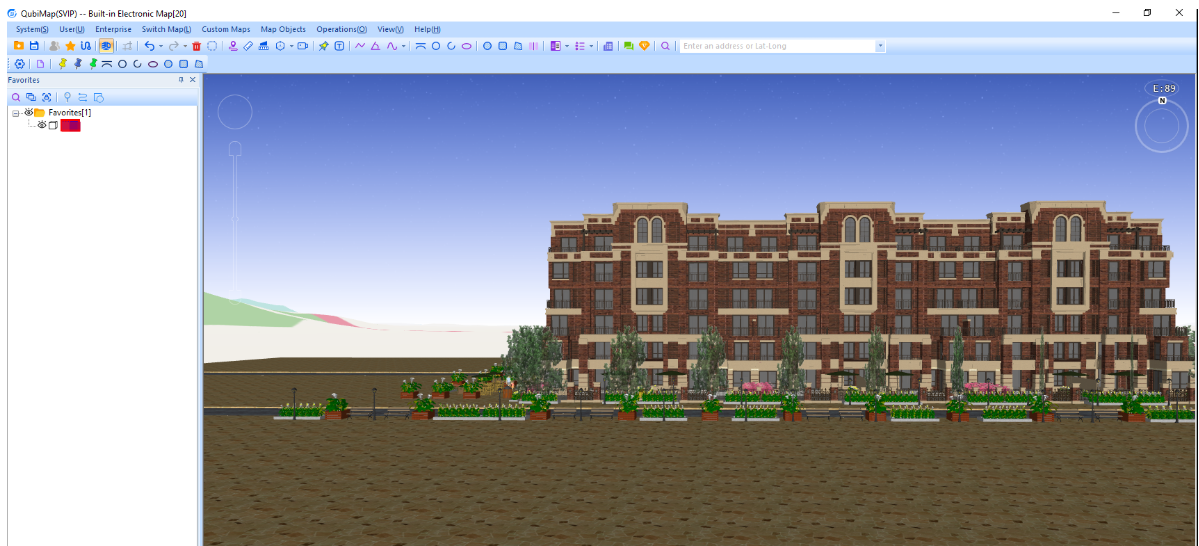
After the model is imported, double-click this model in your favorites to go to the corresponding location.
2. View the model
You can view a 3D model by using the following shortcut keys:
☆ Middle mouse button: Adjust the pitch and rotation angles
☆ Shift + Up arrow: Decrease the pitch angle
☆ Shift + Down arrow: Increase the pitch angle
☆ Shift + Left arrow: Rotate counterclockwise
☆ Shift + Right arrow: Rotate clockwise
☆ Scrolling of the mouse wheel: Adjust the eye altitude
You can also press the F10 key to enter model browsing mode. In this mode, the following shortcut keys are available:
☆ Any arrow key or ASDWQE key: Move the field of view
☆ X key or Spacebar: Adjust the eye altitude
☆ Right mouse button: Adjust the pitch angle and direction
☆ Z or C key: Adjust the forwarding speed
☆ T key: Enable collision detection