Track tour animation
Categories Common Features
To dynamically demonstrate tracks and further help users plan, compare and analyze tracks to obtain the optimal solution, QubiMap provides the track tour animation feature. By using this feature, you can play a track as an animation, as if you are touring along the track.
This article describes how to use the track tour animation feature on the PC and mobile versions.
1. PC
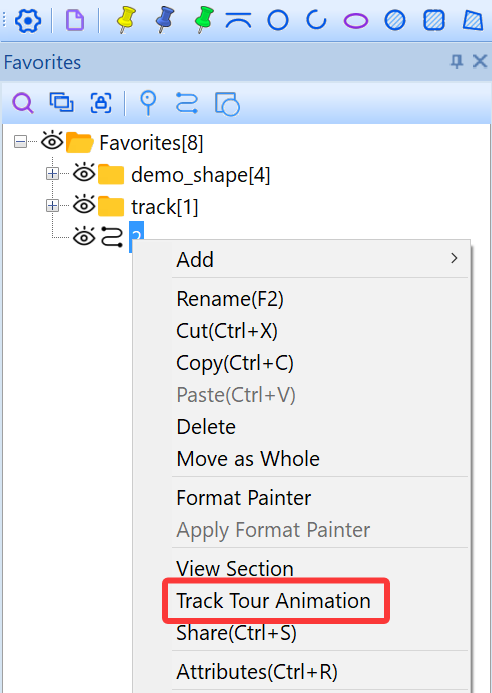
In your favorites, find the required track, right-click on it and select [Track Tour Animation].
A progress slider and track tour settings are displayed in the upper right corner of the QubiMap window. You can control the playback and pause by using the button.

You can also adjust the progress and locate where you want to view on the track by using the progress slider.

The three buttons on the right side of the progress slider are used to specify the speed, loop, and detailed track tour settings. You can click the  button to set the playback speed, and click the
  button to play the track animation in loop.
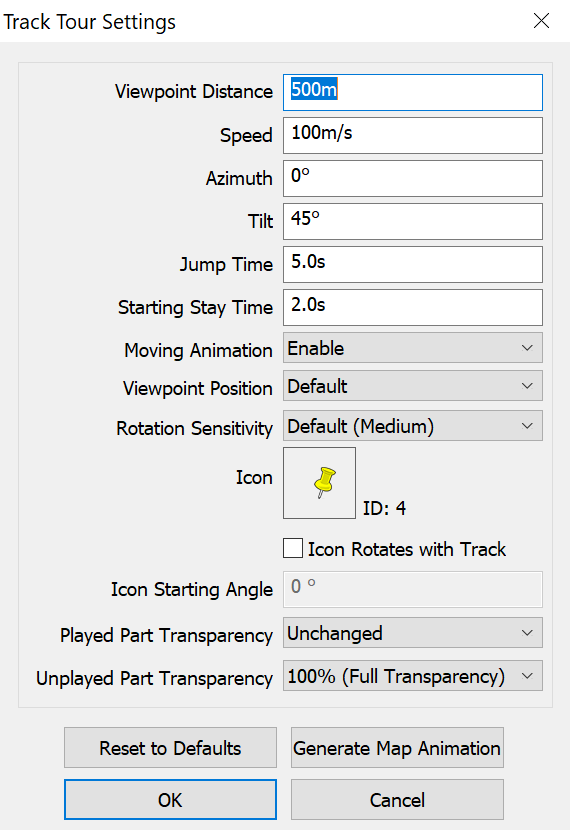
You can click the  button to set the track tour parameters as needed, such as viewpoint distance, placemark moving speed, azimuth, tilt, and placemark icon.
2. Mobile device
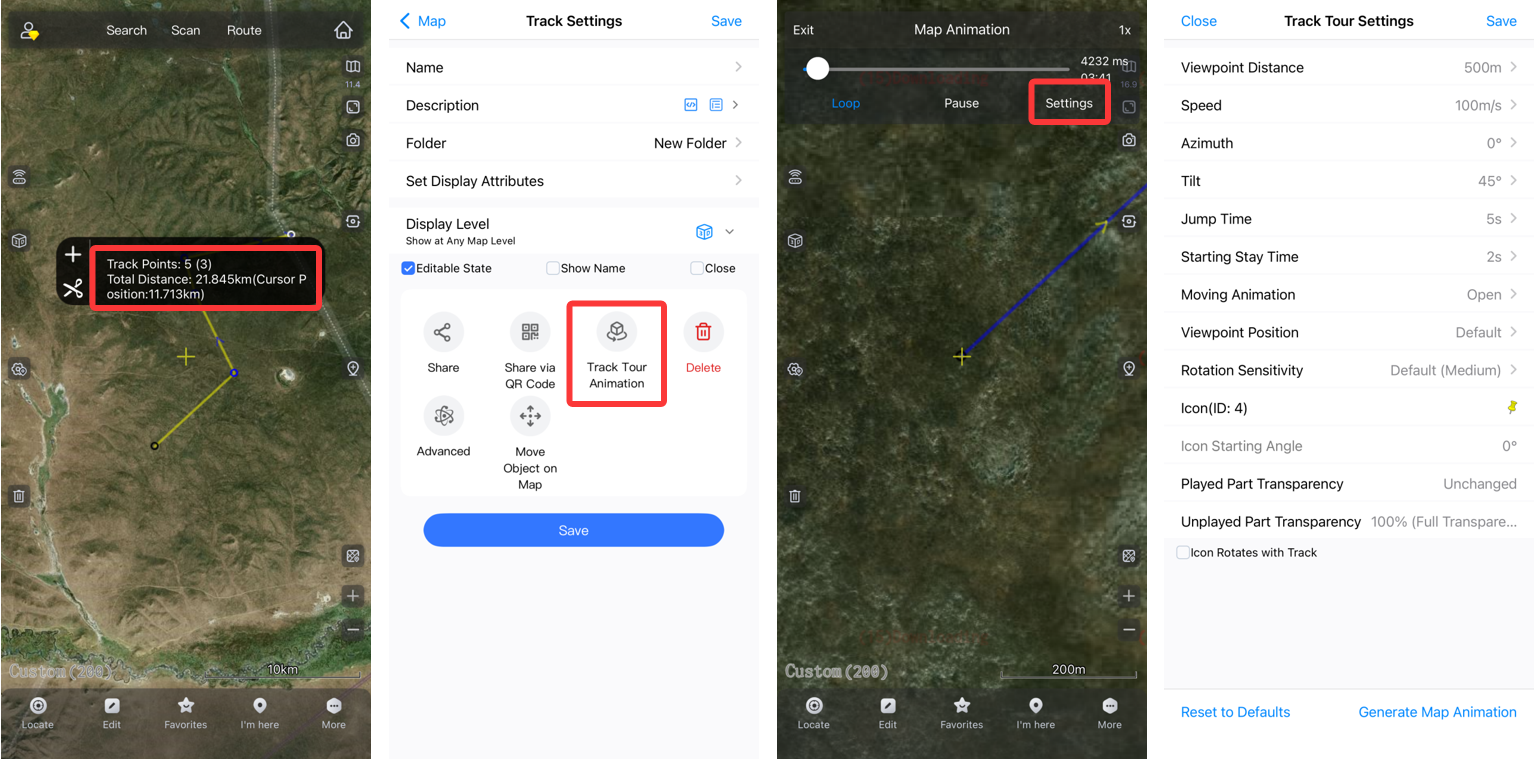
On the map, find the required track, tap on the track, and then tap on the floating window that appears.
In the [Track Settings] dialog box, select [Track Tour Animation] to enter track tour mode.
You can customize the track tour parameters by clicking [Settings] in the upper right corner. The parameters include viewpoint distance, placemark moving speed, azimuth, tilt, placemark icon, and so on.