How to scan QR codes to add custom maps
Categories Map Downloading
QubiMap supports sharing custom map layers via QR codes. This article describes how to add a custom map by scanning the QR code shared by your friend.
1. PC
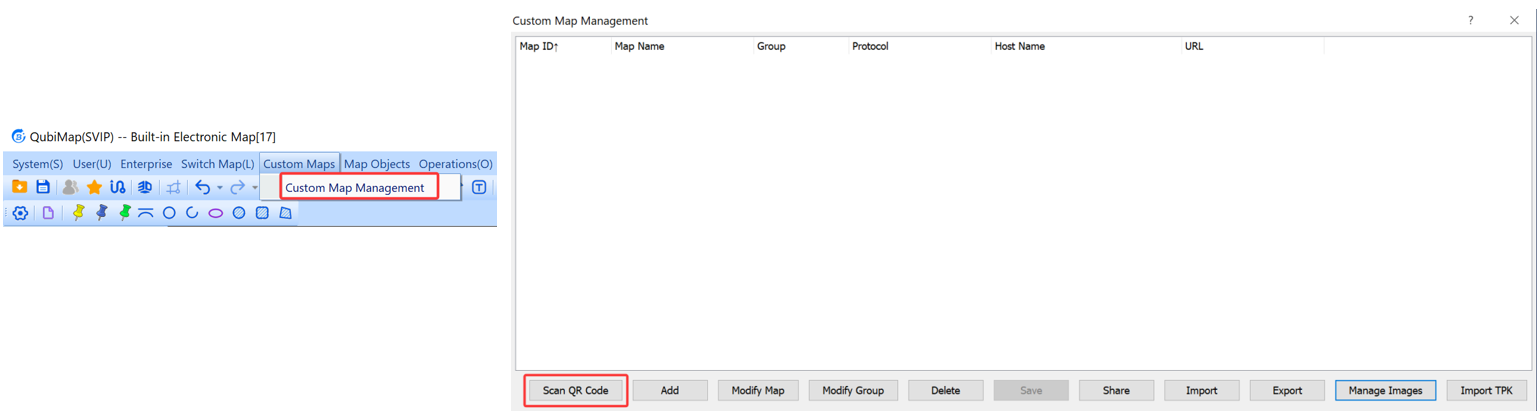
Choose [Custom Maps] > [Custom Map Management]. In the dialog box that appears, click [Scan QR Code].
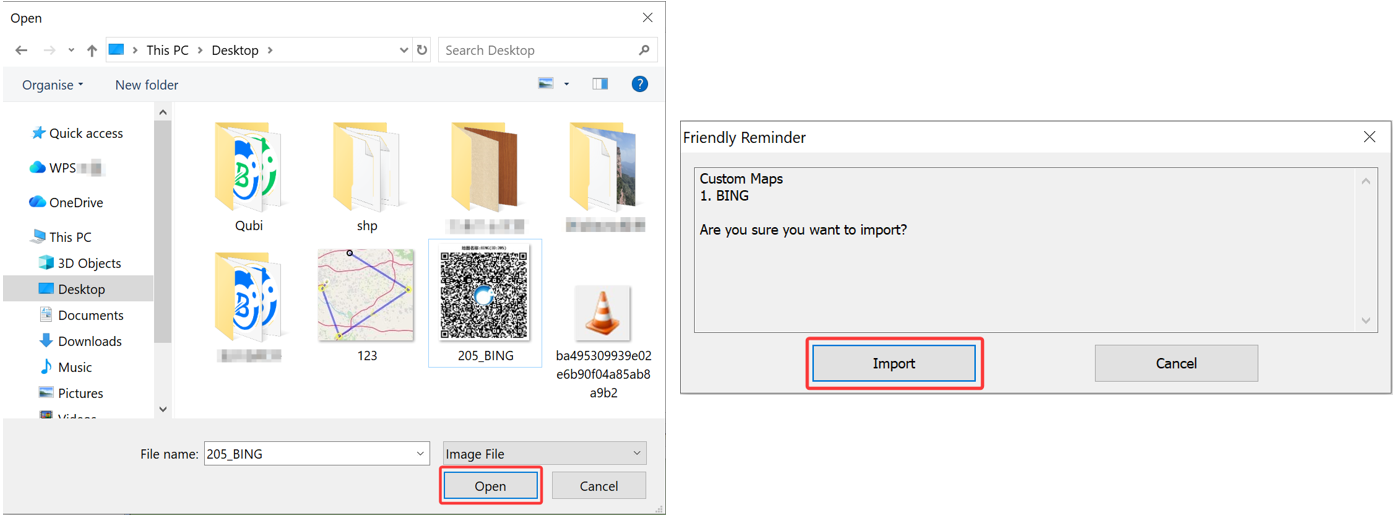
Select your map QR code file, and click [Open]. In the message that appears, click [Import].
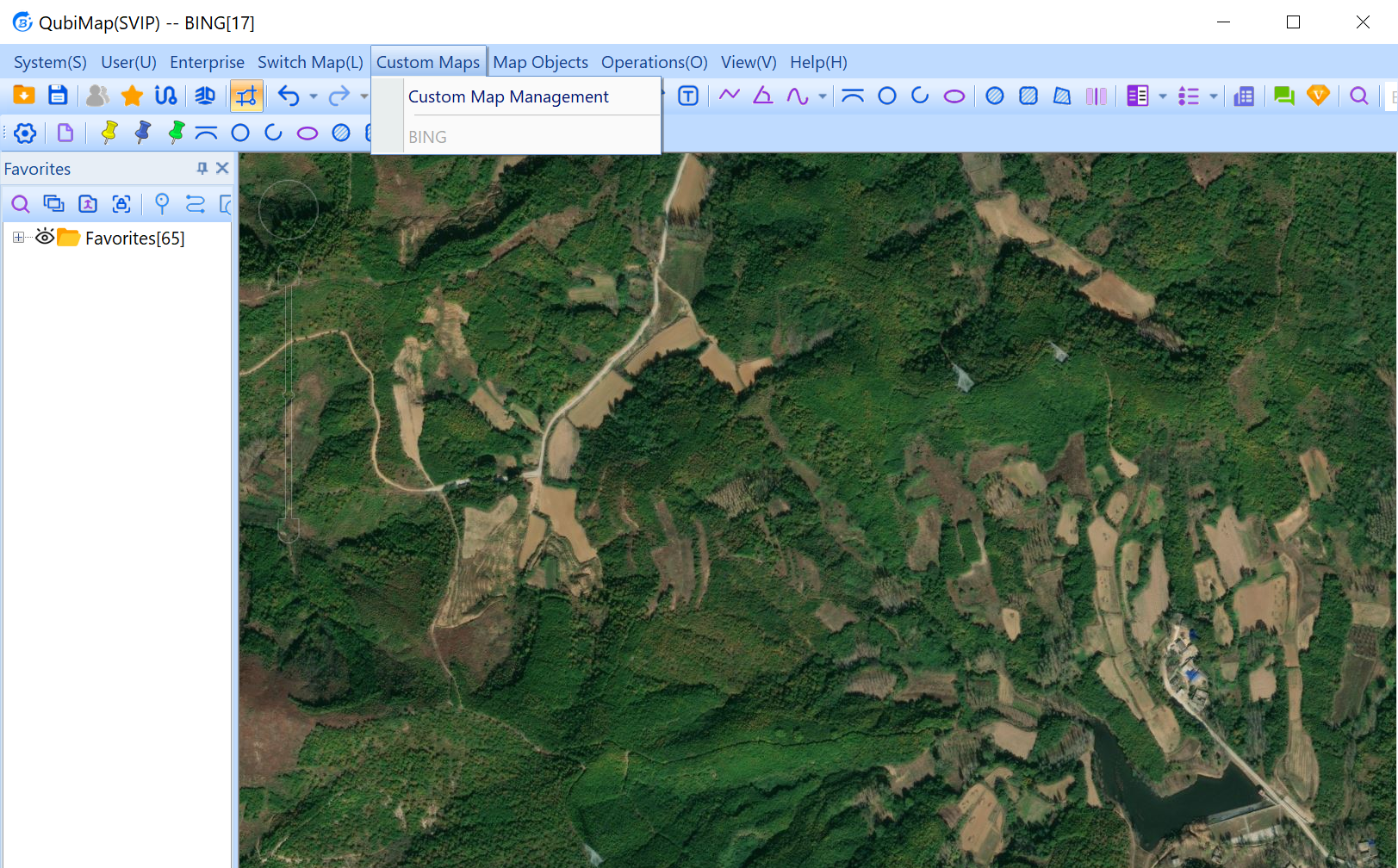
Close the [Custom Map Management] dialog box, and select the added map from the [Custom Maps] drop-down list to view it.
2. Mobile device
On the main UI, tap [Scan] on the top to scan the QR code. In the message that appears, tap [OK] → [Close].
You can only scan one QR code each time.
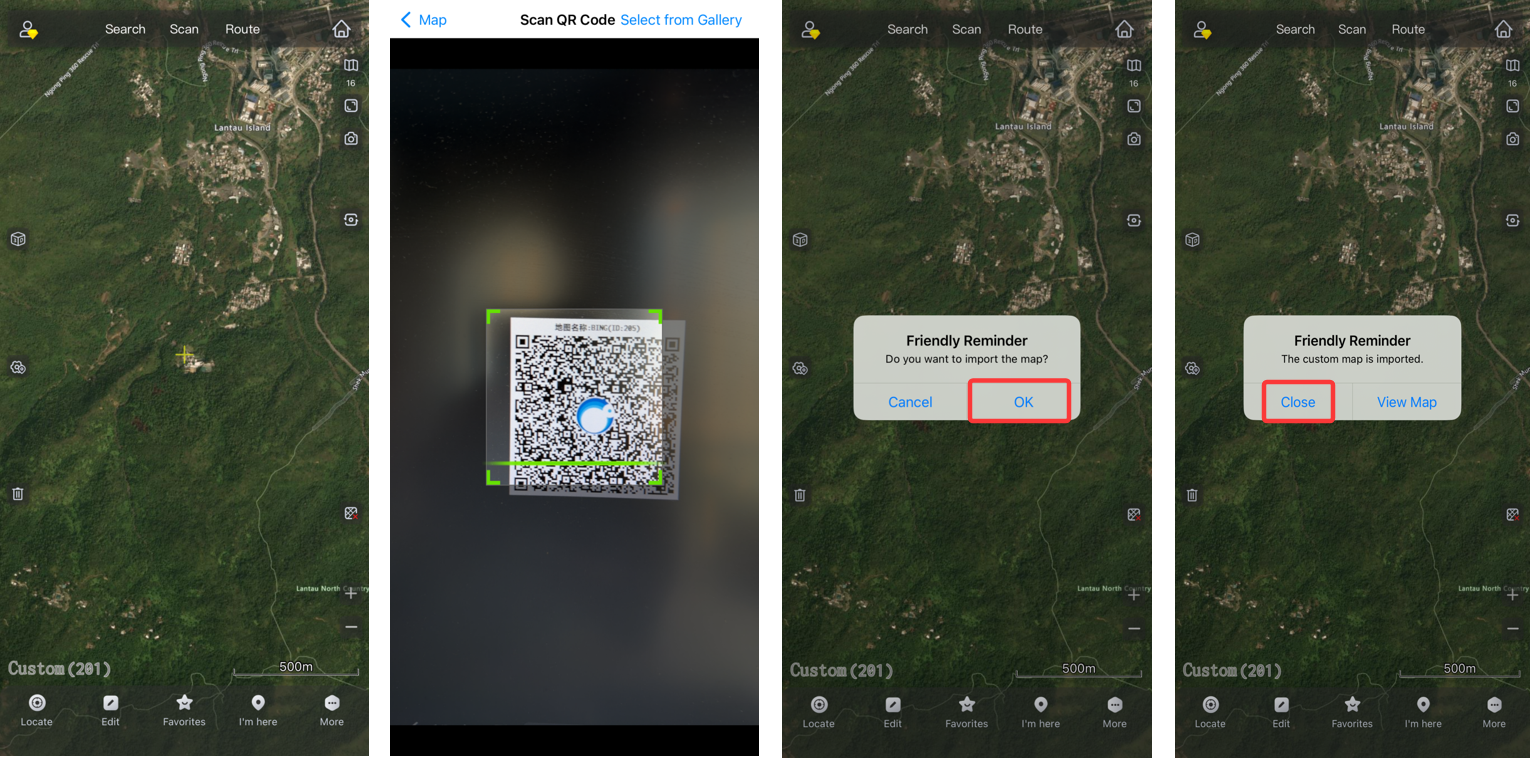
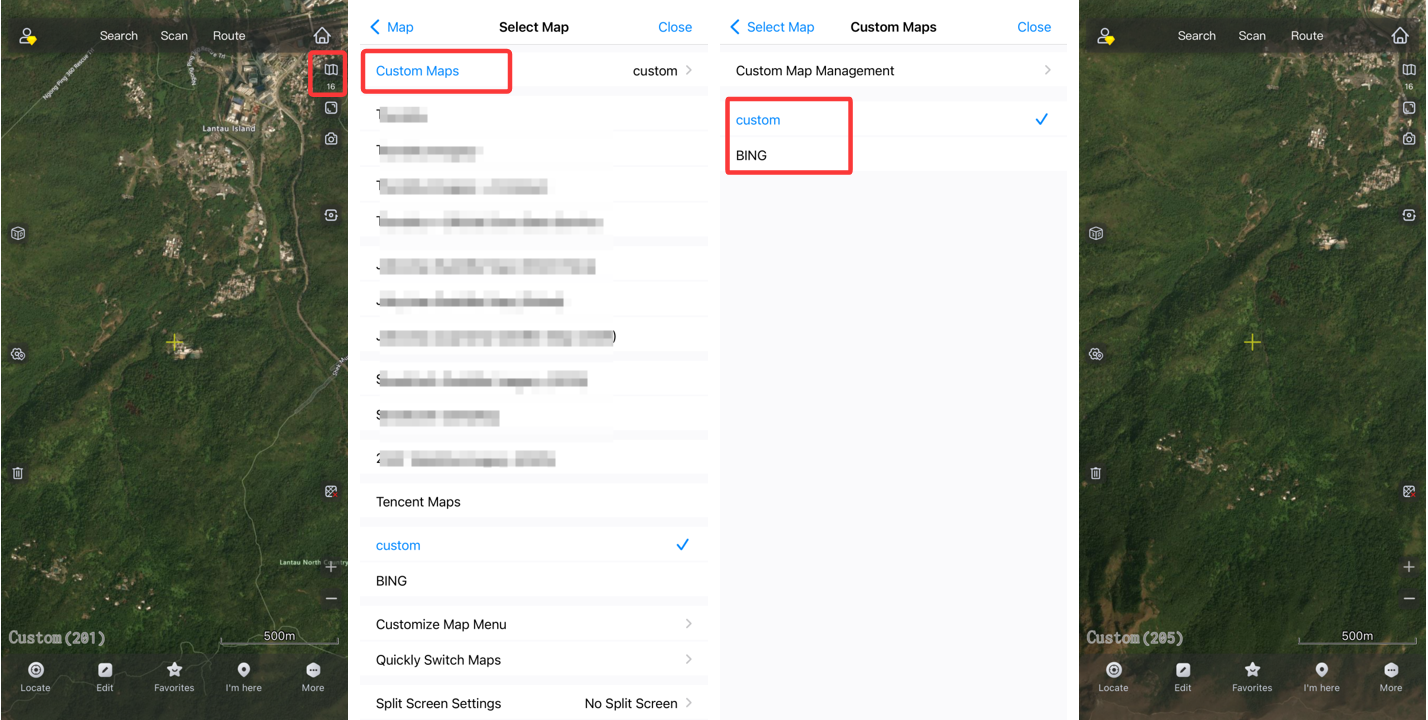
Tap the  button in the upper right corner, and select [Custom Maps]. On the [Custom Maps] page, select the added map to view it.