How to perform basic operations on tracks
Categories Common Features
The basic operations for tracks include: drag track points, drag the entire track, add and delete track points, and split and merge tracks. To perform these operations, you need to make sure that the tracks are in editable mode.
This article describes how to perform these basic operations on tracks by using the PC and mobile versions.
1. PC
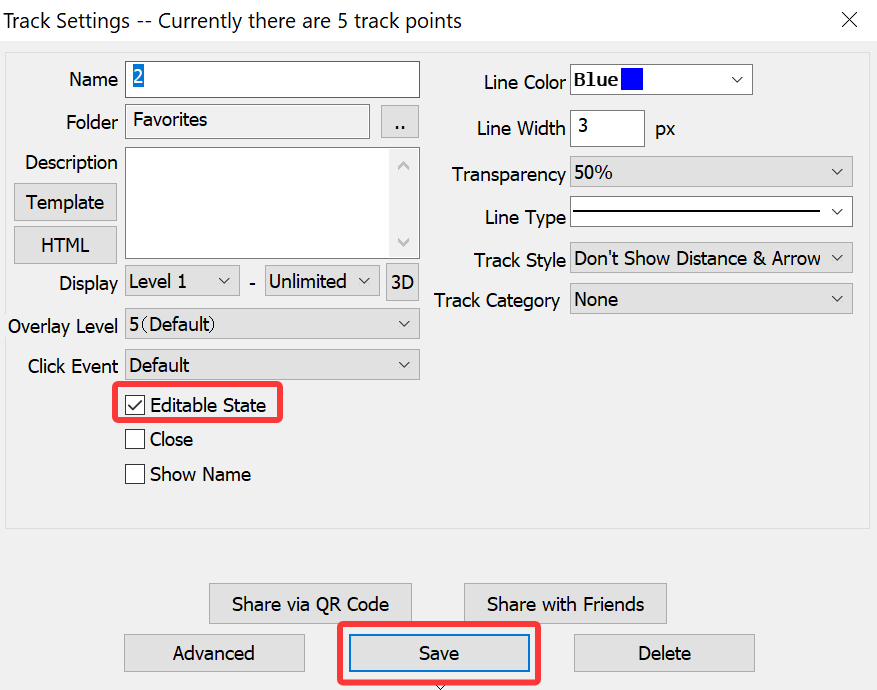
On the map, find the required track, click on the track, and then click the  button to go to the [Track Settings] dialog box.
Select [Editable State], and then click [Save].
When you move the mouse cursor (pointer) to different positions on the track, the pointer changes to different styles, and the prompt bar in the lower left corner of QubiMap demonstrates the supported operations on the current position and specific operation methods.
Drag a track point: Move the mouse pointer to a track point (node). The pointer changes to  . Hold down the left mouse button to drag the node.
Move the entire track: Hold down the Shift key and move the mouse pointer to any track position. The pointer changes to  . Hold down the left mouse button to drag the entire track.
Add a track point: Hold down the Ctrl key and move the mouse pointer to the desired location on the track. The pointer changes to  . Click the left mouse button to add a node.
Delete a track point: Hold down the Ctrl key and move the mouse pointer to the required track node. The pointer changes to  . Click the left mouse button to delete the node.
Split a track:
(1) Hold down the Alt key and move the mouse pointer to the node where you want to split the track. The mouse pointer changes to . Click the left mouse button, and the following dialog box appears:

(2) Click [OK]. The original track is split into two tracks.
Note: A track consisting of only two track points cannot be split.
Merge tracks:
(1) Hold down the Alt key, move the mouse pointer to the endpoint of a track, and click the left mouse button. The mouse pointer changes to  . Hold down the left mouse button to drag the endpoint of this track to the endpoint of another track. The two endpoints are automatically snapped. Release the left mouse button, and the following dialog box appears:

(2) Click [OK]. The two tracks are merged into one track.
Note: You can only use track endpoints for merging. Any track points in the middle cannot be used for this operation.
2. Mobile device
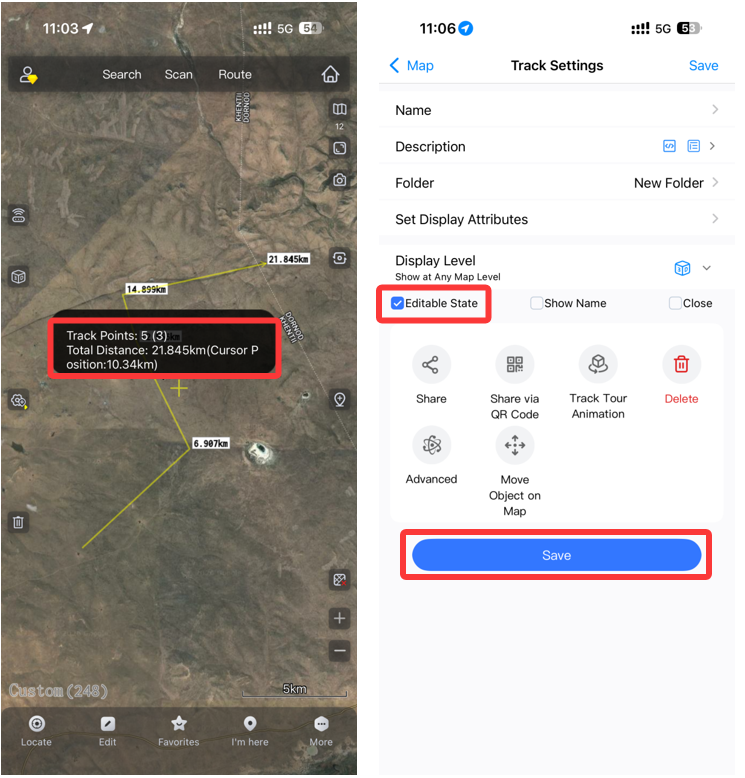
On the map, find the required track, tap on the track, and then tap on the floating window that appears.
In the [Track Settings] dialog box, select [Editable State], and then click [Save].
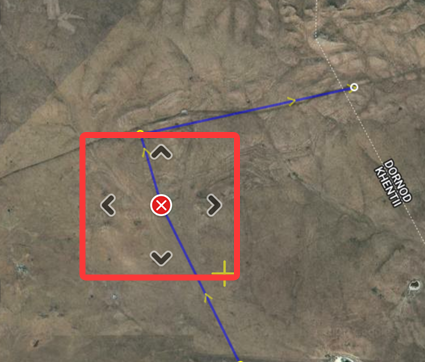
Drag a track point: Tap a track point you want to move, and then hold down the center point of the operation panel to drag. You can also use the up, down, left, and right direction buttons to manipulate.
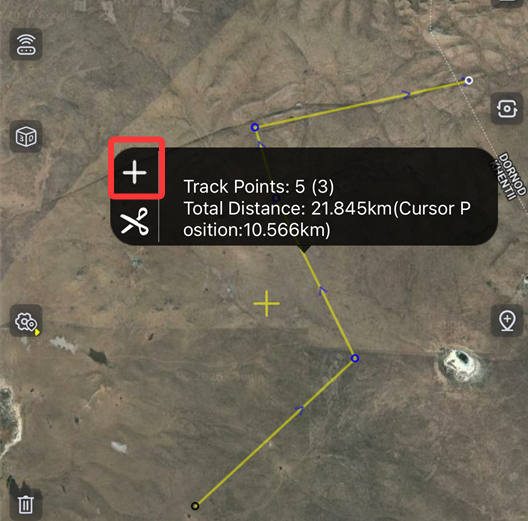
Add a track point: Tap where you want to add a track node on the track, and then tap the  button in the floating window to add a node.
Delete a track point: Tap the track point you want to delete, then tap the center point of the operation panel to delete the track point.
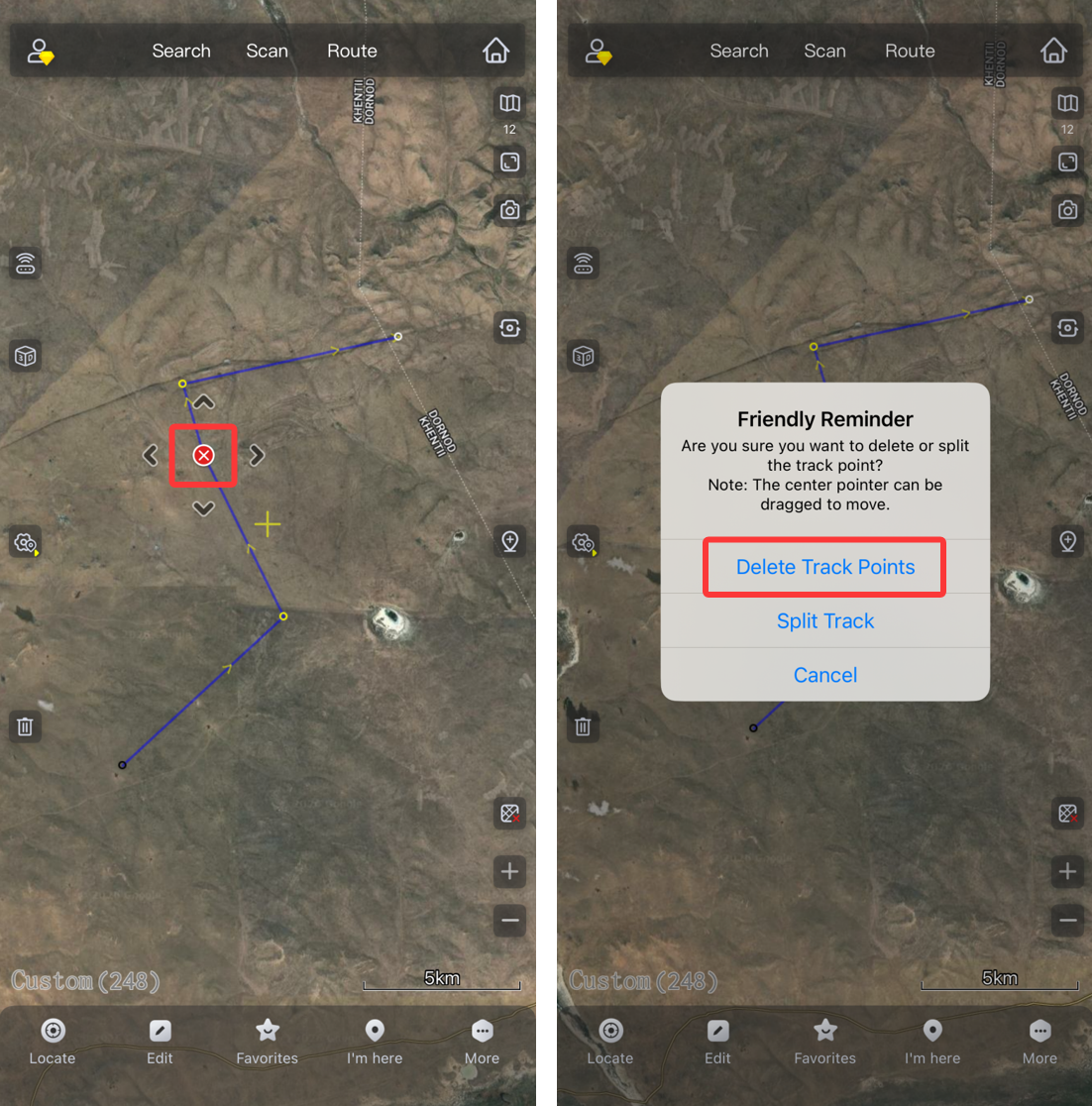
Split a track: Tap the track point by which you want to split the track, and then tap the center point of the operation panel to split.
Note: A track consisting of only two track points cannot be split.
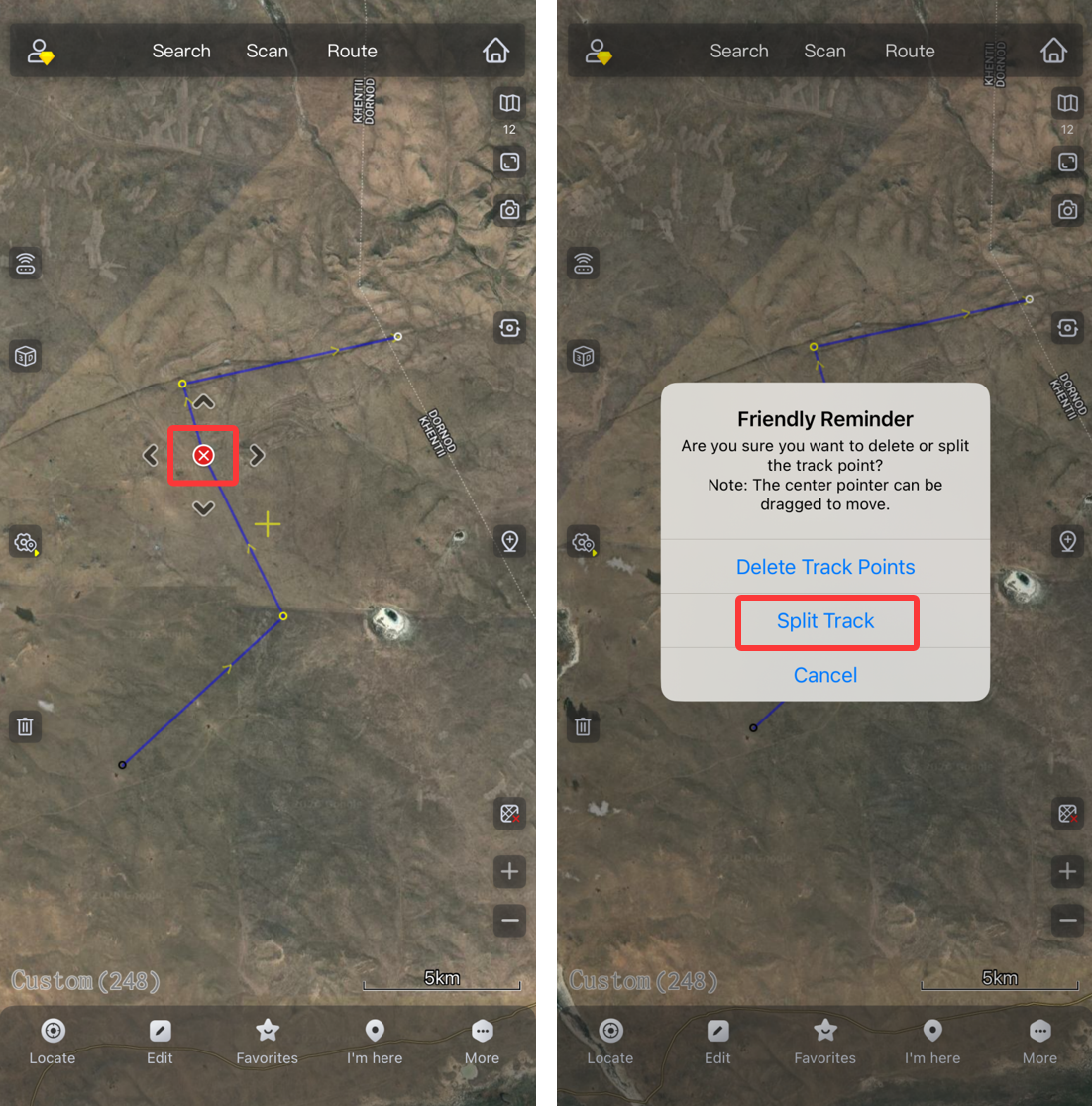
Merge tracks:
(1) Tap the endpoint of the track, hold down the center point of the operation panel to drag it to the endpoint of another track. After the two endpoints are automatically snapped together, the following dialog box appears:
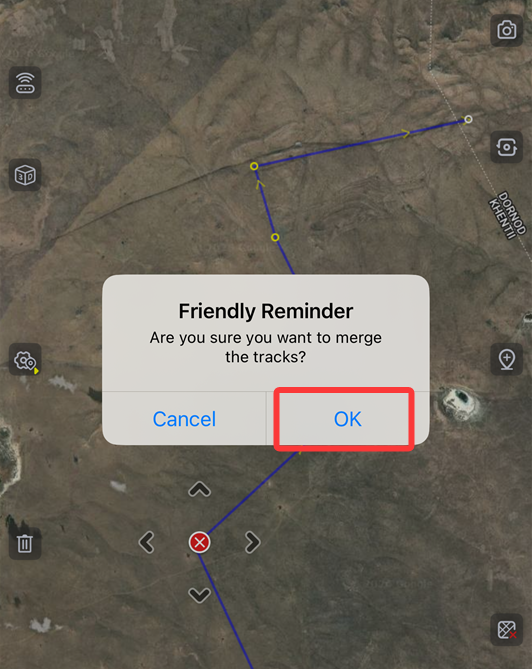
(2) Click [OK]. The two tracks are merged into one track.
Note: You can only use track endpoints for merging. Any track points in the middle cannot be used for this operation.
For more information about advanced track features, see Help on the QubiMap official website.