How to export maps as TPK files and load them in ArcGIS
Categories Custom Maps
QubiMap supports exporting maps as TPK files, which can be loaded in ArcGIS. The exported maps contain spatial reference systems and can be correctly overlaid with vector data of geographic and planar coordinates for display.
Note: This feature is only available to SVIP users.
Procedure
Find your shape in the favorites or draw a rectangular or polygonal area on the map.

Download the map data of this area. For more information, see the help document “How to download map data“.
In the [Shape Settings] dialog box, click [Advanced].

In the [Advanced Shape Features] list, click [Export as Image]. In the dialog box that appears, set the map level, and click [Save as TPK].
Note: the higher the map level, the clearer the map. Set this parameter to the level of the map data that is downloaded.

Select a storage path, enter a file name, and click [Save].

Click [Start] to start exporting.

After exporting, you can view the TPK file in the specified directory.

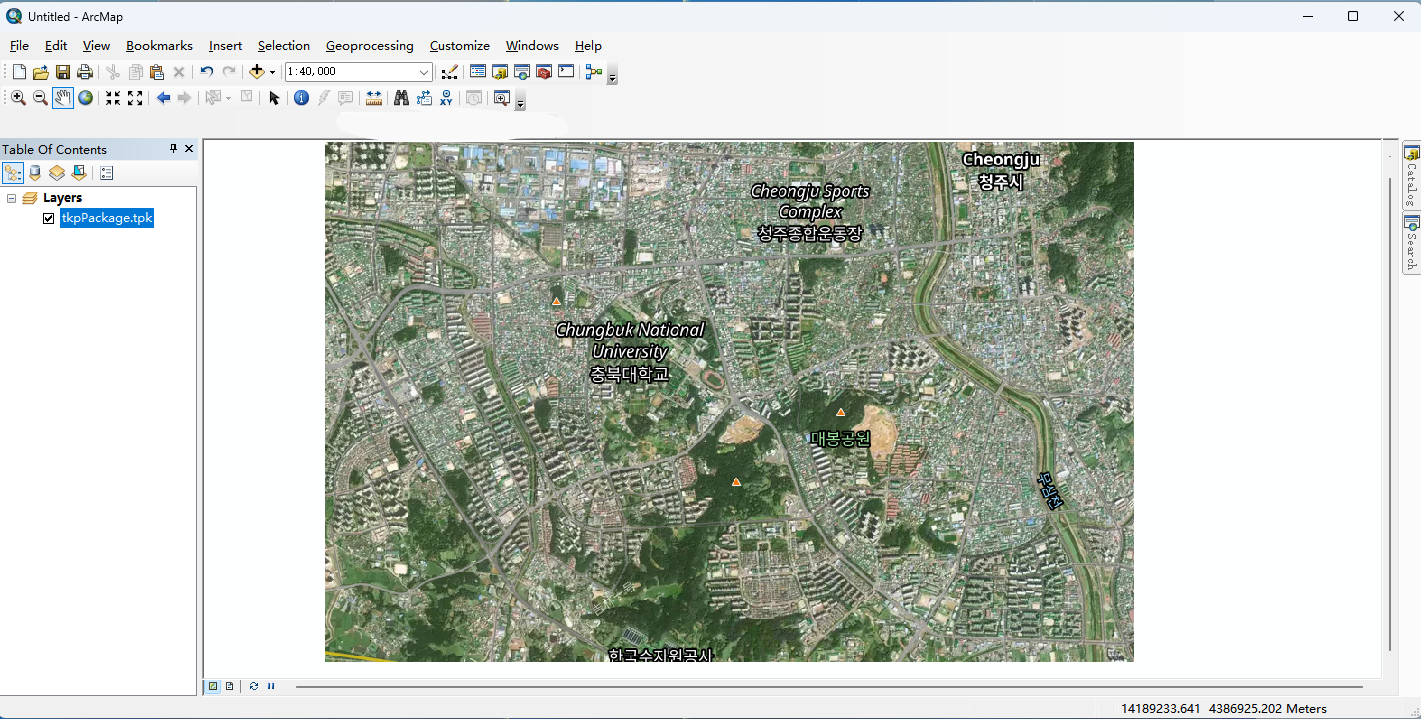
Drag the TPK file to the ArcMap interface for loading and display.
The map data is tiered. The higher the level, the more detailed the geographic features.
In ArcMap, you can use the mouse wheel to zoom in and out on the map.
If you further need to load vector data from QubiMap, export it separately. For more information, see the help document “How to export QuiMap objects as SHP (ArcGIS) files“.
Then, you can load and view the vector data in ArcMap, as shown in the following figure:
