How to access the Web tile service
Categories Map Downloading
This article describes how to access the QubiMap Web tile service on your PC and mobile device.
1. Enable the tile service
On the QubiMap PC client, you need to first download the required map data, and then enable the HTTP tile service. For more information, see the help document “How to enable the Web tile service in QubiMap“.
2. Access the Web tile service on your PC
In QubiMap, choose [Custom Maps] > [Custom Map Management]. Click [Add] and select [Add Custom Map]. In the dialog box that appears, set the parameters as needed.

Map ID: the unique ID number assigned to the custom map, ranging from 200 to 999. The map ID cannot be repeated.
Map Name: the name of the map displayed in the custom map list.
Version Number: optional.
Max Level: the highest display level of the tile data, such as 20.
Projection Type: the projection type of the tile data.
Image Type: Select [Imagery] for satellite imagery, and [Ordinary Map] for vector maps.
Image Format: Select [PNG] or [JPG] as needed.
Image Size: Select [256 px] or [512 px] as needed.
Host Name: the IP address of the device where you publish the HTTP tile service.
Port Number: the port number of the HTTP tile service. In this example, enter 7699.
URL: For information about the URL Format, see the help document “How to enable the Web tile service in QubiMap“. Enter only the part after the port number. The image format (.jpg or .png) contained in the URL must correspond to the [Image Format] parameter.
URL example:
/getomap_202_{$z}_{$x}_{$y}_1_0.png
After you set the parameters, click [OK]. The added map is displayed in the custom map list.
On the main UI, click [Custom Maps] and select the added map to view it. The first loading may take time.

3. Access the Web tile service on your mobile device
On the main UI, tap the  button, and tap [Custom Maps] → [Custom Map Management] → [Add].

In the dialog box that appears, set the parameters, and click [OK]. For more information, see the section 2.
In the [Custom Map Management] dialog box, select the added map to view it.
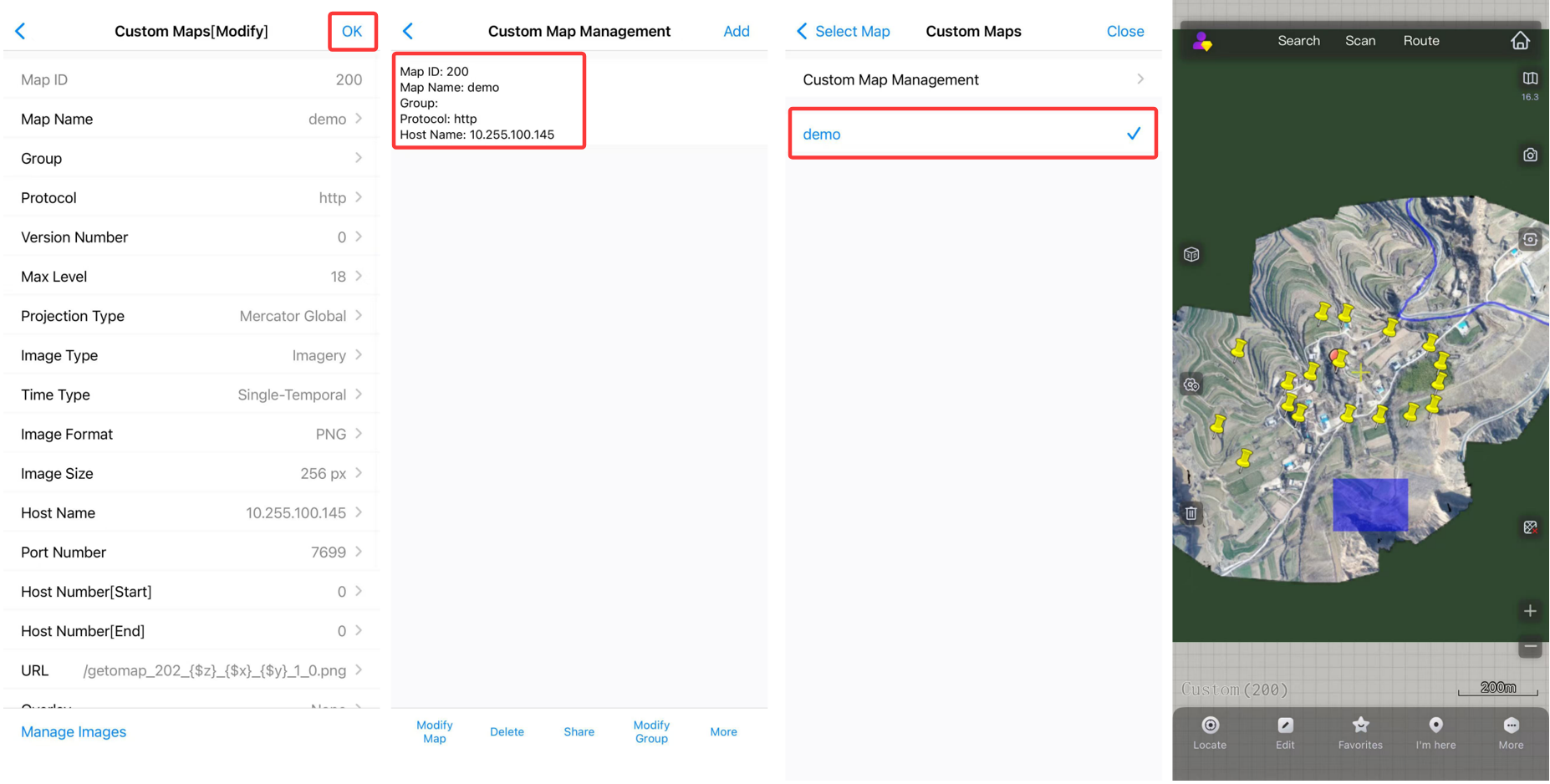
To overlay the map with road networks, you can add a road network layer as an overlay to the custom map.
Road networks may have different projection types. You must select a road network layer with the same projection type as the base map.
Set a overlay onto the custom map:
PC: On the main UI, choose [Custom Maps] > [Custom Map Management]. Select the map layer to which you want to add a road network overlay, and click [Modify Map]. From the [Overlay] drop-down list, select [Use], and click […]. In the [Overlay Settings] dialog box, set the parameters in the [Small Font] or [Large Font] sections based on the font size of the road network layer retrieved. You can also set the both sections regardless of the font size of the overlay.
Mobile device: On the main UI, tap the button, and tap [Custom Maps] → [Custom Map Management]. On the [Custom Map Management] page, select the map layer to which you want to add a road network overlay, and tap [Modify Map]. From the [Overlay] drop-down list, select [Use], and tap [Settings]. On the [Overlay Settings] page, set the parameters in the [Small Font] or [Large Font] sections based on the font size of the road network layer retrieved. You can also set the both sections regardless of the font size of the overlay.