How to copy map data from a Windows PC to an Android mobile device
Categories Map Downloading
This article describes how to copy map data from your Windows PC to your Android device (mobile phone or tablet).
To perform this operation, you need to download map data first. For more information, see the help documents “How to download map data on a PC” and “How to download map data on a mobile device”.
Procedure:
① Connect your mobile device to your PC by using a data cable. Select [Transfer files] (settings may vary depending on your device model).

② On your PC desktop, right-click the QubiMap icon and select [Open file location]. Then, go to the map folder and copy the downloaded map data.

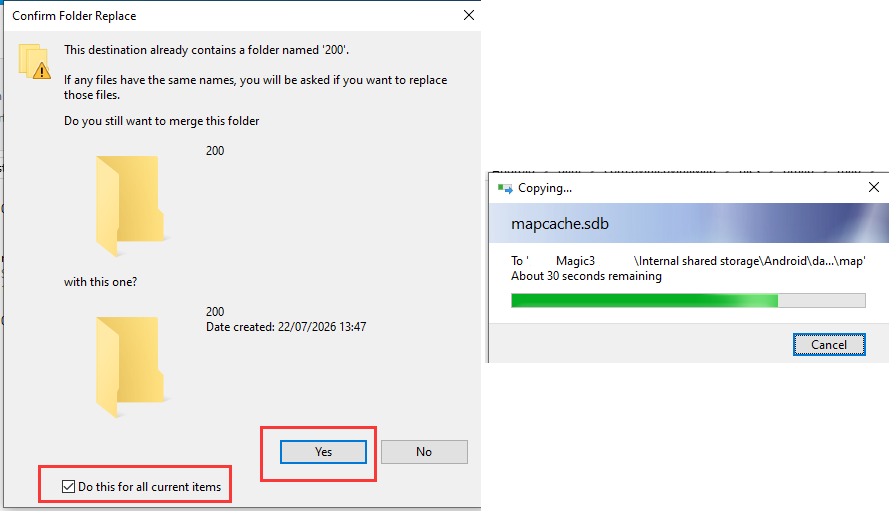
③ Go to the “Android\data\com.qubimap.map\files\omap\map” directory of your mobile device.

Paste the map folder you just copied. If you are prompted with “This destination already contains the * folder”, select [Do this for all current items], and click [Yes]. Wait until the process is completed.