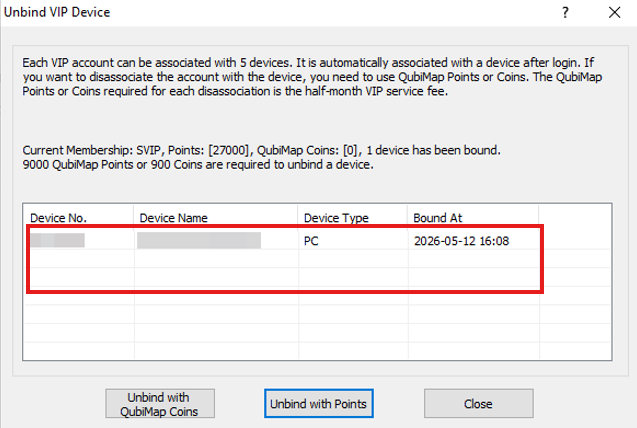
How to unbind VIP devices
Categories VIP Plans
Each VIP user can bind up to 5 devices (binding occurs once you log in to QubiMap on a device). Devices bound to a VIP account are granted the corresponding functions and permissions (even without login or Internet connection). You can view the device binding information in [VIP Management].
(1) Mobile device: Click [More], and then click [VIP Management]. On the [VIP Management] page, you can view the device information such as device code and serial number.
(2) PC: Choose [Help] > [VIP management] in the menu bar, or click the VIP button in the toolbar. In the [VIP Management] dialog box, you can view the device information such as device code and serial number.
What if a VIP user has already bound 5 devices and needs to bind other devices? What if some of the bound devices are no longer needed?
You can solve these problems by unbinding devices. The following two methods are available: unbind devices with QubiMap coins and unbind devices with points. The procedure is described as follows:
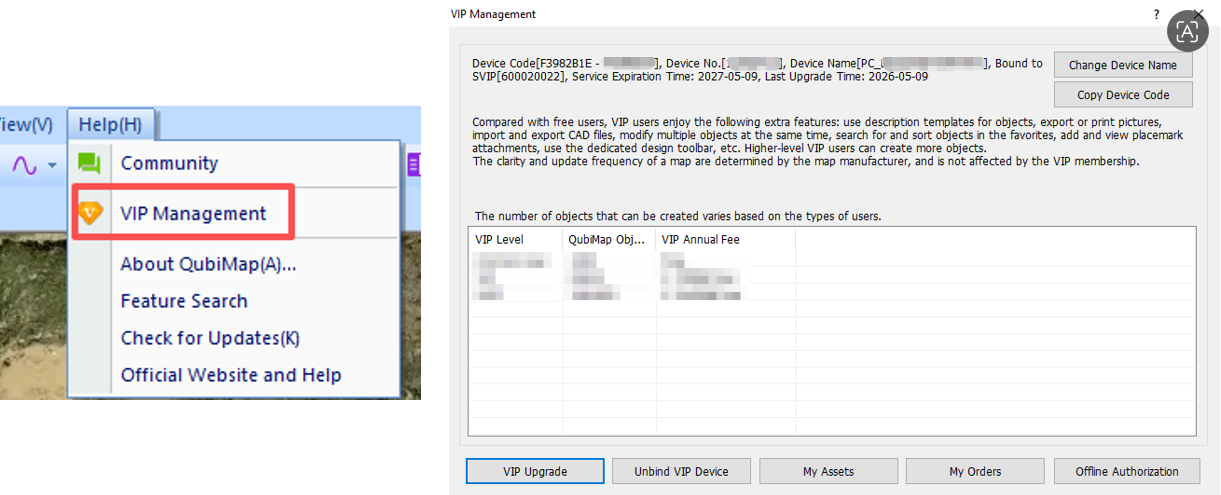
1. Go to the [VIP Management] dialog box
On the main UI of the PC client, choose [Help] > [VIP management].
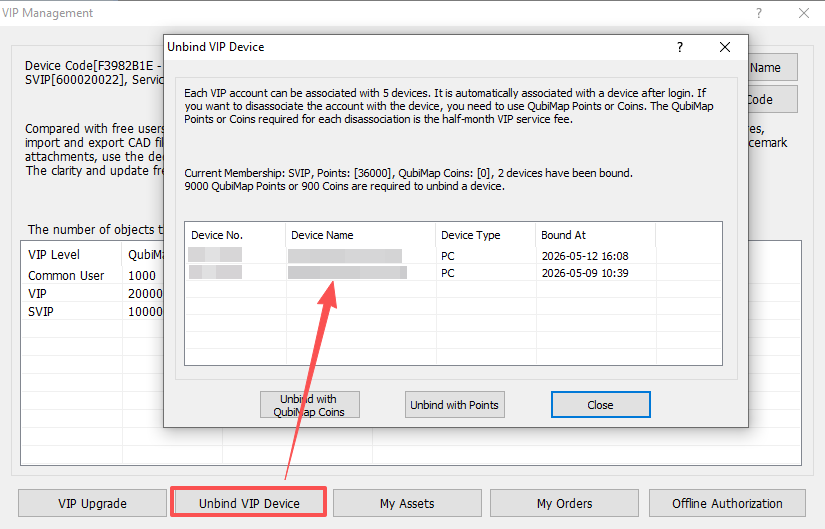
2. Go to the [Unbind VIP Device] dialog box
In the [VIP Management] dialog box, click [Unbind VIP Device]. In the [Unbind VIP Device] dialog box, you can view all the devices that are associated with your VIP account.
3. Unbind devices with QubiMap coins or points
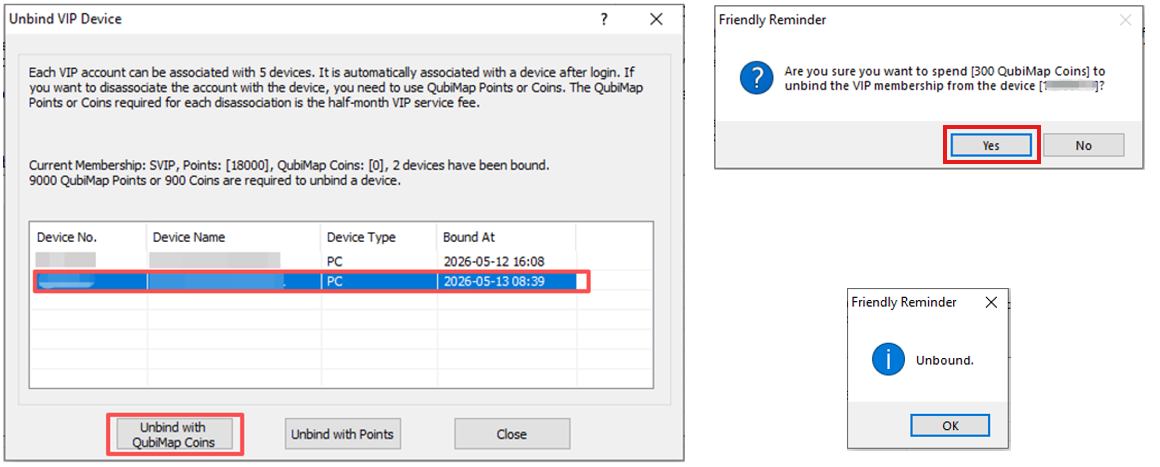
(1) Unbind with QubiMap coins
Select the device you want to unbind, click [Unbind with QubiMap Coins]. In the message that appears, click [Yes].
(2) Unbind with points
Select the device you want to unbind, click [Unbind with Points]. In the message that appears, click [Yes].
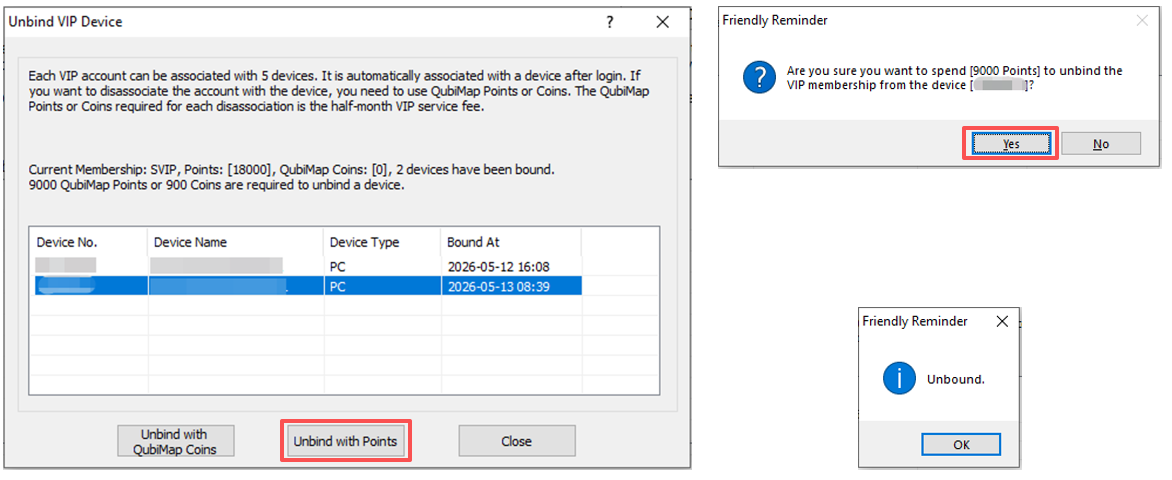
After unbinding, the device is no longer displayed in the device list.